Detail View
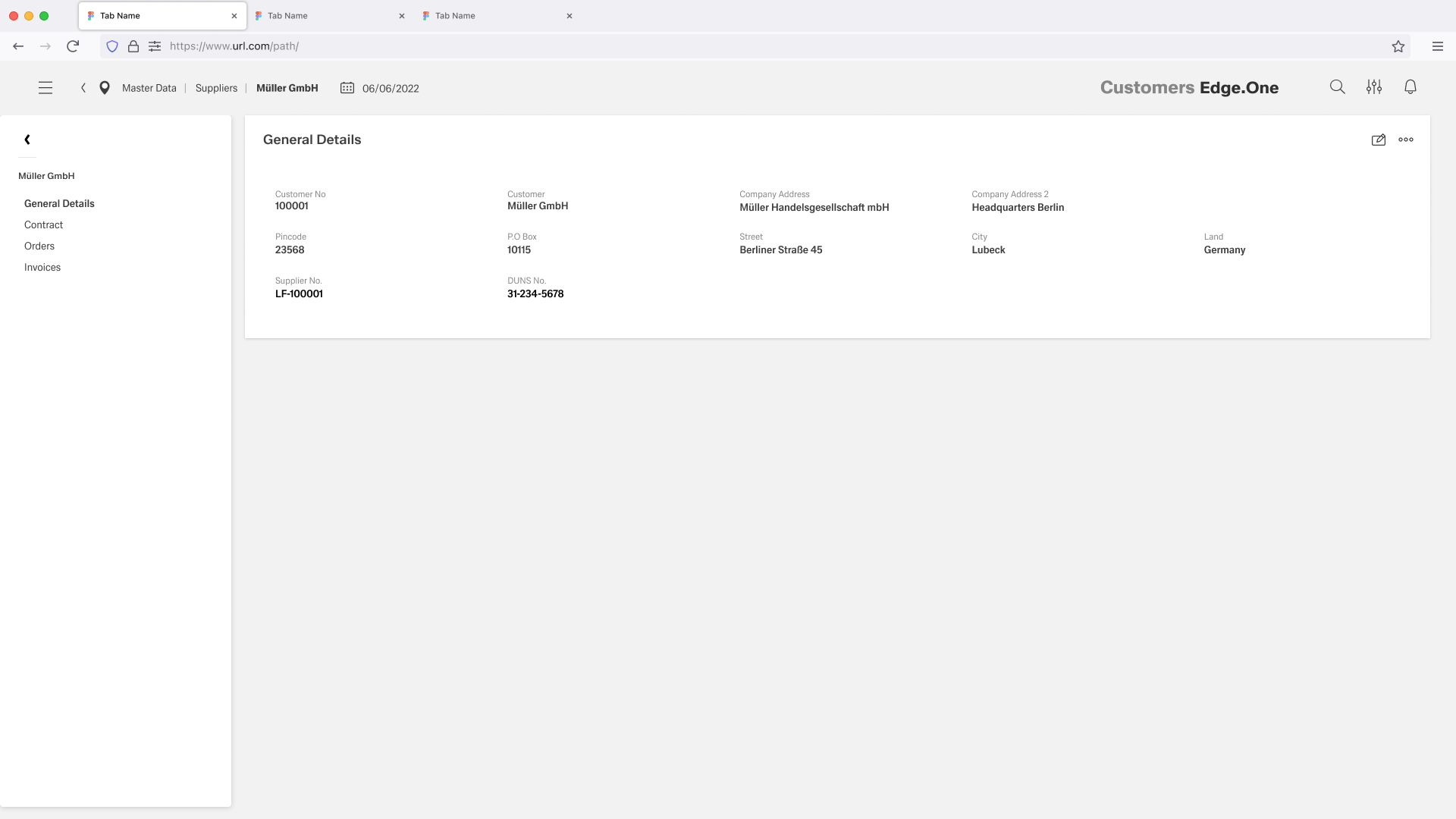
The Detail View layout displays complete information for a selected record in a structured, read-only format. It supports quick scanning of key data while allowing users to navigate across related sections and update information when required.
Usage
When to Use
- Use this pattern when users need a comprehensive view of a single record with clearly organized information.
- It is particularly effective for master data scenarios such as customer, supplier, or entity profiles, where users frequently switch between related sections like general details, orders, or invoices.
When Not to Use
- This pattern should not be used when users need to perform continuous or bulk editing.
- It is also not suitable for comparing multiple records side by side or for workflows that require inline, real-time editing across many fields.
Anatomy
The layout is composed of the following regions:
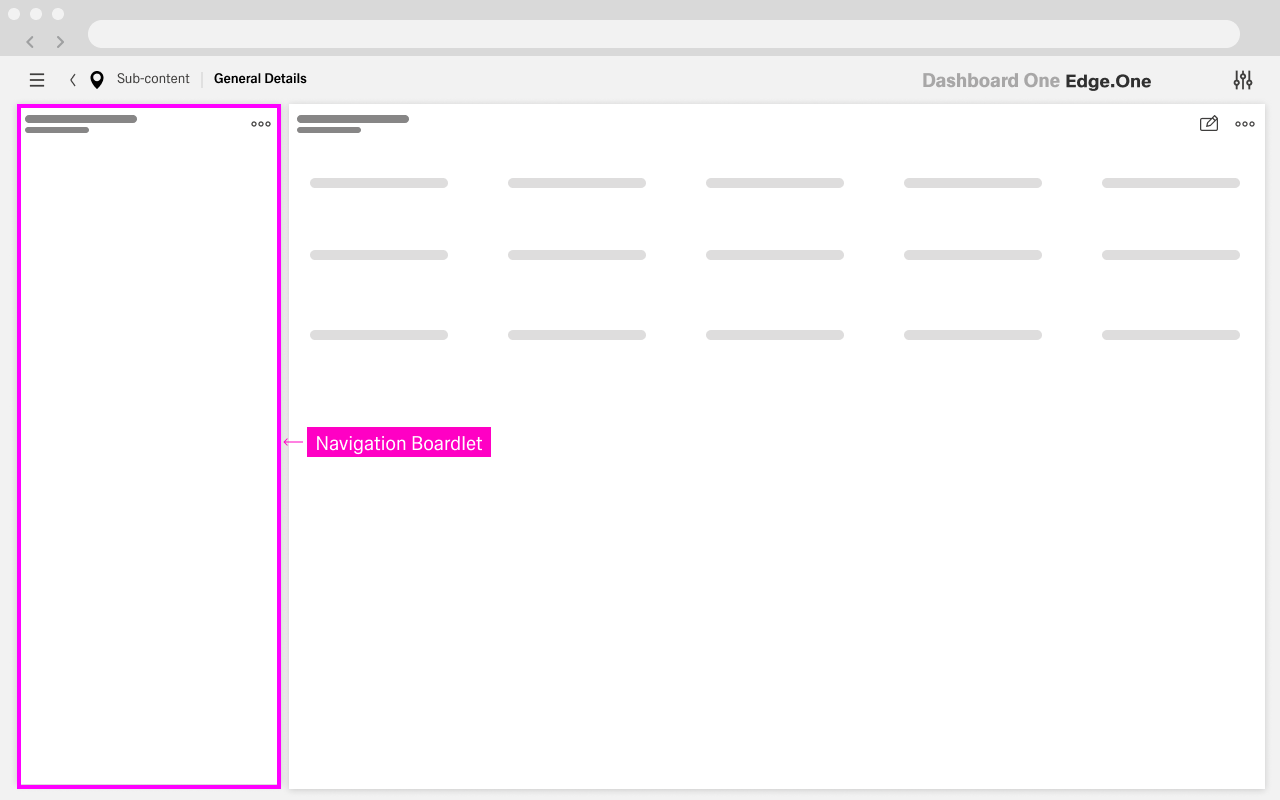
Navigation Panel
The left navigation panel lists all available sections related to the selected entity, such as General Details, Contracts, Orders, or Invoices. It allows users to switch between sections without losing context.
The panel establishes the structural hierarchy of the page and acts as the primary navigation within the detail view. For more information, please visit here.
Content Area
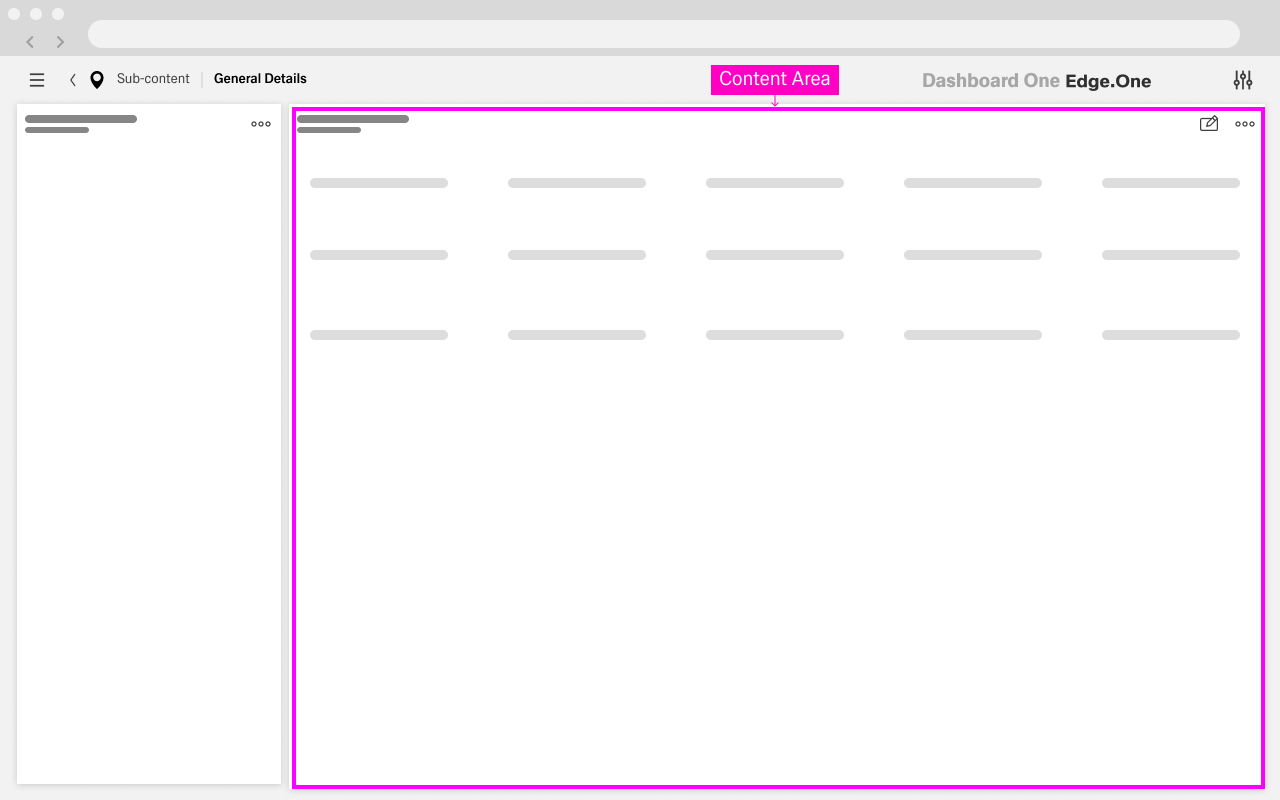
The content area displays the information for the currently selected section. Data is presented in grouped fields using label–value pairs, often arranged in one or multiple columns for readability.
The structure emphasizes clarity and scannability rather than interaction. Contextual actions (Top Right), typically located at the top right, contains contextual actions such as Edit and secondary options in an overflow menu. These actions apply to the currently viewed section and provide a clear entry point for modifying data without cluttering the main content.
Behavior
The layout prioritizes stability and clarity, allowing users to explore information without unintended changes.
Default State
When the page loads, all information is presented in a read-only format. The first section (commonly General Details) is selected by default, and no editable controls are visible. This ensures that users can focus on understanding the data before taking any action.
Edit Flow
- The user clicks the Edit action in the action bar.
- A modal dialog opens, overlaying the current view.
- The dialog is pre-filled with the current values of the selected section.
This approach separates viewing from editing, reducing the risk of accidental changes.
Validation is applied at the field level within the dialog. Errors are displayed inline near the edited field and must be resolved before changes can be saved. This ensures data integrity while keeping feedback localized and clear.
Save
The user clicks Save. Afterwards, the system validates all inputs.
If validation succeeds:
- Changes are persisted
- The dialog closes
- Updated values are reflected in the detail view
If validation fails: - Errors are highlighted
- The dialog remains open for correction
After saving, the user remains in the same section, and updated data is visible immediately without a page refresh. Section selection and scroll position are maintained to preserve continuity.
Cancel Flow
The user clicks Cancel or closes the dialog. All unsaved changes are discarded and thhe user returns to the unchanged read-only view.
Guidelines
Content Structure
Information should be grouped logically to improve readability and scanning. Each field should consist of a clear label and corresponding value. Multi-column layouts can be used to optimize space, but clarity should always take priority over density.
Interaction Design
The read-only nature of the layout should be clearly communicated through the absence of input controls. Editing should always be initiated through a single, consistent entry point such as the Edit action.
Organization of Sections
Sections in the left navigation panel should represent distinct categories of information. The number of sections should be kept manageable to avoid overwhelming users and to maintain efficient navigation.
Best Practices
- Keep section names concise and meaningful.
- Maintain consistent alignment and spacing of fields.
- Use dialog-based editing to protect against accidental changes.
- Ensure that the layout remains stable during navigation.
Variants
Section-Based Detail View
This is the standard variant where multiple sections are accessible through the left navigation panel. Each section updates the content area independently while preserving the overall layout. This variant is ideal for complex entities with multiple categories of related information.
Dialog-Based Editing
In this variant, editing is fully separated from viewing through modal dialogs. Users remain in the detail view while making changes, ensuring that context is preserved. This approach reduces the likelihood of accidental edits and keeps the main interface clean and focused.
Extended Detail View with Inline Actions
In more advanced scenarios, limited inline actions (such as quick links or row-level actions in tables) may be introduced within sections. These should be used sparingly to enhance usability without compromising the read-only nature of the layout.