Extended Detail View
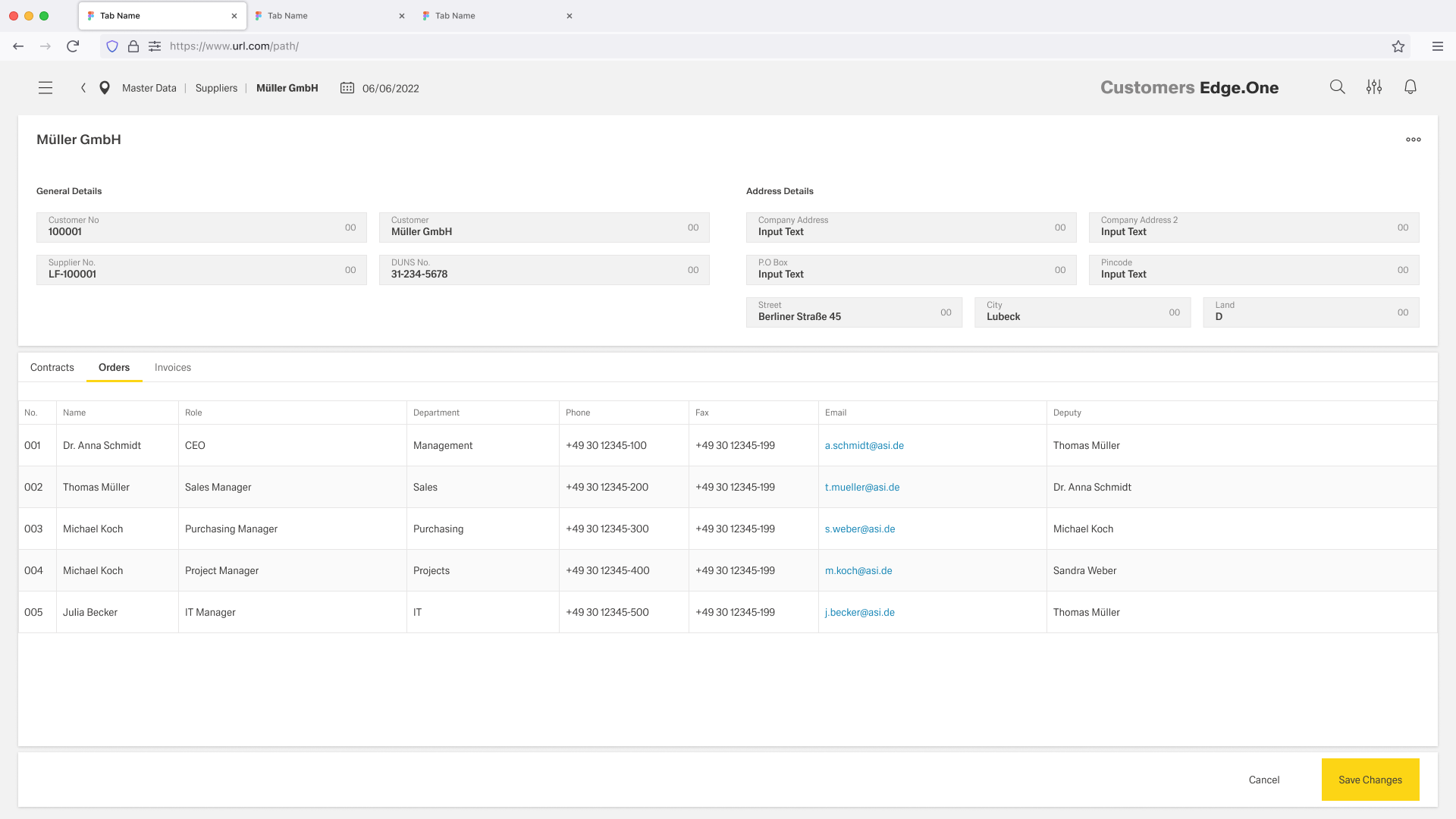
The Extended Detail View layout enables users to view and edit key information of a selected record directly within the page. It combines an editable general information section with switchable sub-sections, allowing efficient data management without leaving context.
Usage
When to Use
- Use this pattern when users need to quickly update primary information while still having access to related data.
- It is especially effective in workflows where general details are frequently edited and users need to move between associated sections such as orders, contracts, or invoices.
When Not to Use
- This pattern is not suitable for read-only scenarios or audit-focused views.
- It should also be avoided in workflows that require strict step-by-step processes or highly complex forms that demand full-page focus, such as multi-step wizards.
Anatomy
The layout is composed of the following regions:
General Details Section
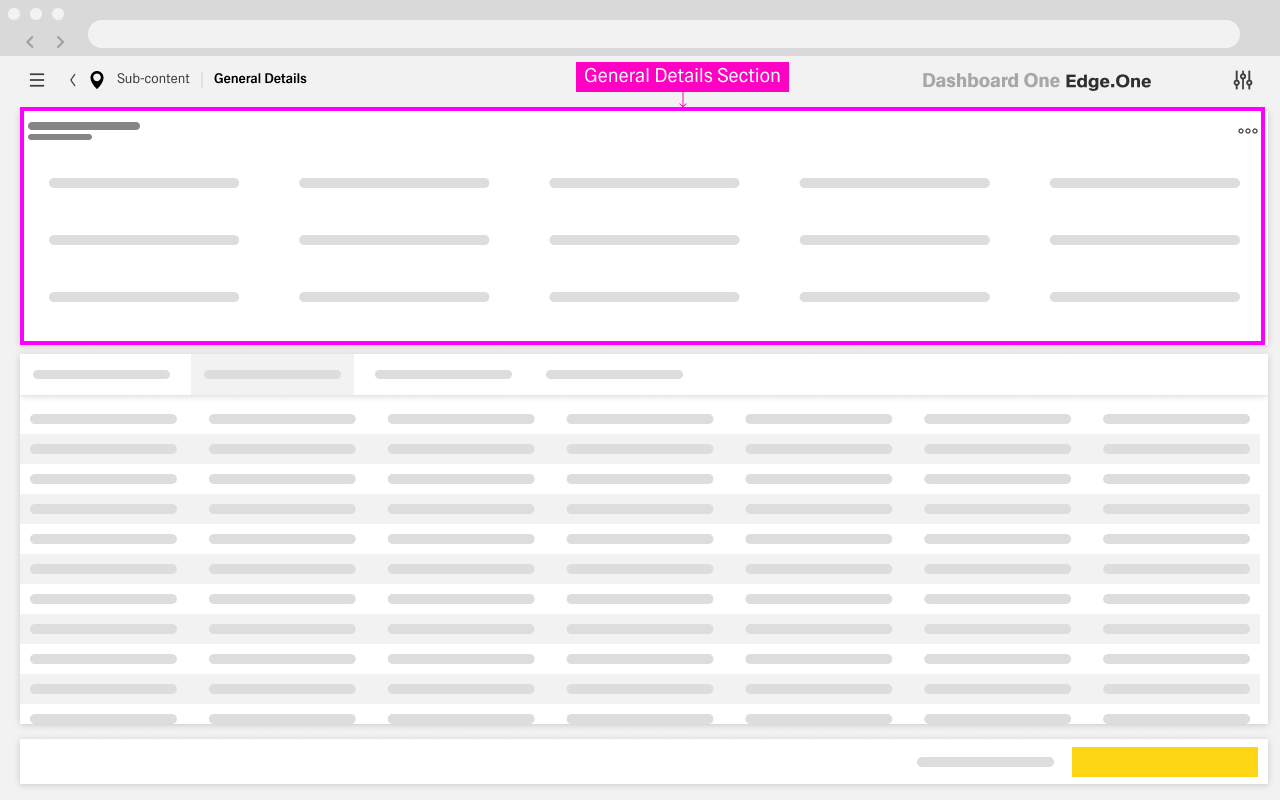
Directly below the header, the general details section contains the most important information about the entity. Unlike a traditional detail view, this section is fully editable by default. Fields are presented as input controls such as text fields and dropdowns, and are grouped logically (for example, identifiers, basic information, or address details). This section serves as the primary workspace for editing and is always visible, even when users interact with other parts of the page.
Content Switch with Sub Details
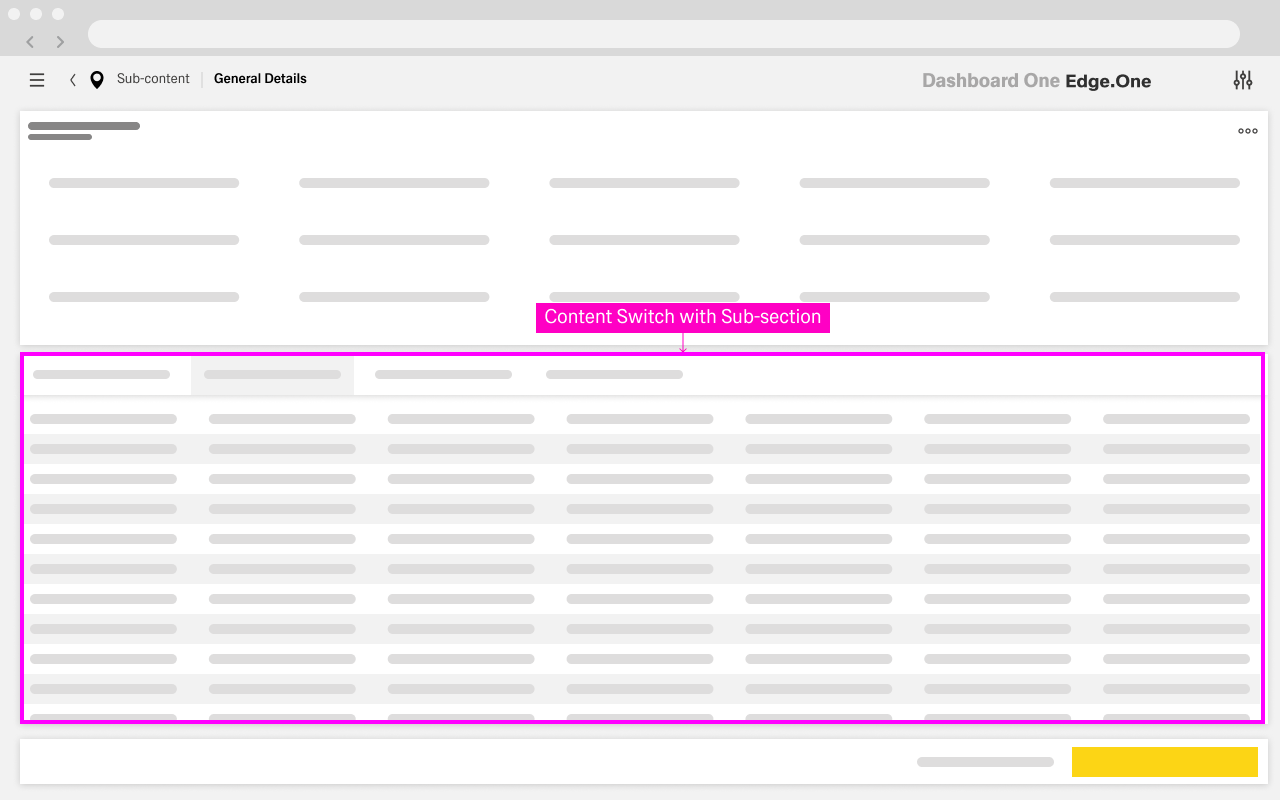
Below the general details section, a content switch component allows users to navigate between different sub-sections. These sections represent related datasets such as contracts, orders, or invoices. The content switch acts as a lightweight navigation mechanism that updates the content area without disrupting the overall page structure or the state of the general details section.
The sub-detail content area displays the selected section from the content switch. Depending on the context, it may contain tables, lists, or additional forms. The content updates dynamically when users switch sections, while the rest of the layout remains unchanged.
Action Bar
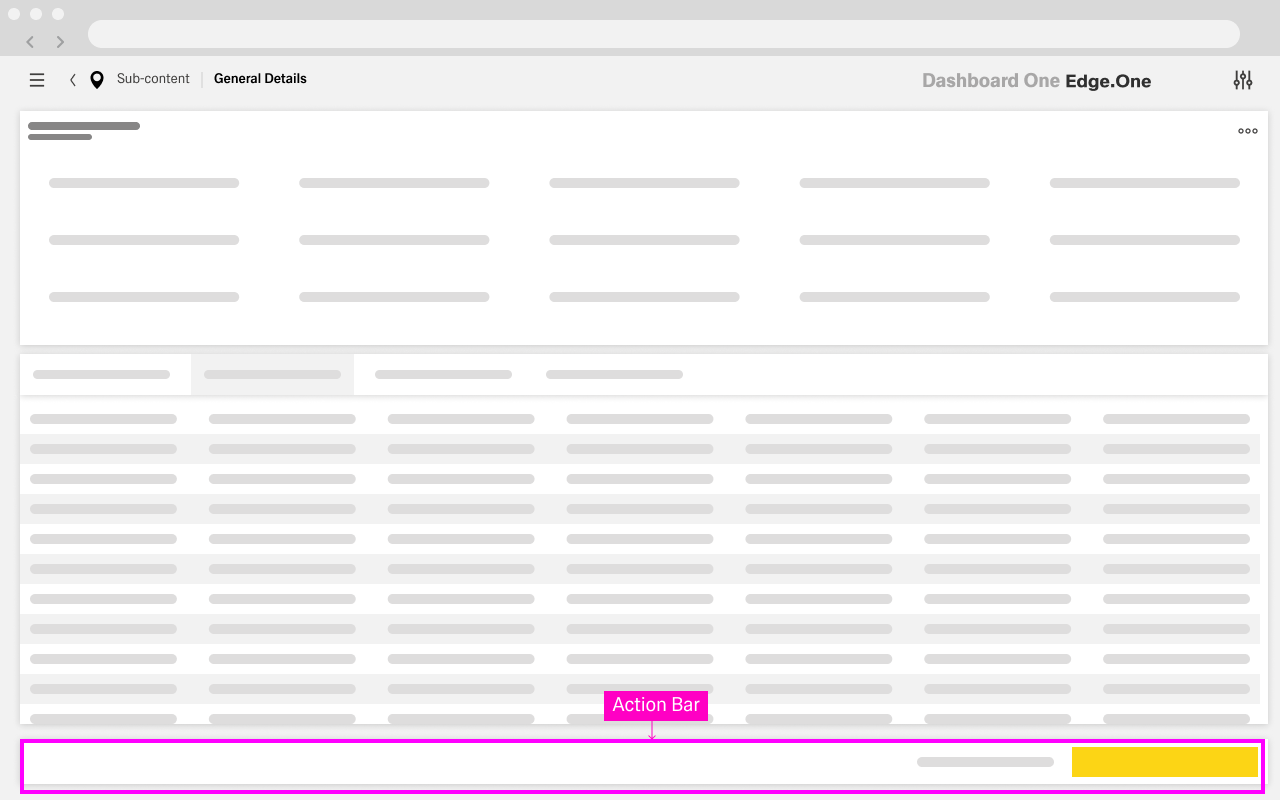
The action bar provides primary and secondary actions such as Save Changes and Cancel. It is typically positioned at the bottom of the page or in a fixed location to ensure visibility. The actions apply to the editable content, particularly the general details section, and give users clear control over committing or discarding changes.
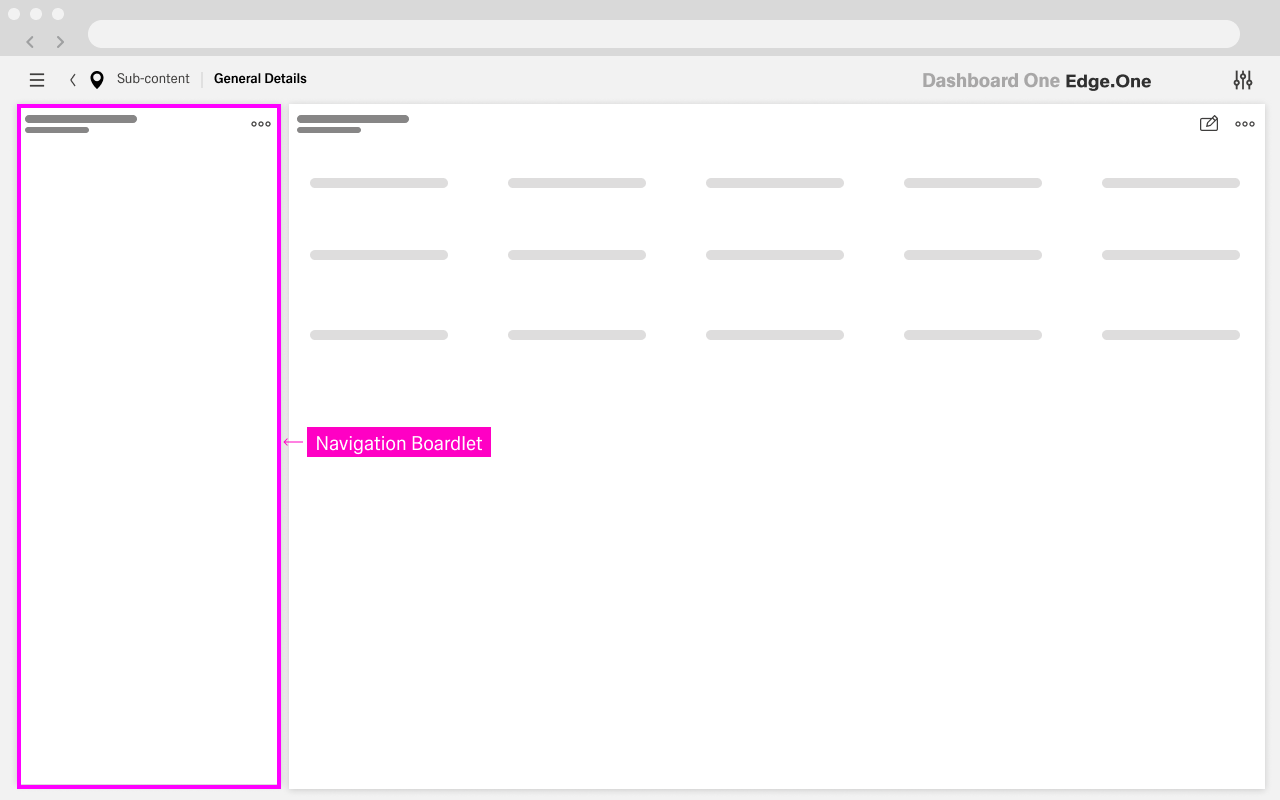
Optional: Navigation Panel
The left navigation panel lists all available sections related to the selected entity, such as General Details, Contracts, Orders, or Invoices. It allows users to switch between sections without losing context.
The panel establishes the structural hierarchy of the page and acts as the primary navigation within the detail view. For more information, please visit here.
Behavior
The page is designed to support continuous editing while maintaining stability across navigation.
Default State
When the page loads, the general details section is already in an editable state, allowing users to begin making changes immediately. At the same time, the first sub-section is selected by default in the content switch, providing immediate access to related information.
Editing and Input Handling
Users can interact with input fields in the general details section at any time. Changes are stored locally and are not persisted until the user explicitly saves them. Validation is applied at the field level, ensuring that required fields and format constraints are respected.
Save Flow
The user clicks Save Changes. The system validates all inputs.
If validation succeeds:
- Changes are persisted
- Updated values are reflected immediately
If validation fails:
- Errors are highlighted
- The user remains on the page to correct them
The layout maintains continuity during interaction. Section selection remains unchanged when users save data, and any unsaved edits persist while navigating between sections until an explicit action is taken.
Cancel Flow
The user clicks Cancel. All unsaved changes are discarded. Fields revert to their last saved state.
Section Navigation Flow
- The user selects a different section using the content switch.
- The sub-detail content area updates dynamically. The general details section remains unchanged and retains any unsaved input.
This allows users to review or reference related data without interrupting their editing process.
Validation and Feedback
Validation feedback is displayed inline, close to the edited field. Errors prevent the user from saving until they are resolved, ensuring data integrity without breaking the flow.
Guidelines
Content Structure
The general details section should contain only the most essential and frequently edited fields. Fields should be grouped logically and presented with consistent alignment to improve readability. Overloading this section with too many inputs should be avoided.
Interaction Design
The editable nature of the layout should be clearly communicated through visible input fields and consistent affordances. The Save action must remain easily accessible at all times to prevent user frustration.
Organization of Sub-Sections
Sub-sections should represent clearly distinct categories of related data. The content switch should not be overloaded with too many options, as this reduces usability and increases cognitive load.
Best Practices
- Prioritize high-frequency fields in the general section.
- Maintain a clear visual hierarchy between general details and sub-details.
- Ensure validation feedback is immediate and easy to understand.
- Keep the layout stable to avoid disorientation during editing.
Variants
Inline Editable Detail View
In this variant, all primary fields in the general details section are always editable, as described in the base pattern. This approach is best suited for scenarios where frequent updates are expected and users benefit from immediate interaction without entering a separate edit mode.
Hybrid Detail View
This variant combines editable and read-only sections. While the general details section remains editable, some sub-sections may be read-only or require separate edit interactions (such as dialogs). This is useful when certain data requires stricter control or validation.
Extended Editable Sections
In more advanced use cases, editing capabilities may extend beyond the general details section into sub-sections. For example, tables within sub-sections may support inline editing or row-level actions. This significantly increases complexity and should be used carefully to avoid overwhelming users.