Master Data Pattern
Master Data Patterns describe how structured business entities such as Suppliers, Parts, Machines, Materials, and Customers are managed inside the system. They take the form of tables and related management screens.
These patterns support:
- Creating and maintaining structured records
- Managing value catalogs (statuses, priorities, types)
- Handling relations between entities
- Bulk data operations
- Administrative control and permissions
Pattern Overview
| Patterns | Use Case |
|---|---|
| Master Data Table | overview of one type of Master Data, for example suppliers, sustomers, sarts, machines, materials, containers |
| Fast Data Entry | quick editing of Mater Data table |
| Import/Export | bulk data-import from ERP, export for backup |
| Detail Page | single detail view of a Master Data table entry with relations |
| Attachments (Optional) | attachments to Master Data entries |
| Catalog Table | managing a catalog, for example statuses, priorities, types, failures, color Settings |
| Catalog Creation | dynamic creation of new catalog types |
| Catalog Mapping (Optional) | relations between catalogs |
| Permissions | roll-based permission management for data |
| Administration | selection of actively managed data entities |
| Navigation | navigation between Master Data and Catalogs |
Masta Data Table
Master Data Tables use the Table View layout to present one type of master data in a structured, scannable format. They are used for entity collections such as suppliers, customers, parts, machines, materials, or containers.
Use this pattern when users need to browse, filter, compare, select, or manage records within a master data set. The table provides a consistent layout for displaying key attributes, supporting quick navigation and efficient record management.
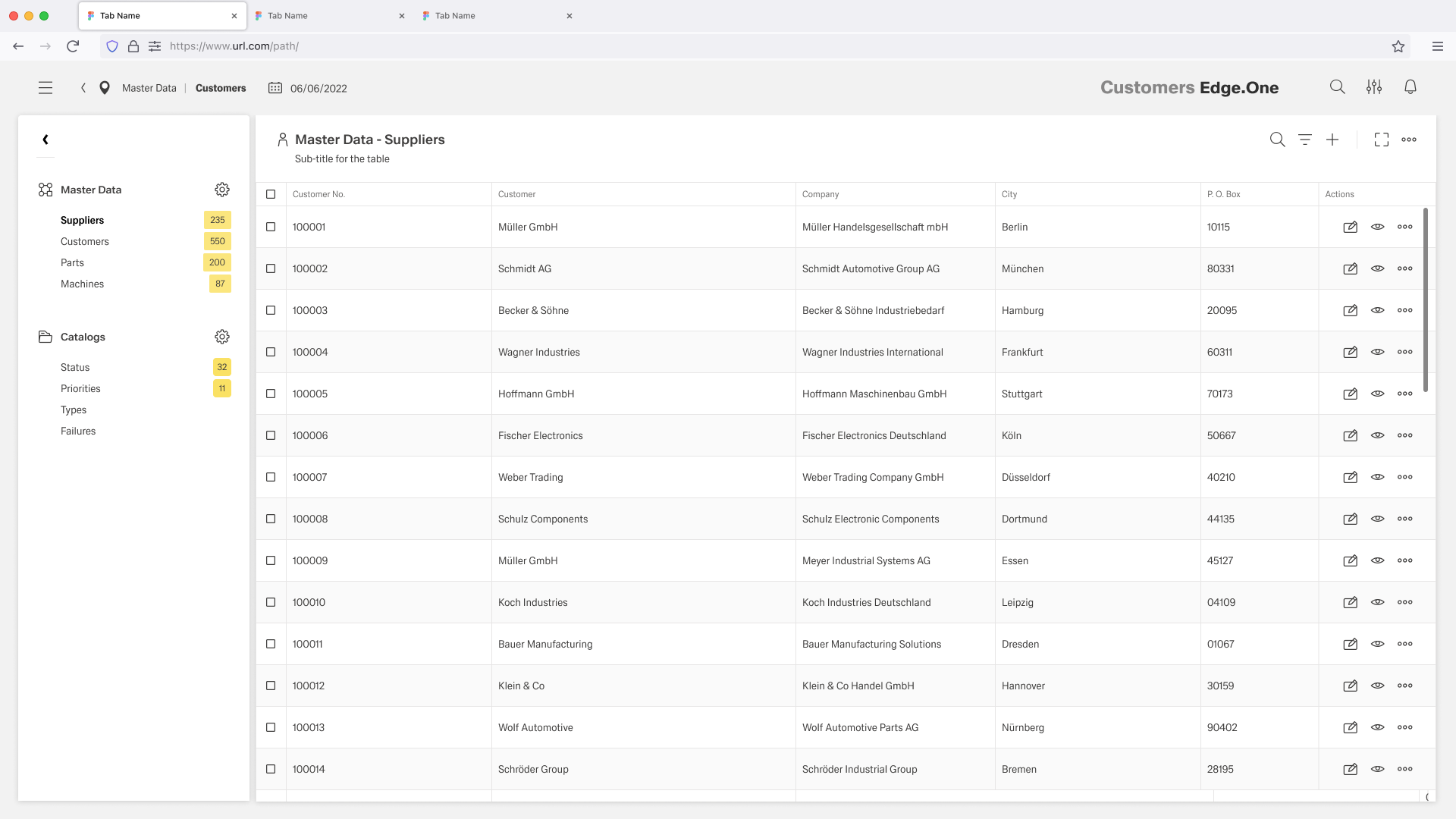
For more information, please referre to the Table View page layout.
Fast Data Entry
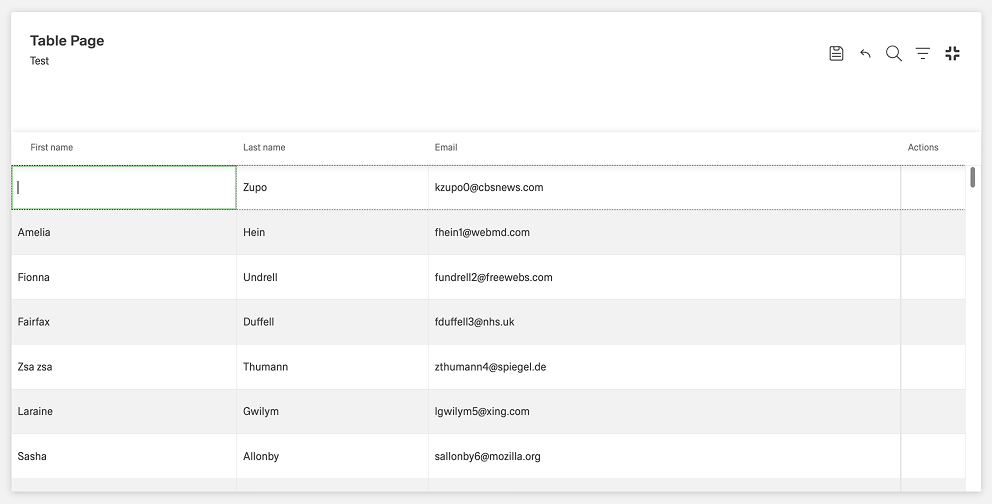
Fast Data Entry is an extension of the Master Data Table.
It is used when users need to enter or edit large amounts of data efficiently without constantly opening dialogs. Instead of editing records in a separate dialog, users can edit values inline directly within the table cells.
Users can navigate between fields using the keyboard, confirm inputs with Enter, and cancel changes with Escape. This supports efficient, high-speed data entry within Master Data Tables.
Import/Export
Import and export actions are used to add new Master Data or export Master Data from the current sheet. These actions are available through buttons in the table header.
Import Master Data
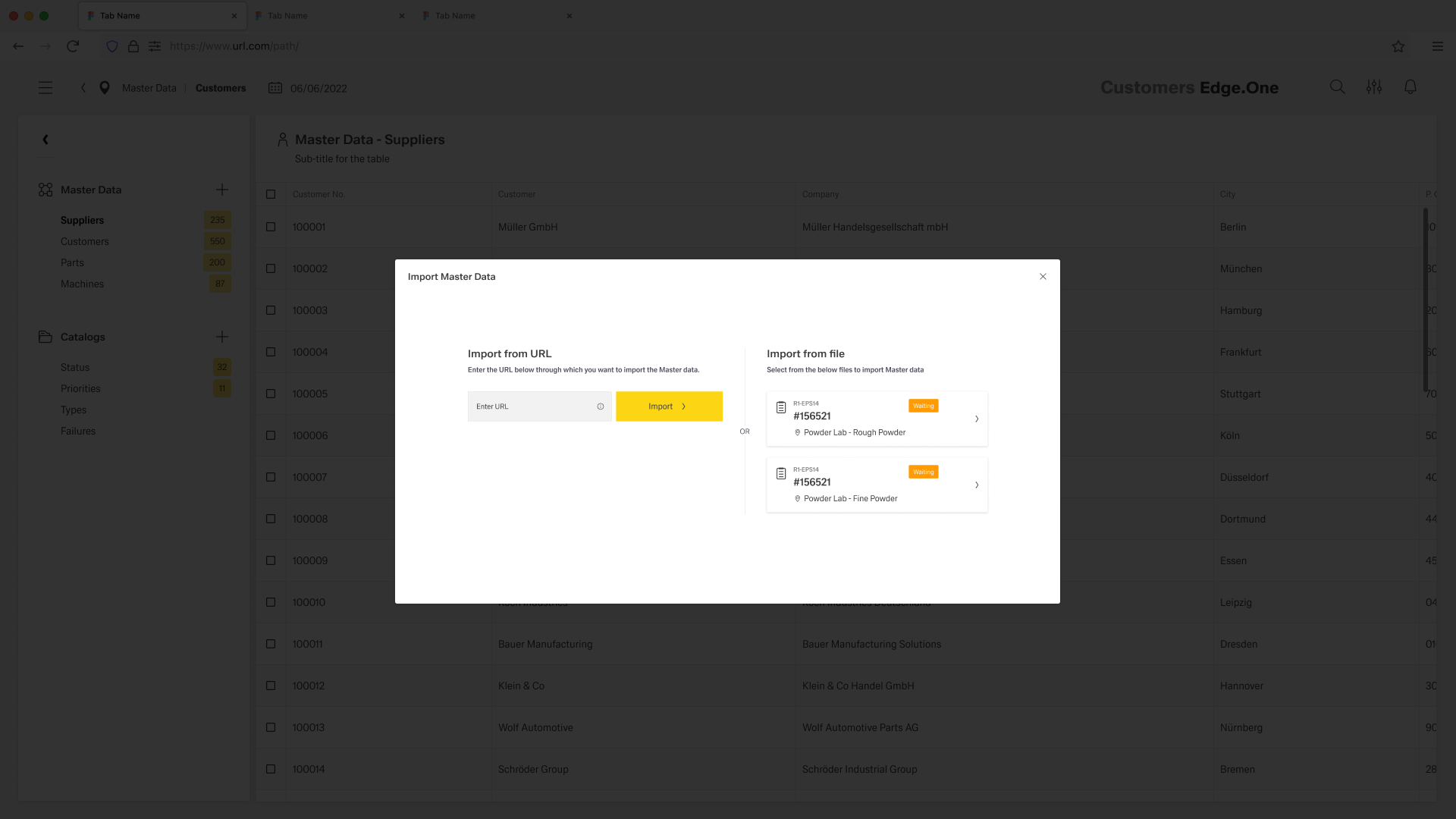
Master Data can be imported through the Add action in the table header. Selecting this action opens a dialog, the import interface.
The import interface allows users to bring Master Data into the system either from a direct URL or by selecting an available file. The interface clearly separates the available import methods and guides users through selecting the source and starting the import process.
Typical capabilities include:
- Importing data from external URLs or integrated services
- Importing data from prepared files or datasets
- Reviewing available import sources
- Triggering batch data ingestion
This pattern is primarily used by administrators or data managers who are responsible for maintaining Master Data integrity across systems.
Export Master Data
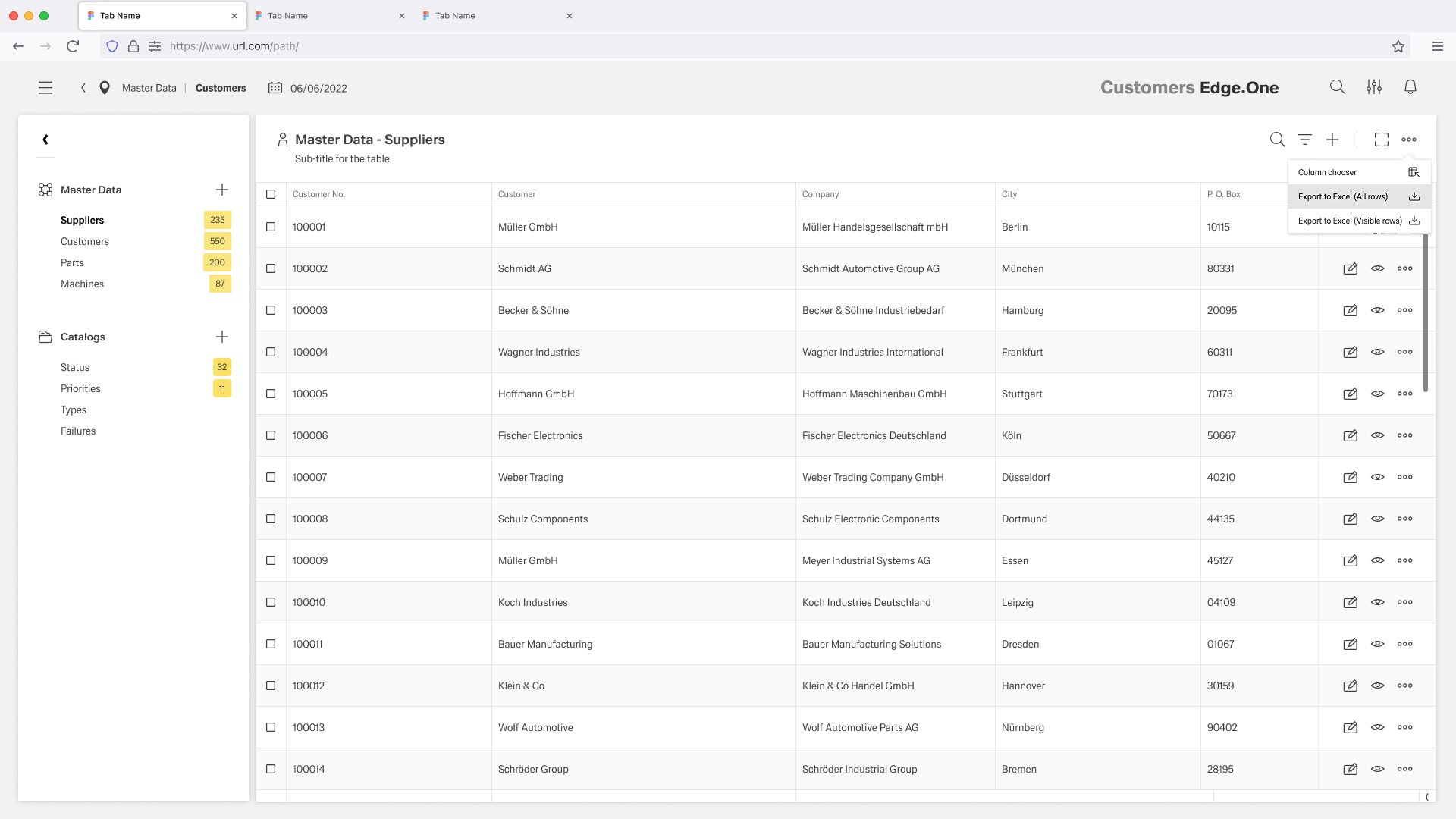
Export functionality is part of the overflow menu in the table header. It allows users to download Master Data records directly from the Master Data Table. Users can export either the complete dataset or only the currently visible filtered records.
Typical capabilities include:
- Exporting all records of a dataset
- Exporting filtered or visible rows
- Exporting data in structured formats such as Excel
This pattern supports data backup, reporting, and integration workflows with external systems.
Detail Page
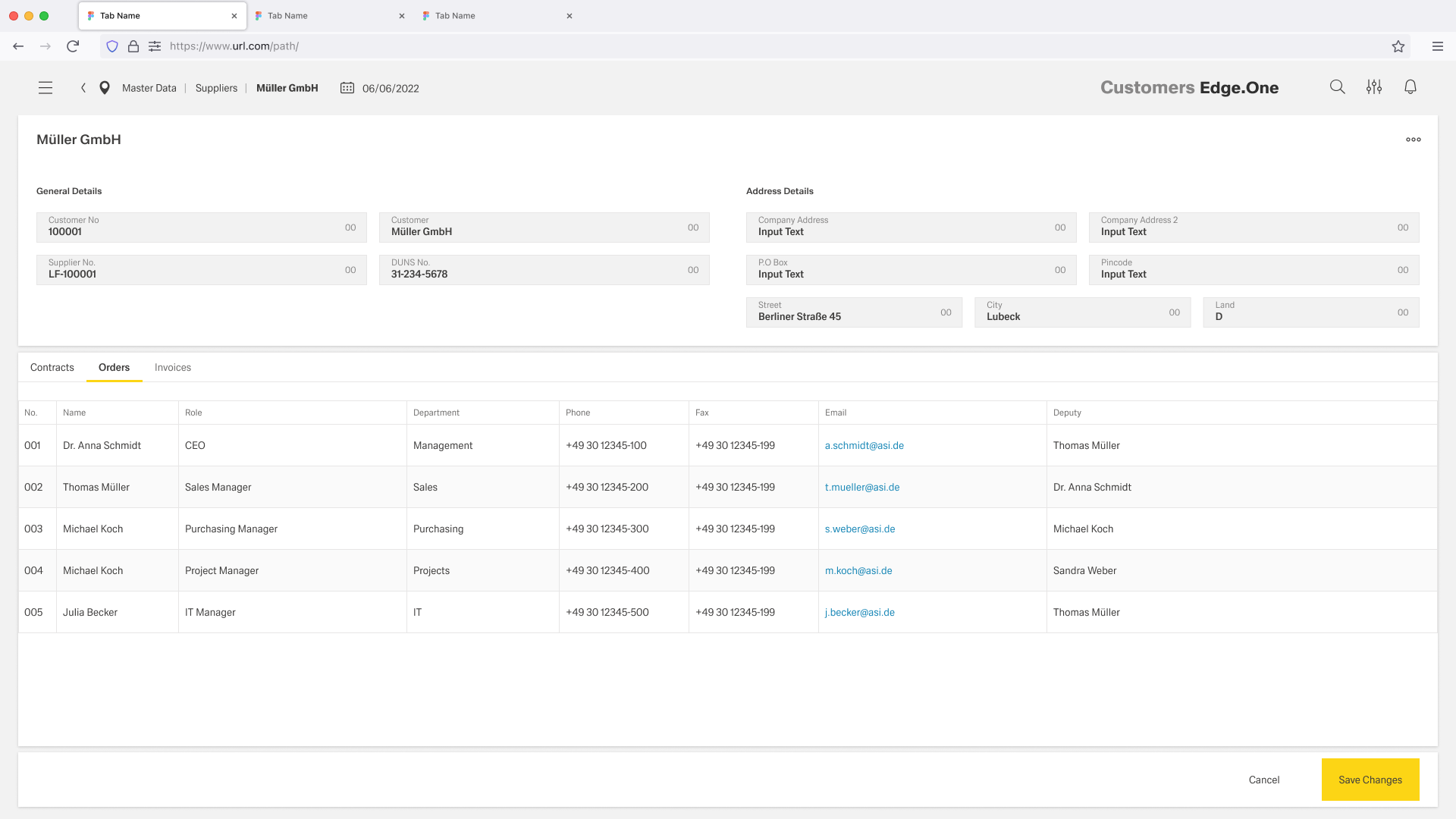
A Master Data Detail Page shows an individual master data entry, such as a specific customer or supplier, together with all related information and relations. Its primary use case is to inspect and maintain a single entry.
The page uses the Table View with Table Metadata and Footerbar Actions. The mata data includes information such as general details or an address. The footerbar action lincle "Cancel" and "Save Changes", the latter being disabled when no changes are made.
In addition to the standard table page layout, a detail page contains multiple tables used for different tables of master data details. These tables are placed into tabs instead of being shown as a single table. Example master data details include but are not limited to suppliers, customers, parts, or machines.
For more information, please referre to the Table View page layout.
Optional: Attachments
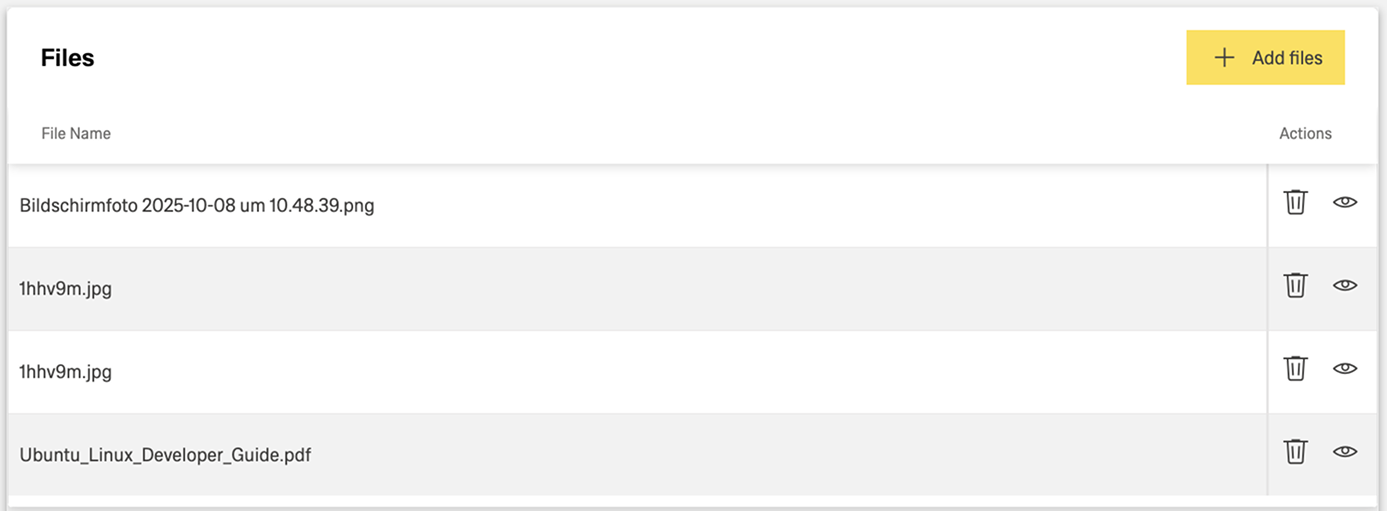
The Attachments section is used to link relevant documents, images, or files directly with the master data entry.
Attachments are managed in a dedicated tab within the Detail Page tables. The tab displays all related files in a structured table.
Users can upload new files through an add action. Where available, common file formats such as images and PDFs can be previewed directly from the attachments table.
Catalog Table
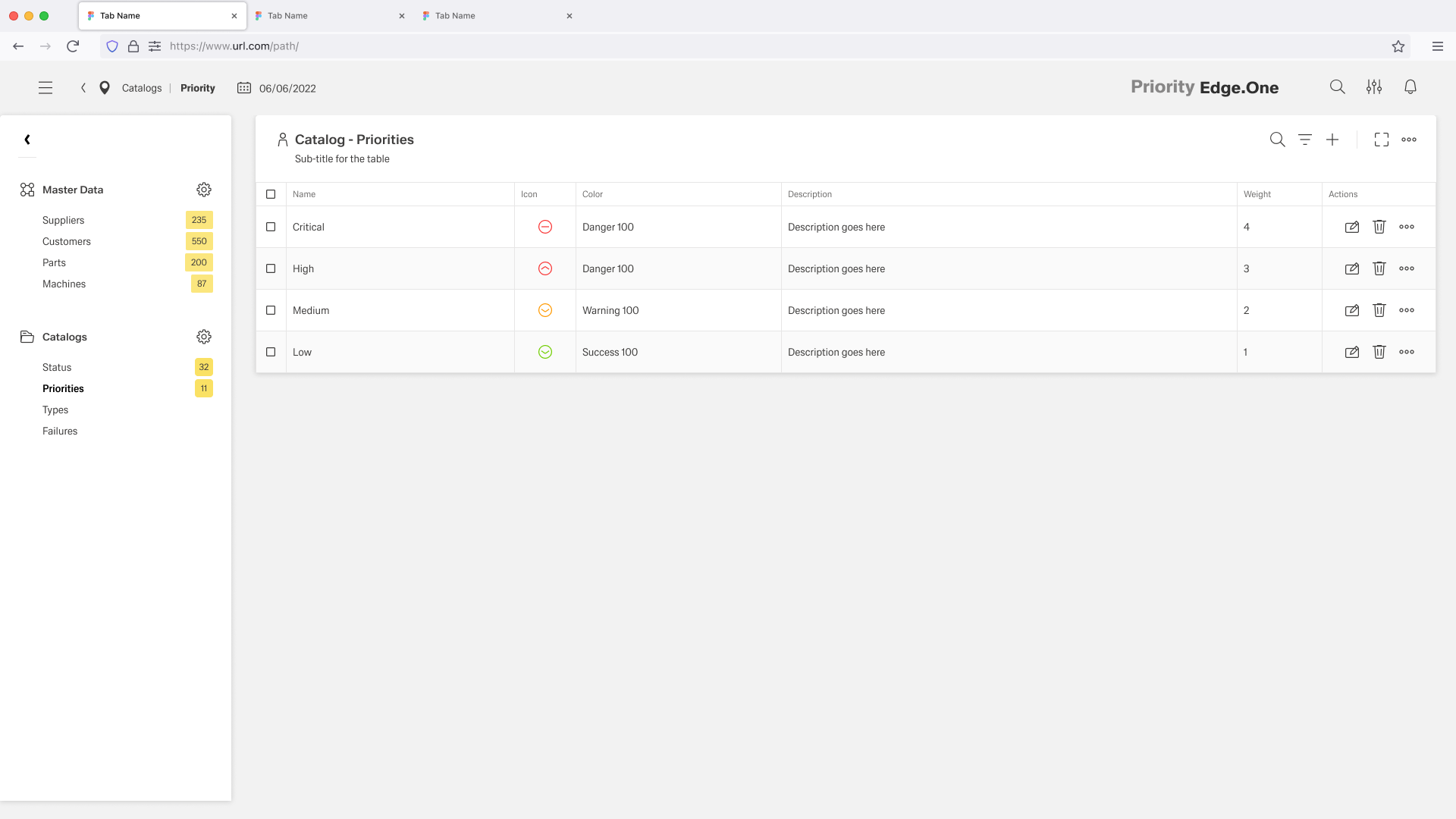
Catalogs are used to manage and extend reference data in the system. Catalogs are created and edited directly in the system. Examples include statuses, priorities, types, failures, and color settings.
They are managed similarly to Master Data in tables, but have their own properties. Catalogs use the Table View page layout.
Permissions
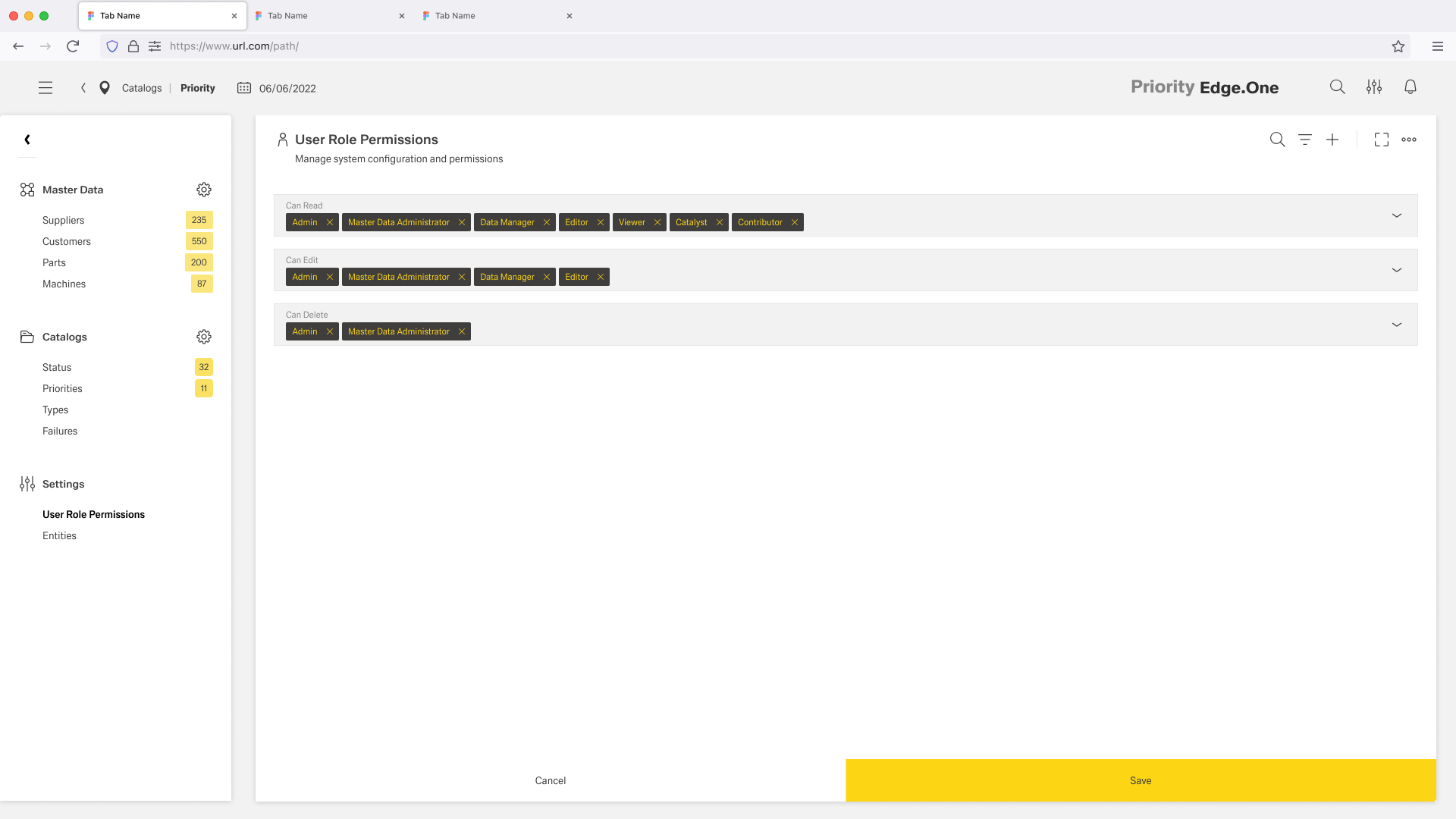
Permissions are used to configure role-based access for Master Data and catalogs, so that only authorized users can read, edit, or delete data. This pattern provides simple permission management by assigning access rights based on roles.
Each permission is represented by a label paired with a multi-select dropdown. The dropdown allows users to assign one or more existing system roles to actions such as read, edit, or delete.
This approach provides a clear and flexible way to control access. For example, permissions can be configured as “Can Read: All Roles”, “Can Edit: Admin, Shift Leader”, or “Can Delete: Admin”.
Administration
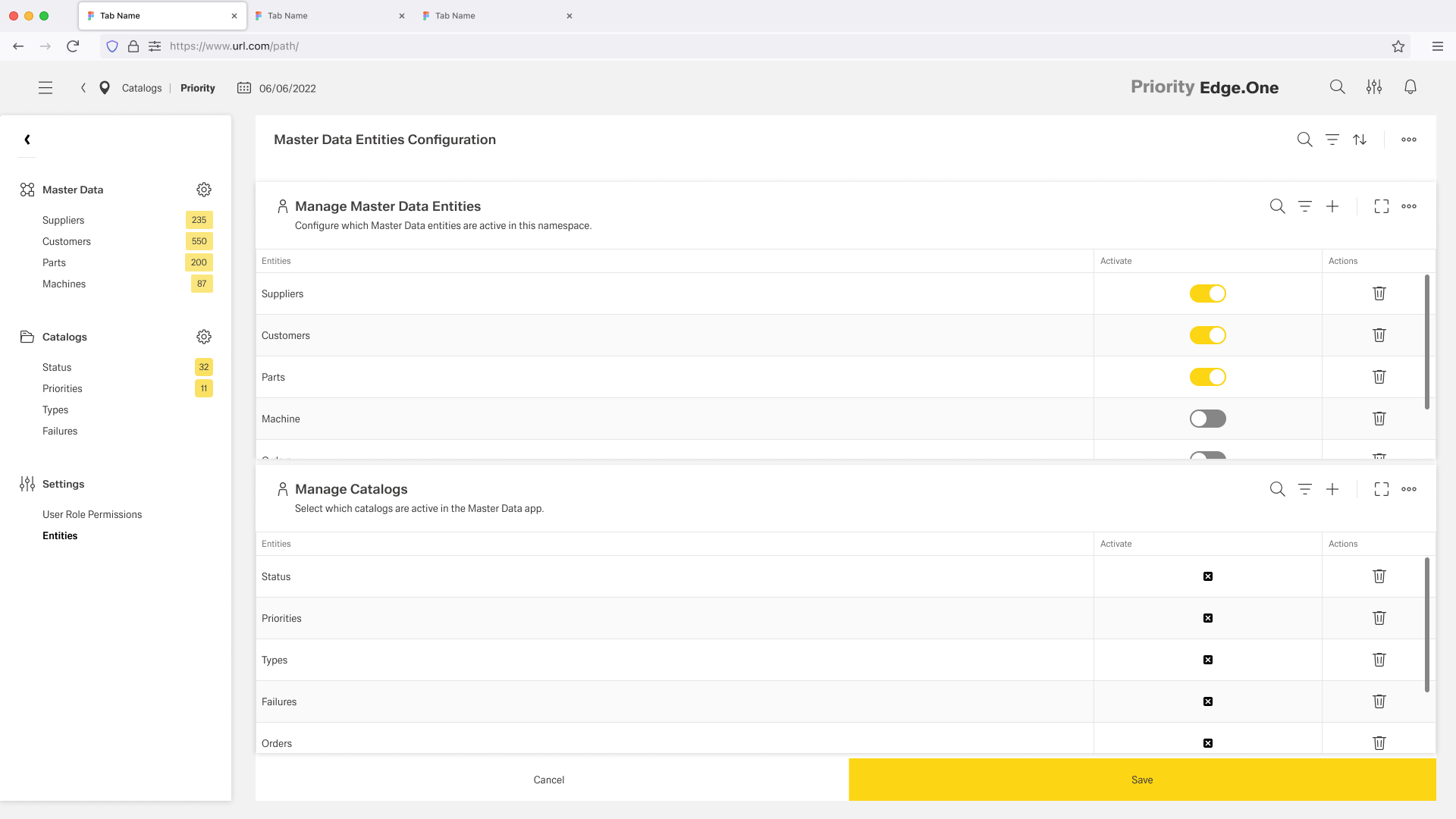
The Administration page is used to manage the selected Master Data entities and catalogs through customizing the application to the specific needs of the namespace.
The Administration pattern provides a centralized interface for configuring which Master Data entities and catalogs are available within a specific namespace. It allows administrators to tailor the application structure to the operational needs of their environment by controlling the visibility and activation of different data modules.
The Administration uses a varriation of the Tbale View page layouts by including two instead of one table. Through the structured configuration tables, administrators can enable or disable Master Data entities (such as Suppliers, Customers, Parts, or Machines) and related catalogs (such as Status, Priorities, Types, or Failures). This ensures that only relevant data structures are visible and manageable within the application, keeping the interface streamlined and aligned with the namespace’s requirements.
This pattern supports flexible system configuration while maintaining consistency across Master Data management workflows.
Navigation
Navigation is used to help users quickly access the desired data category and understand the distinction between Master Data and Catalogs. It provides a clear entry point for moving between the available data areas and selecting the relevant category.
The Navigation pattern uses a persistent boardlet to provide quick and structured access to Master Data entities and Catalogs. It allows users to switch seamlessly between different data modules such as Suppliers, Customers, Parts, and related catalog types without losing context. By grouping entities and catalogs in a single navigation panel, this pattern ensures clear information hierarchy and reduces navigation effort. It supports efficient movement across modules, enabling users to access, compare, and manage different data sets within the Master Data environment.
