Policy Settings
1. Introduction
The Policy Sets view allows you to create, manage, and review sets of permission rules that can be used throughout the application to control behavior, visibility, access, and other logic based on user roles or external conditions.
A Policy Set defines one or more groups of conditions (e.g., user role checks or HTTP-based decisions) used to determine whether a user is permitted to perform specific actions or access parts of the UI or backend logic.
This view is divided into the following sections:
- Left Panel – list and management of policy sets
- Center Panel – read-only preview of the selected policy set
- Policy Set Editor – for creating and editing the policy logic
With the Policy Sets view, you can:
- Browse and search existing policy sets
- Create or delete policy sets
- Edit policy logic using roles or dynamic HTTP conditions
- Preview policy structure
- View references to where a policy set is used

2. Left Panel – List and Management
The left panel displays a scrollable list of all defined policy sets in the current context.
2.1 Create New
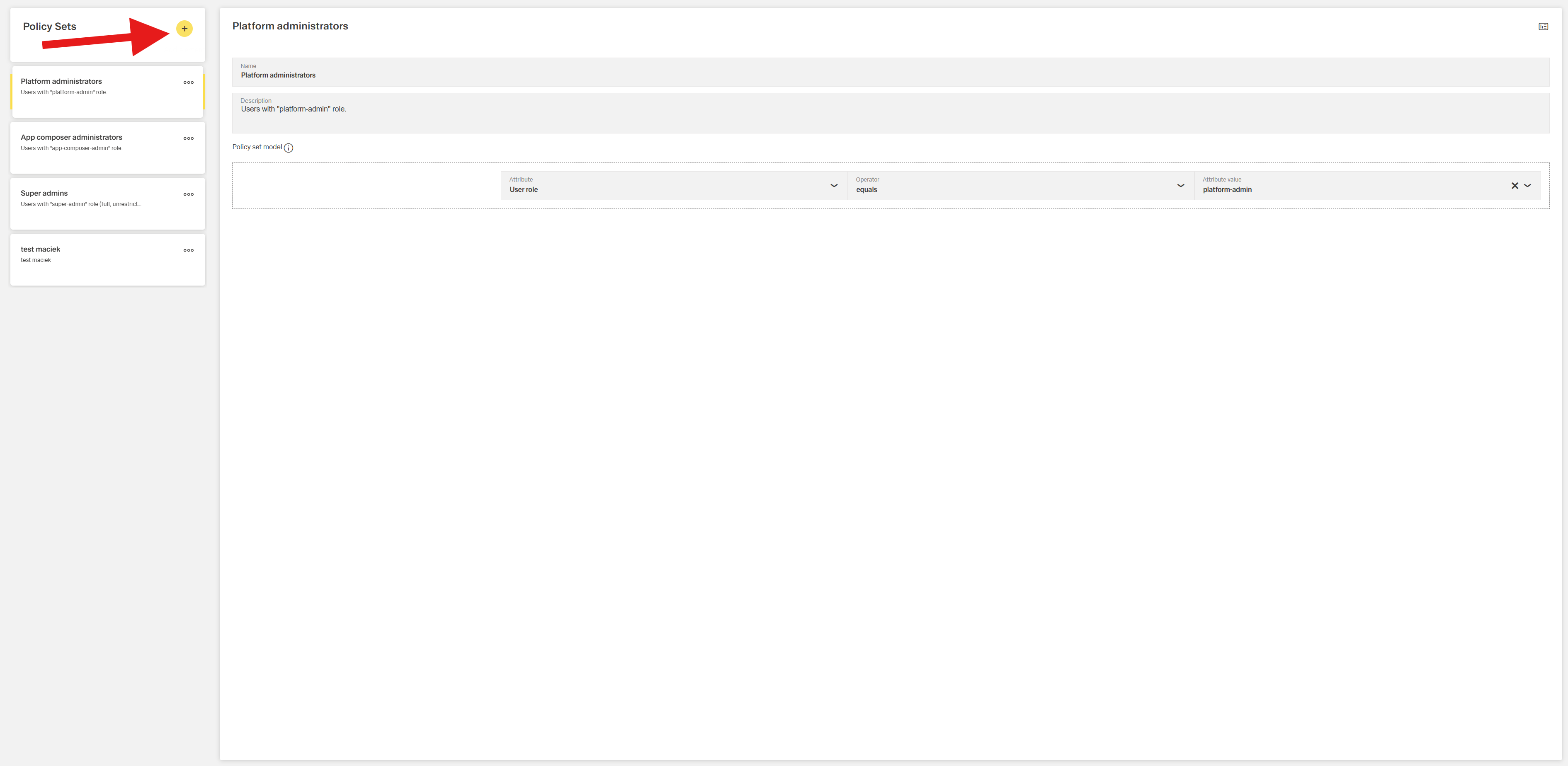
Click the plus (+) icon at the top to create a new policy set.
You will be redirected to the Policy Set Editor, where you can define the policy's name, description, and permission logic.
2.2 Policy Set Card
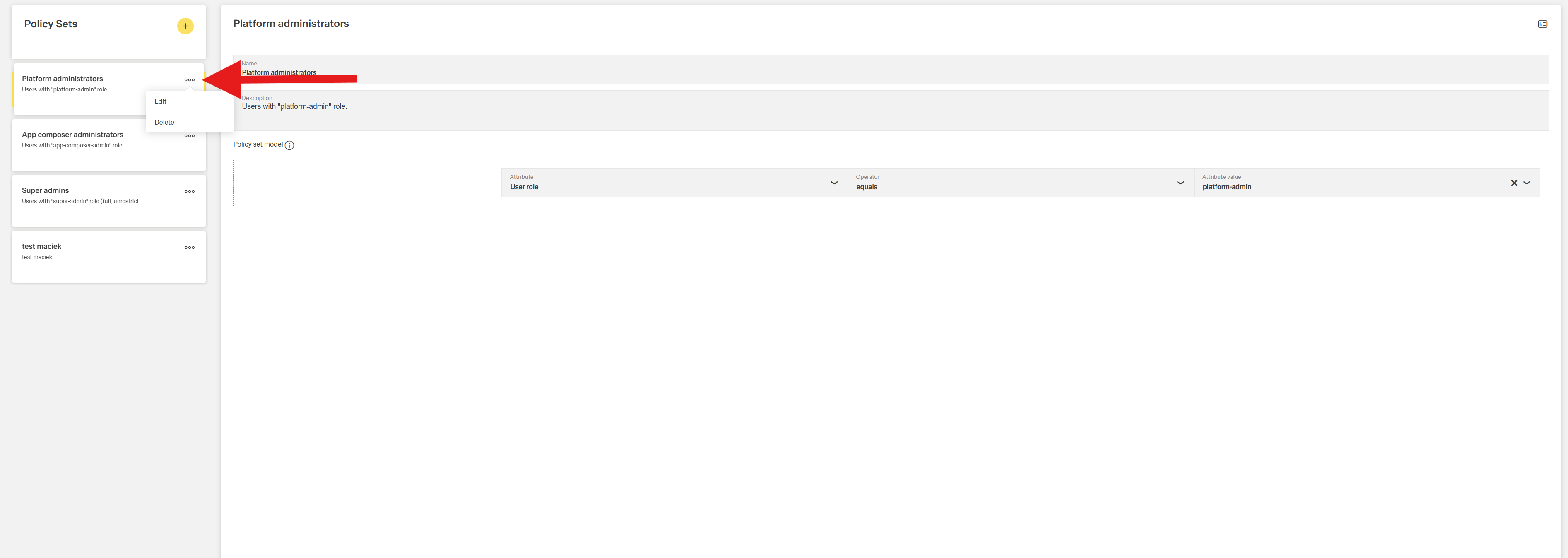
Each policy set is represented by a card showing its name.
Click the ⋯ (overflow) icon on a card to access:
- Edit – Opens the Policy Set Editor
- Delete – Prompts a confirmation dialog before deletion
3. Center Panel – Read-only Preview
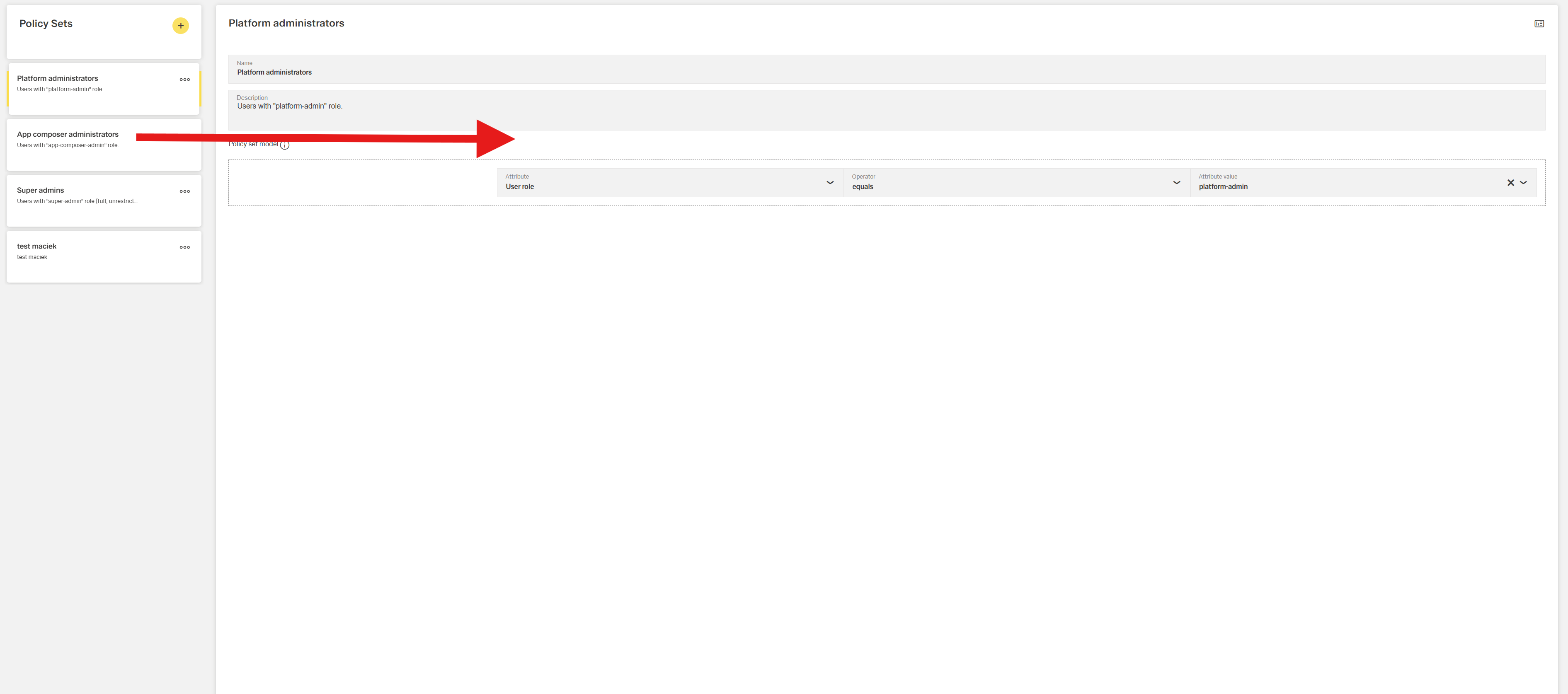
When a policy set is selected from the list, its contents are displayed in a read-only preview in the center panel.
This preview reflects the editable structure and includes:
- Policy set name and description
- Defined policy groups with their condition logic
- Attribute types, operators, and values
- HTTP decision details (if defined)
The preview allows for quick inspection without entering edit mode.
4. Policy Set Editor
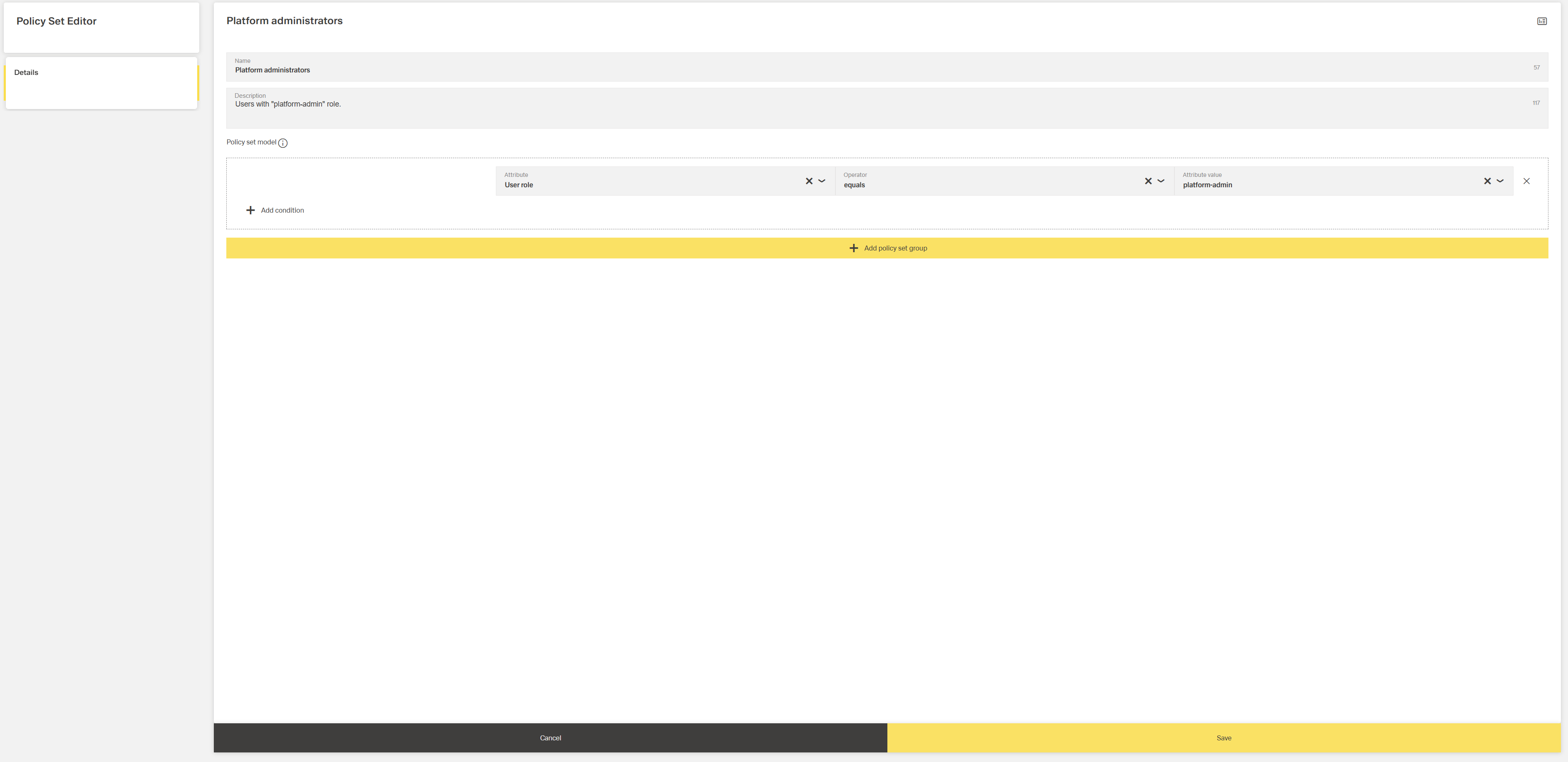
Clicking Create or selecting Edit from a policy card opens the Policy Set Editor.
This view allows you to define or update the policy logic.
4.1 Basic Info
Provide the following:
- Name – Required, unique name of the policy set
- Description – Optional, for internal context or usage hints
4.2 Add Policy Set Group
Click Add Policy Set Group to define a new condition set.
Each group defines one logical rule that must be matched.

Attribute Type Options:
- User role – Matches against user permission roles
- HTTP decision – Makes a runtime HTTP call to evaluate conditions
For User Role:
- Operator – Choose Equals or Not Equals
- Attribute Value Required – Select from predefined roles (e.g., Administrator, User, Viewer)
For HTTP Decision:
Operator field is disabled
Clicking the Attribute Value Required field opens a dialog with:
- URL input
- HTTP method (GET or POST)
- Optional Query Parameters (static or dynamic)
- Optional Headers (static or dynamic)
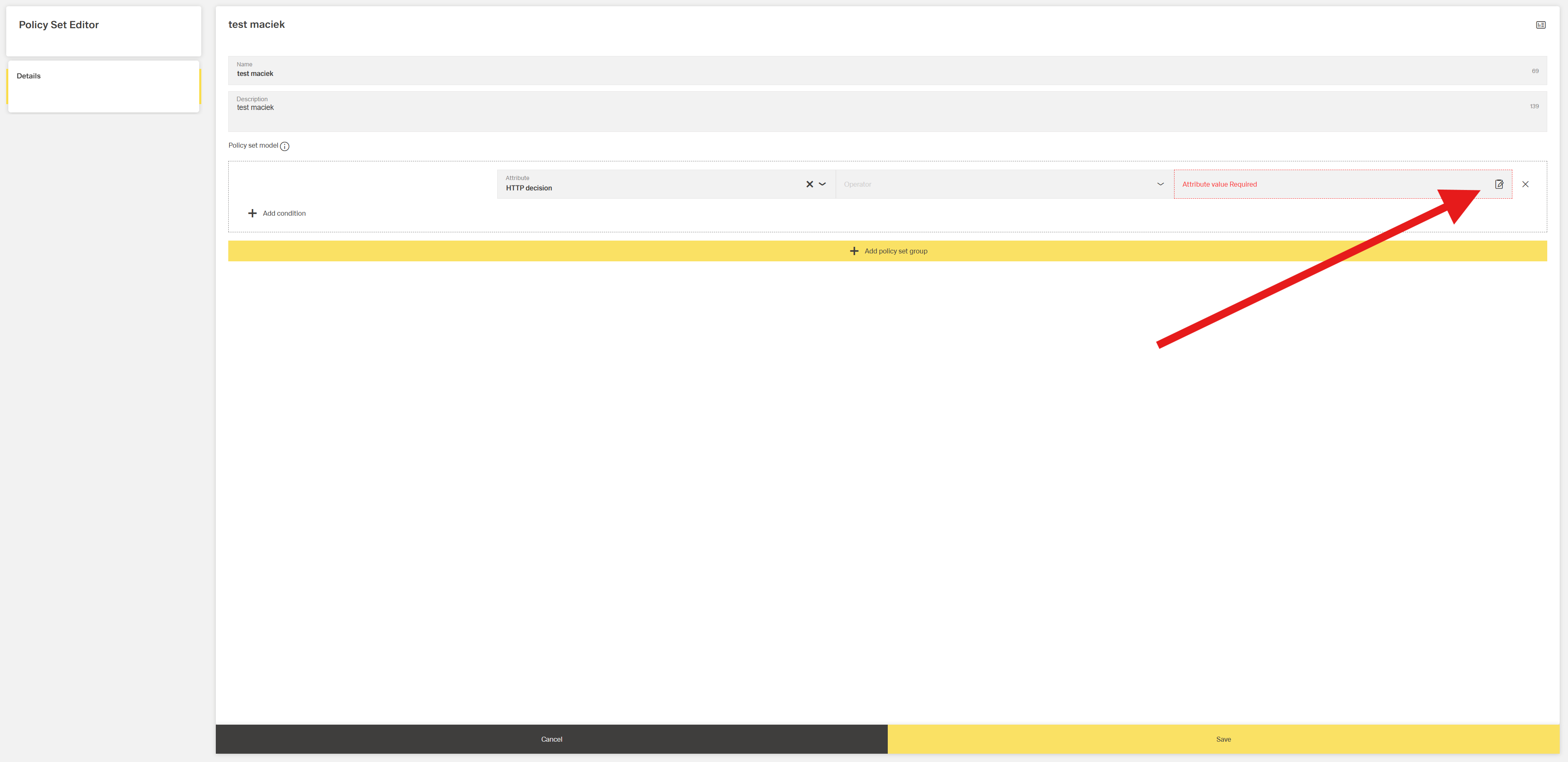

You can define multiple groups within a policy set to construct more complex permission logic.
Only users matching all group conditions are granted the corresponding permission.
5. References
At the top-right corner of the view, click the dashboard icon to open the References Dialog.
This dialog displays where the selected policy set is used across the application — e.g., in visibility rules, authorization checks, or custom logic.

