RFID Scanner
Overview
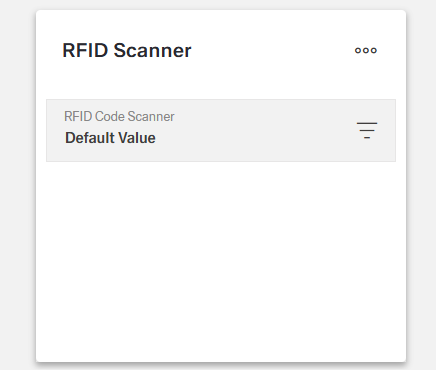
- The Dynamic RFID Scanner Component enables scanning of RFID codes within applications.
- It provides localized labels, messages, and dialog titles with full language support.
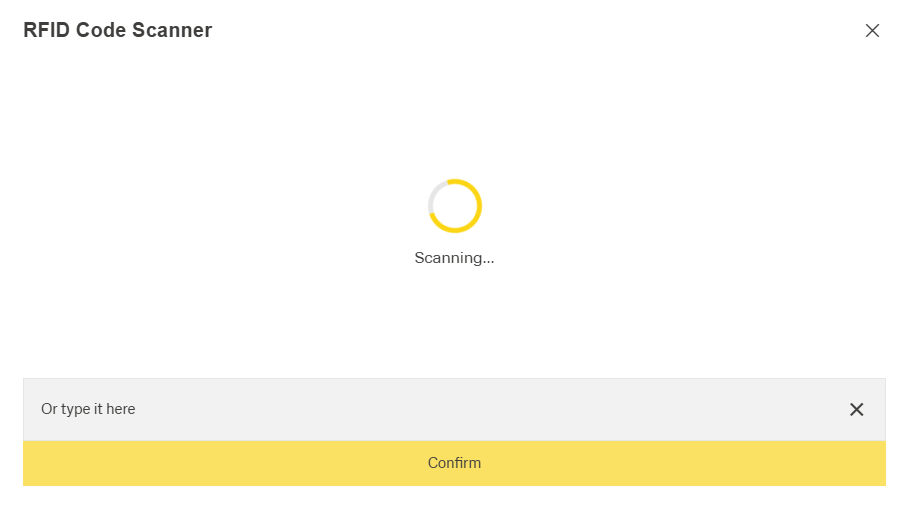
- Users can scan RFID tags, enter codes manually, or use pre-populated default values.
- The component supports role-based access, validation, and local storage persistence.
- Events allow integration with flows, logging, and backend services during the scanning lifecycle.
Specs
Tokens
| Token | Description |
|---|---|
| displayName | Display name in structure panel |
| labelTranslations | Label text above the scanner field (multi-language) |
| scanningMessageTranslations | Message shown during scanning (multi-language) |
| postScanningMessageTranslations | Message shown after successful scan (multi-language) |
| dialogTitleTranslations | Title of the scanner dialog (multi-language) |
| alternativeInputLabelTranslations | Label for manual input option (multi-language) |
| confirmButtonLabelTranslations | Text on confirmation button (multi-language) |
| closeDialogOnSuccess | Closes dialog automatically after scan success |
| readonly | Displays values but prevents scanning or manual input |
| visible | Controls if the component is shown to users |
| enabled | Controls if the component is interactive |
| required | Field must have a value before submission |
| defaultValue | Initial value shown when component is loaded |
| saveInLocalStorage | Persists last scanned value in local storage |
| dataField | Form field name where scanned code is stored |
| controlsRequestType | Defines how data is sent in API requests (BODY, PATH, HEADER) |
| authorizationDisable | Links enabled state to a policy set |
| events | Configurable component events |
| ON_INIT (Events) | Triggered on initialization |
| ON_DESTROY (Events) | Triggered when component is removed |
| ON_SCAN_START (Events) | Triggered when scanning begins |
| ON_SCAN_SUCCESS (Events) | Triggered when scan is successful |
Structure
- The RFID Scanner component structure defines how scanned data is stored in form fields, transmitted in API requests, and managed in the dialog after a scan.
(Configured in General Properties)
- displayName – Sets the display name of the component shown in the structure panel. For example,
"Inventory RFID Scanner"allows for easy identification of the component's purpose within the UI builder interface.
(Configured in Non-Visual Properties)
- dataField – Specifies the form field name where the scanned RFID code value will be stored. For example, setting it to
"assetTagId"ensures the scanned code is saved to that field in form submissions. - controlsRequestType – Specifies how the scanned data should be included in API requests. Options include
"BODY"(in request body),"PATH"(in URL path), or"HEADER"(in HTTP headers), allowing flexible integration with backend services.
Styling
(Configured in Visual Properties)
- closeDialogOnSuccess – Determines whether the scanner dialog automatically closes after successful scan. When enabled, the dialog will close immediately after scanning a valid RFID code, improving workflow efficiency.
- saveInLocalStorage – Enables persisting the scanned value in browser's local storage. When enabled, the last scanned value will be recalled even after page refresh, providing continuity in user sessions.
- defaultValue – Sets an initial value for the scanner field when first loaded. For example, setting a
defaultValueof"TAG-12345"will pre-populate the field with this value when the component is initialized.
Translation
(Configured in Visual Properties)
- labelTranslations – Sets the label text displayed above the scanner field, with support for multiple languages. For example,
{"en-US": "Scan Asset Tag", "de-DE": "Asset-Tag scannen"}provides localized instructions to users. - scanningMessageTranslations – Sets the text shown during the active scanning process, with language support. For example,
{"en-US": "Scanning in progress...", "fr-FR": "Numérisation en cours..."}guides users during the scanning action. - postScanningMessageTranslations – Sets the text displayed after a successful scan, with language support. For example,
{"en-US": "Scan complete!", "es-ES": "¡Escaneo completo!"}confirms successful scan completion. - dialogTitleTranslations – Sets the title of the scanner dialog window, with language support. For example,
{"en-US": "RFID Scanner", "ja-JP": "RFIDスキャナー"}provides context for the scanning interface. - alternativeInputLabelTranslations – Sets the label for the manual input option when scanning fails, with language support. For example,
{"en-US": "Or type code manually", "de-DE": "Oder Code manuell eingeben"}offers an alternative input method. - confirmButtonLabelTranslations – Sets the text on the confirmation button in the scanner dialog, with language support. For example,
{"en-US": "Confirm", "fr-FR": "Confirmer"}provides clear action instructions.
Actions & Variants
(Configured in Event Actions)
- events – Configures the events that the component can trigger and respond to:
- ON_INIT – Triggered when the component is initialized. Can be used for setup operations like pre-fetching associated data.
- ON_DESTROY – Triggered when the component is removed from the DOM. Useful for cleanup operations when navigating away from the page.
- ON_SCAN_START – Triggered when the scanning process begins. Can be used to prepare other components for scanning or log scanning attempts.
- ON_SCAN_SUCCESS – Triggered when an RFID code is successfully scanned. Provides the scanned value for further processing or validation against a database.
(Configured in Visual Properties)
- readonly – Controls whether the field is in read-only mode. When set to true, the component will display existing values but prevent scanning or manual entry of new values, useful for review screens or locked records.
- visible – Determines if the component is displayed to users. When set to false, the component will be hidden but can still be used programmatically, enabling dynamic visibility based on context.
Authorization
(Configured in Authorization Properties)
- authorizationDisable – Links the component's enabled state to a policy set. For example, setting to
"scannerAccessPolicy"will only enable the scanner for users who meet the policy requirements, providing role-based access control.
Links
Guidelines
Usage
- Capture RFID values directly into a form field by binding the destination with
dataField. - Offer a manual entry fallback using
alternativeInputLabelTranslations. - Use
readonly: trueon review screens to prevent edits. - Prefill known identifiers with
defaultValuewhen appropriate.
Sizing & Layout
- The component doesn’t expose explicit size/spacing tokens. Control presence with
visibleand reduce on-screen time after success withcloseDialogOnSuccess.
States & Feedback
- Idle/ready is governed by
enabled,readonly,visible, and optionaldefaultValue. - Scanning state: inform users with
scanningMessageTranslations. - Success state: confirm with
postScanningMessageTranslations; optionally dismiss usingcloseDialogOnSuccess.
Data-Driven / Conditional Behavior
- Speed confirmations with
defaultValue. - Persist the last value across refreshes with
saveInLocalStorage. - Enforce completeness by setting
required: true.
Visibility & Authorization
- Hide when out of scope using
visible: false. - Limit interactivity by policy with
authorizationDisable. - Temporarily pause interaction without hiding using
enabled: false.
Content & Localization
- Localize user-facing copy with:
labelTranslations,scanningMessageTranslations,postScanningMessageTranslations,dialogTitleTranslations,alternativeInputLabelTranslations,confirmButtonLabelTranslations. - Keep labels short and action-oriented; use
confirmButtonLabelTranslationsfor clear verbs.
Dos & Don’ts
| Do | Don’t | Article setting(s) |
|---|---|---|
| Bind the scanned value to a clearly named field used by the form. | Leave the destination implicit or rely on external defaults. | dataField |
| Show concise, localized guidance before/during/after scanning. | Use English-only strings or omit stage-specific messages. | labelTranslations, scanningMessageTranslations, postScanningMessageTranslations |
| Provide a visible manual entry fallback label. | Hide the fallback or leave it unlabeled. | alternativeInputLabelTranslations |
| Auto-close the dialog after confirmed success to keep users in flow. | Force users to dismiss a completed scanner manually. | closeDialogOnSuccess |
| Persist values when repeat scanning is expected. | Make users re-enter the same code after refresh. | saveInLocalStorage |
| Require a value when the form cannot proceed without it. | Allow empty submissions that cause downstream errors. | required |
| Restrict interactivity by role while keeping the UI discoverable. | Hide role-relevant controls from users who should know they lack access. | authorizationDisable |
| Validate/route on success using the success event. | Pack logic into initialization and ignore the actual scan result. | ON_SCAN_SUCCESS |
Accessibility
- Stage-specific, localized text communicates status to assistive tech:
labelTranslations,scanningMessageTranslations,postScanningMessageTranslations,dialogTitleTranslations,alternativeInputLabelTranslations,confirmButtonLabelTranslations.- Keep titles and labels concise to minimize truncation (
dialogTitleTranslations,labelTranslations).
- Keep titles and labels concise to minimize truncation (
- Participate in validation announcements using
required. - Prevent non-functional interaction with
readonlyorenabled: false. - Reduce focus churn by auto-dismissing completed scans via
closeDialogOnSuccess. - Convey permission limits with a perceivable disabled state via
authorizationDisable. - Avoid color-only meaning; use clear status messages via
scanningMessageTranslationsandpostScanningMessageTranslations. - Use
confirmButtonLabelTranslationsto make the action purpose explicit. - Where repeat scans are typical, reduce repeated input effort with
saveInLocalStorage.