Application Overview
Intorduction
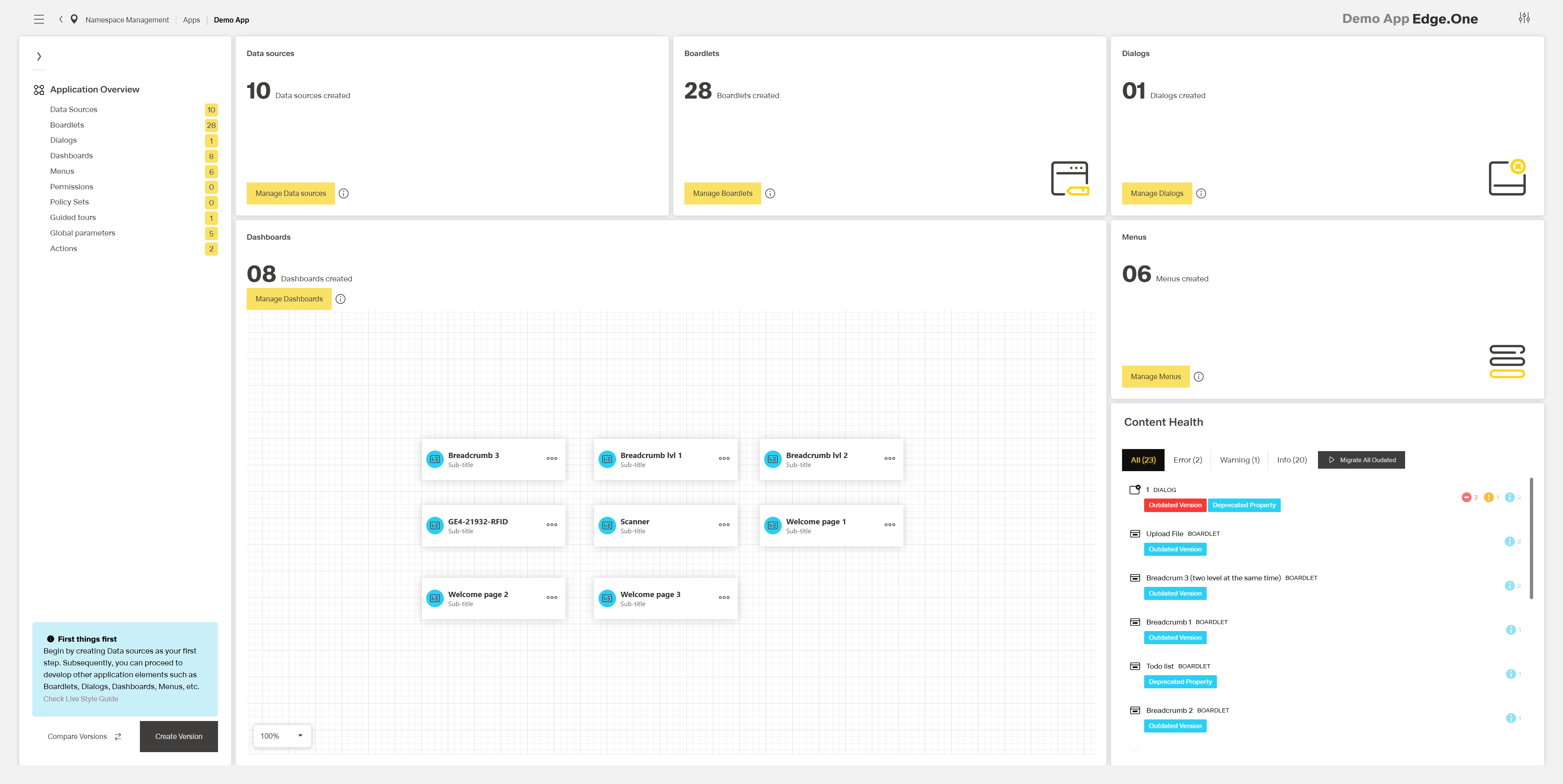
The Application Overview is the central hub for configuring a selected application within namespace management. It provides access to all editors and application versioning for the selected application.
The Application Overview includes seven sections:
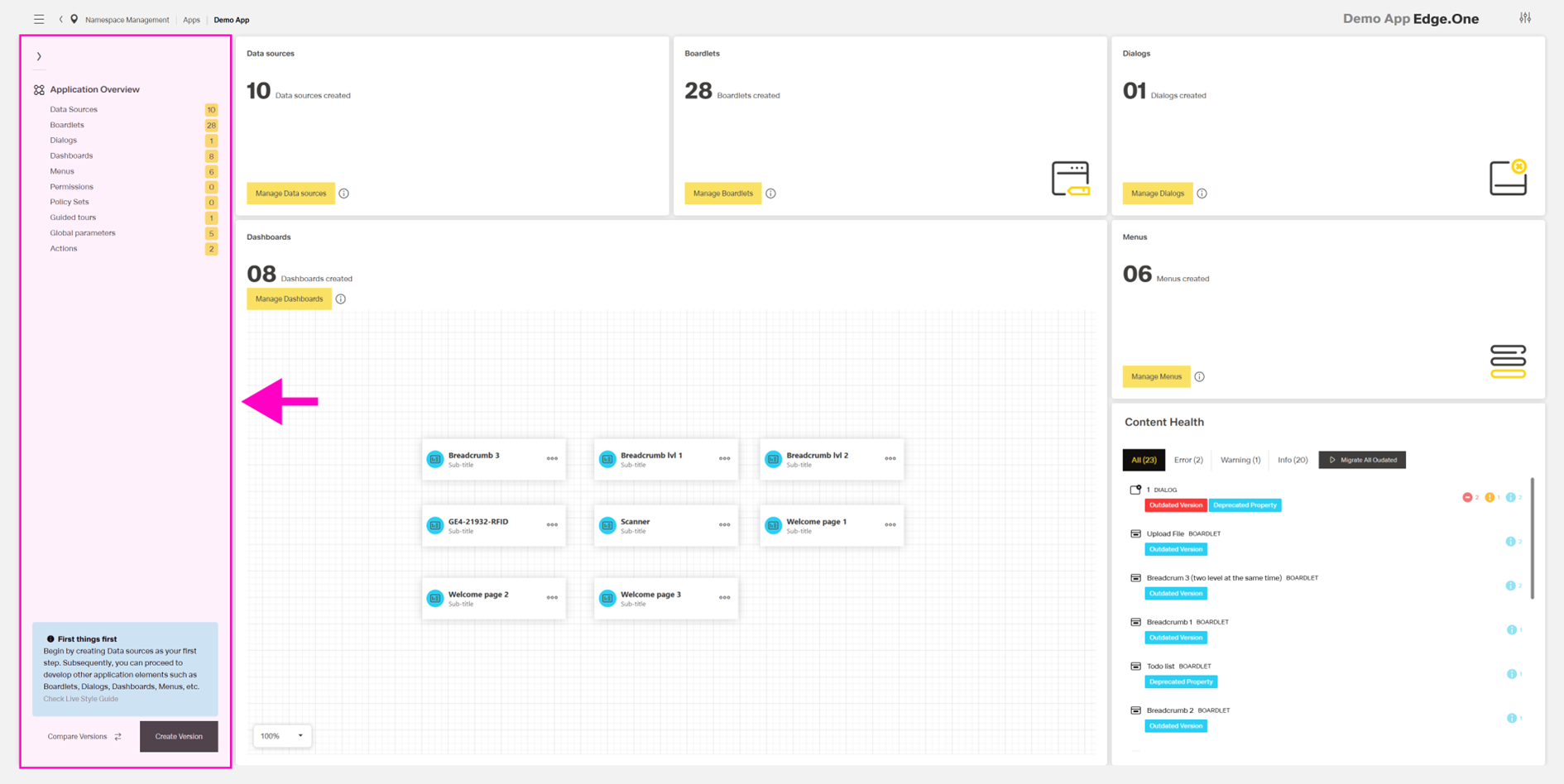
- Navigation Boardlet – provides links to all editors and application versioning.
- Data sources, Boardlets, Dialogs, and Menus sections – link to the corresponding libraries.
- Dashboards section – links to the dashboard library and shows all dashboards within the application.
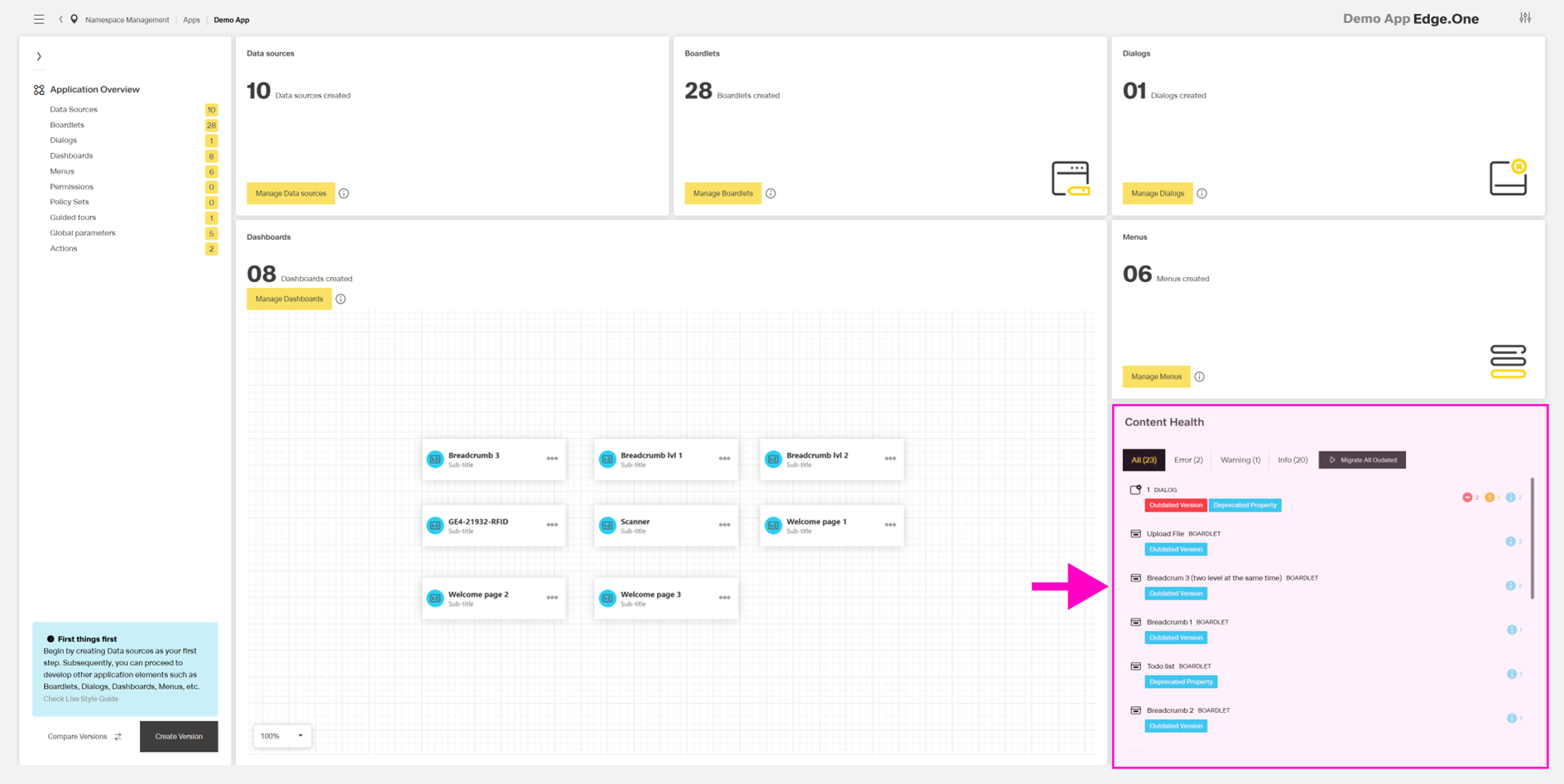
- Content Health – enables updates for outdated components within the application.
The Application Overview enables:
- Navigation to Data sources, Boardlets, Dialogs, Dashboards, Menus, Permissions, Policy Sets, Guided tours, and global parameters within an application.
- Updating outdated versions of components within the application.
- Creating and comparing versions of the application.
Navigation Boardlet
This boardlet contains a list of links to all editors within the application. The boardlet footer includes two buttons that open dialogs to create or compare application versions. The boardlet can be collapsed or expanded using the arrow at the top left.
Links
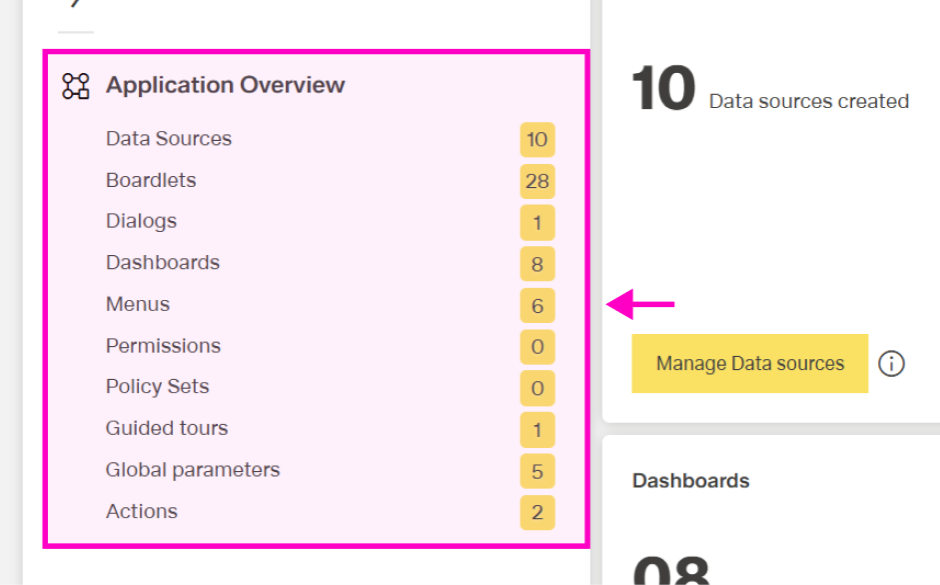
In the expanded view, the boardlet lists links to all editors within the application. Selecting a link opens the corresponding library or editor overview. A tag to the right of each link shows the number of entries in that editor.
App Versioning
The navigation boardlet includes two buttons at the bottom.
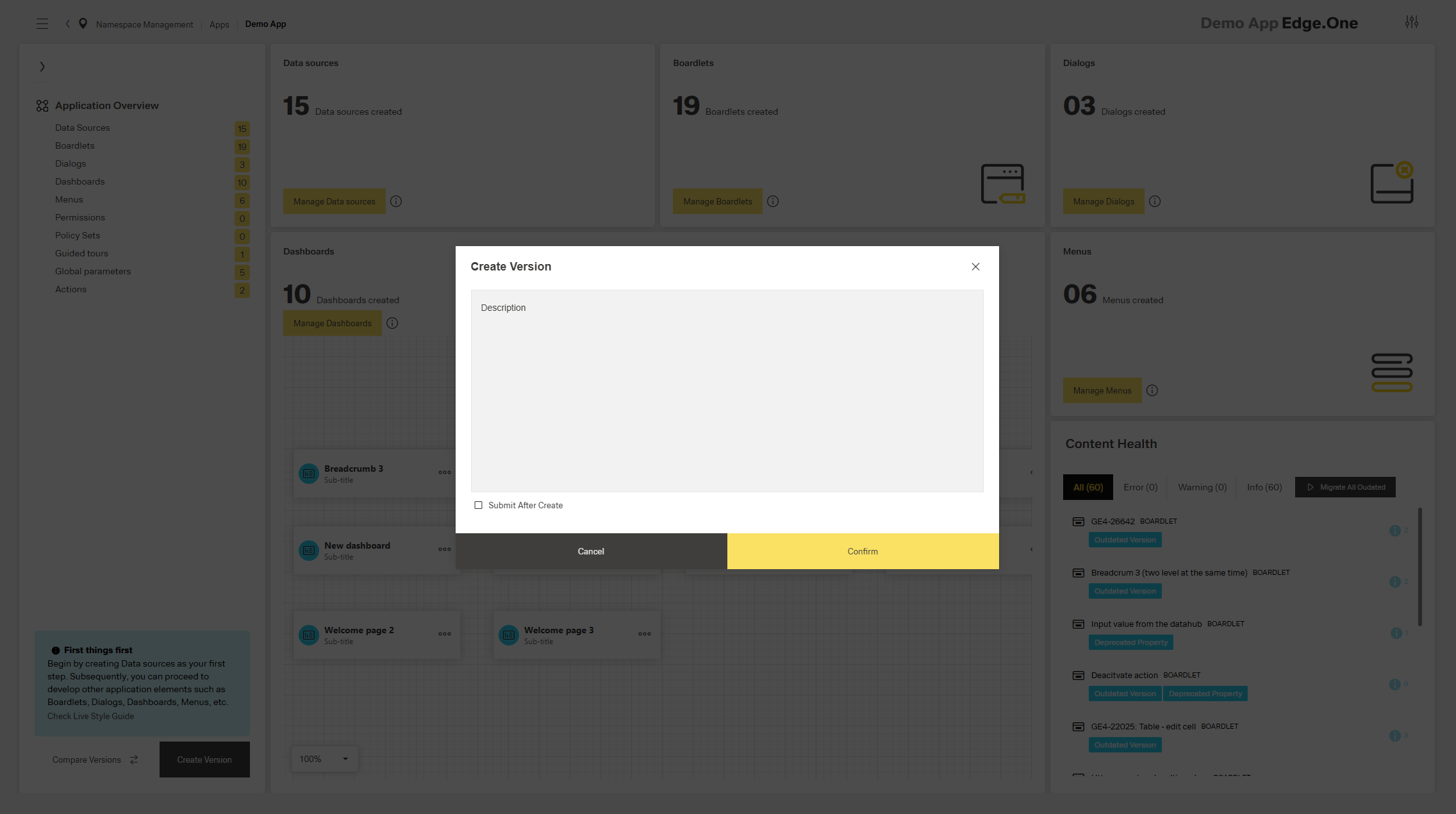
The right secondary button opens a dialog to create a new application version. The dialog allows adding a description and choosing whether to submit the version immediately after creation.
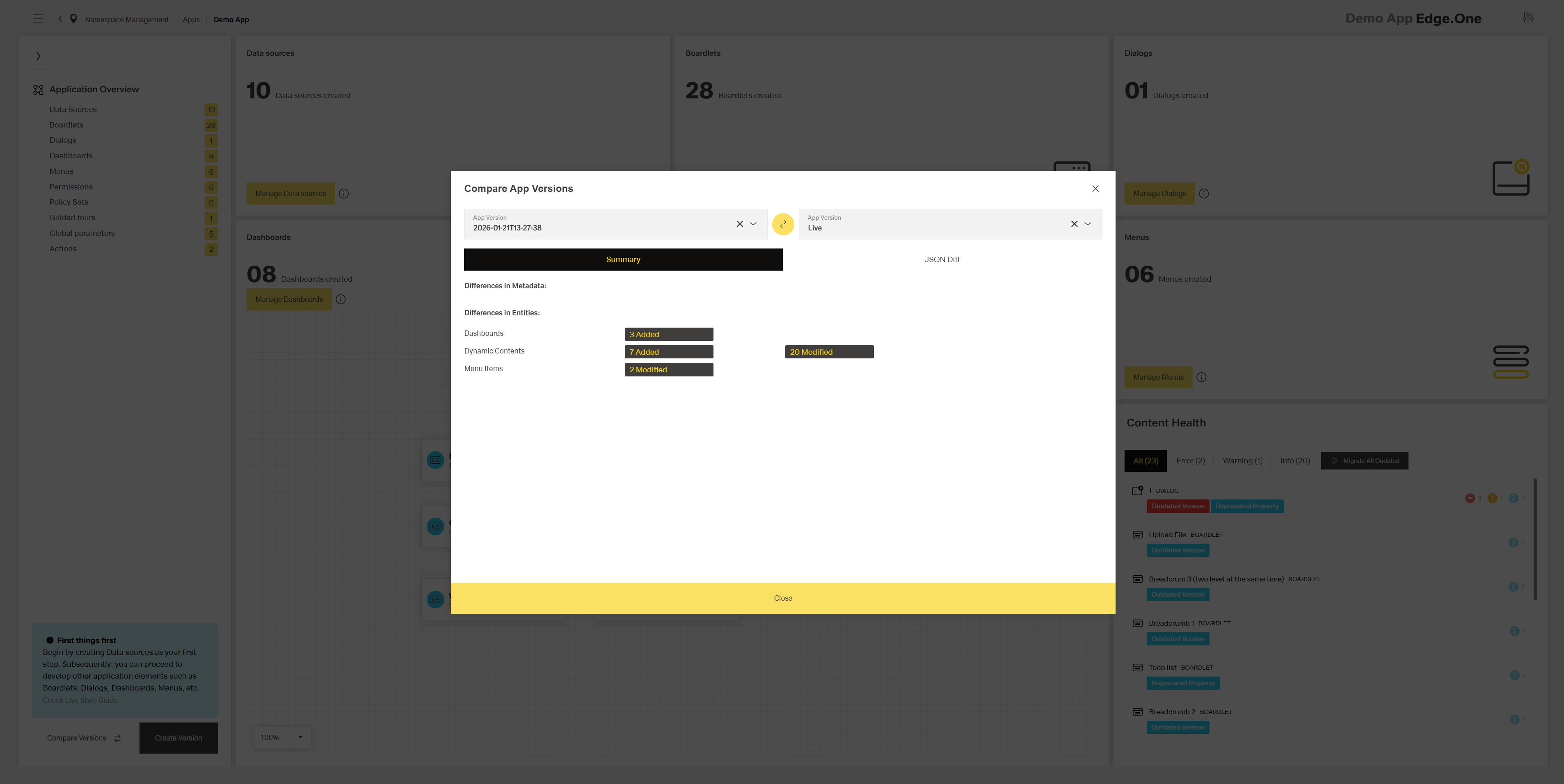
The left ghost button opens a dialog to compare two selected versions. The comparison can be either:
- A summary of differences in metadata and entities.
- A side-by-side comparison of the JSON file.
Data sources, Boardlets, Dialogs and Menus sections
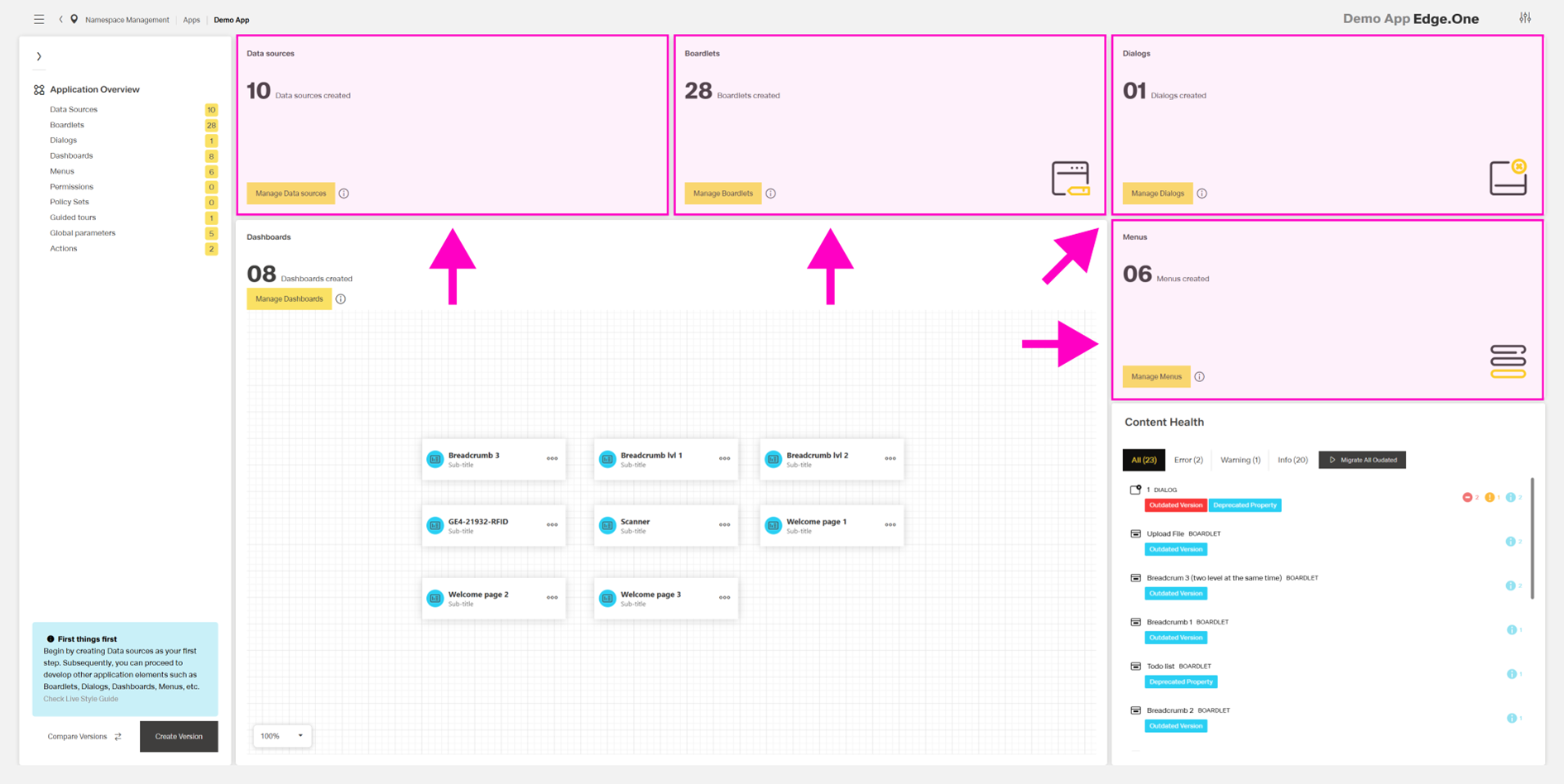
These boardlets share a similar structure but connect to different areas of the App Composer. They display the number of entities for Data sources, Boardlets, Dialogs, and Menus. Each section includes a primary button at the bottom that links to the corresponding library.
The Dashboards sections
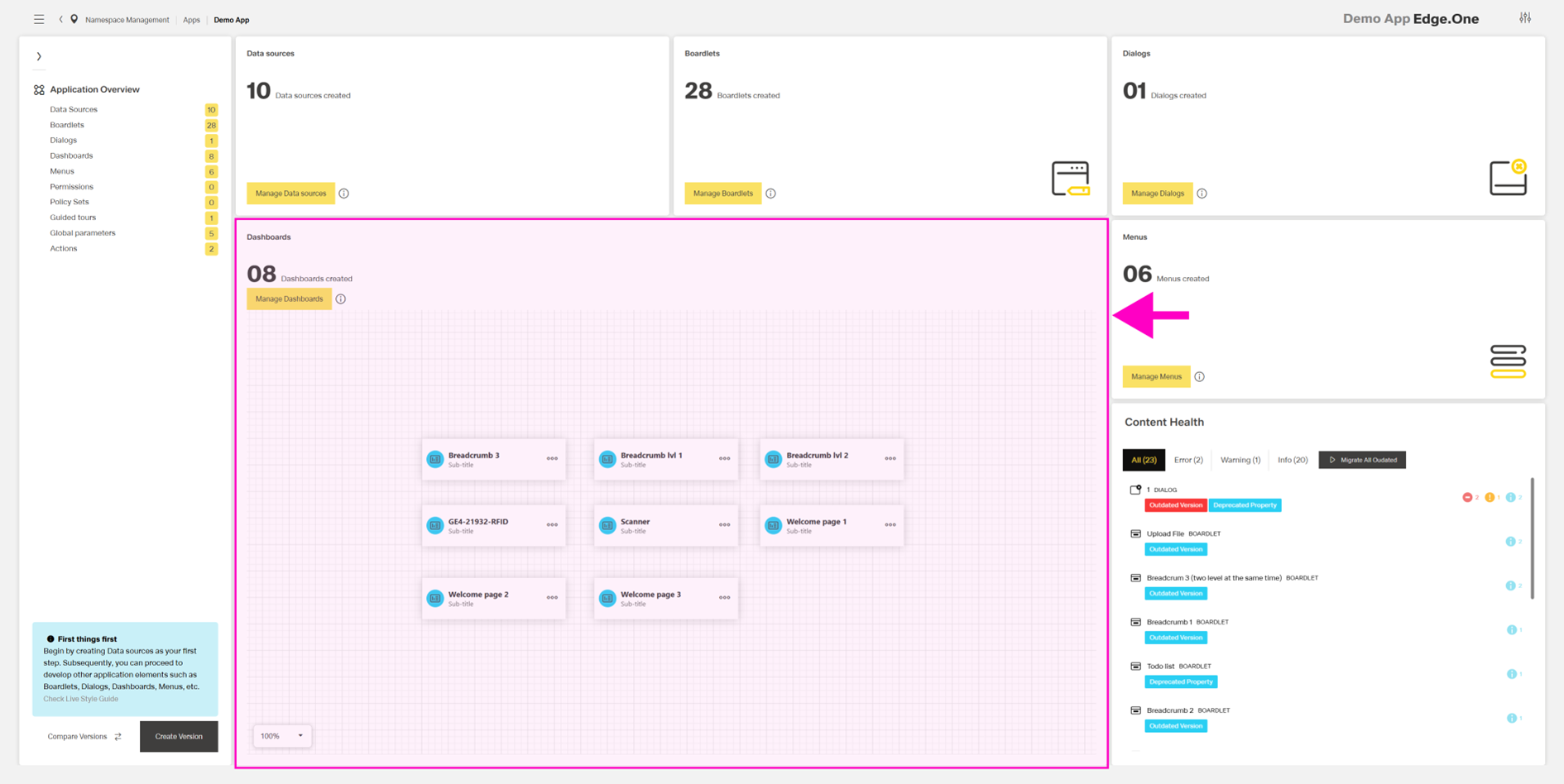
Like the Data sources, Boardlets, Dialogs, and Menus sections, the Dashboards section shows the number of dashboards and links to the dashboard library.
This boardlet also shows the created dashboards with a title, subtitle, and overflow menu. The overflow menu provides direct navigation to the dashboard editor.
Zoom controls at the bottom left allow zooming in and out of the visualization.
Content Health
Content Health indicates whether the application contains outdated component versions or uses deprecated properties. It includes three severity levels:
- Error – The outdated component should be updated immediately.
- Warning – The component should be updated soon, as bugs may occur or functionality may not work as expected.
- Info – The component or property is outdated or deprecated, but this does not currently prevent the application from functioning. An update remains optional.
Notifications are organized into four tabs: one tab per category and an All tab. Each tab shows the number of notifications in that category.
A single source can include multiple outdated aspects. These appear to the right of the notification and are counted separately.
Migrating new versions
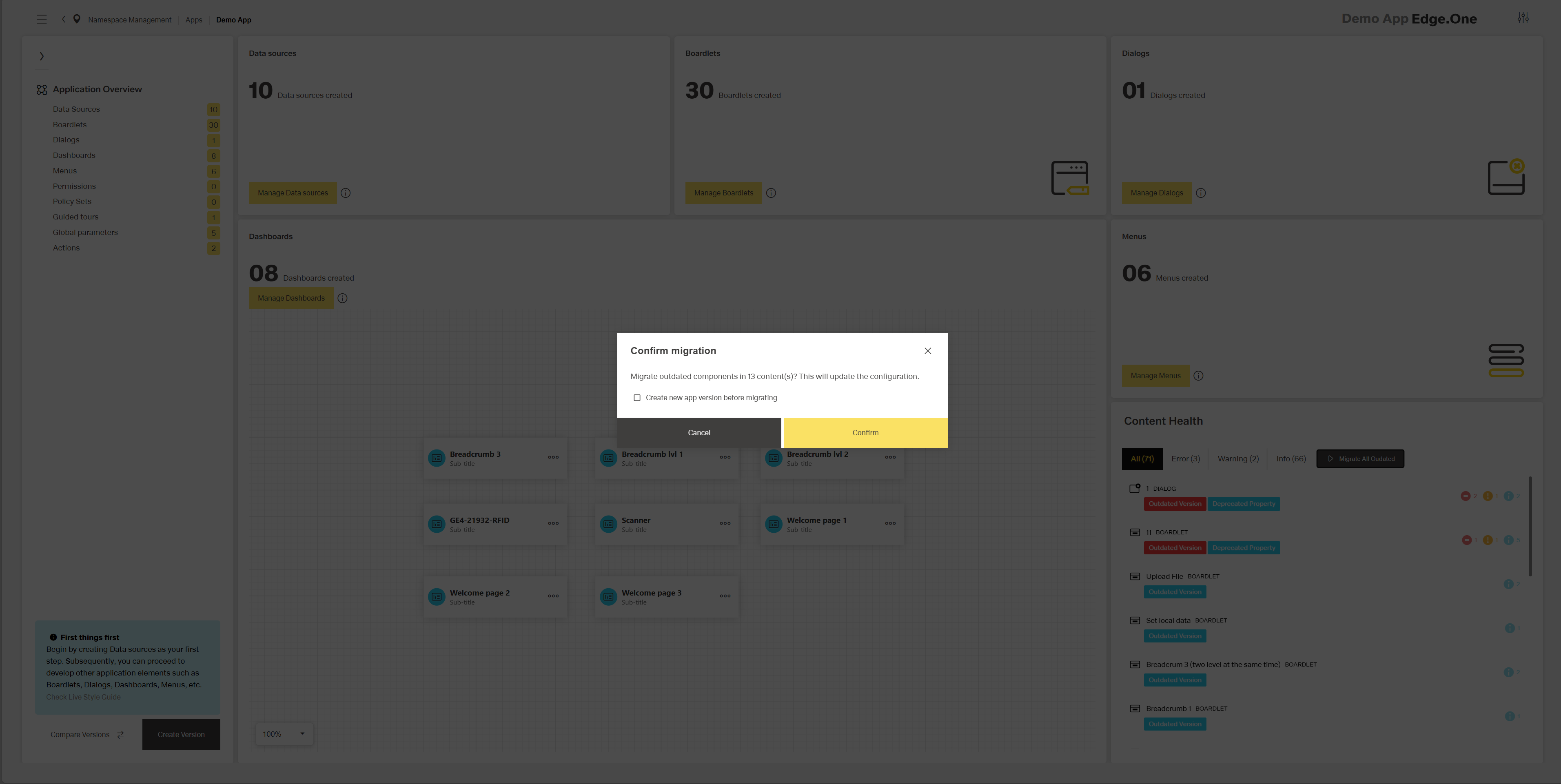
A secondary button within the tabs allows migration of all outdated versions at once. Selecting it opens a dialog. The dialog includes an option to create a new version before updating. This is recommended when updating multiple elements, in case an update breaks functionality. Functionality should be checked after updating.