Global Navigation
Overview
Global Navigation must always be present in Edge.One UI. It provides consistent access to system and product elements users may need at any time—such as notifications, profile and settings, permissions, login/logout. It switches between products—regardless of which dashboard they are currently viewing. By staying stable across the application, Global Navigation supports orientation, reduces effort, and helps users move confidently between destinations.
This pattern is made up of three core building blocks: the Dashboard Header, the Navigation Panel, and the Home Dashboard The Header appears on every dashboard and combines wayfinding with universal utilities. The burger menu triggers the Navigation Panel, which enables navigation across dashboards, apps, and—where applicable—external pages. The Home Dashboard serves as the starting point and “reset” destination, and can be customized per user group to reflect different personas.
Anatomy
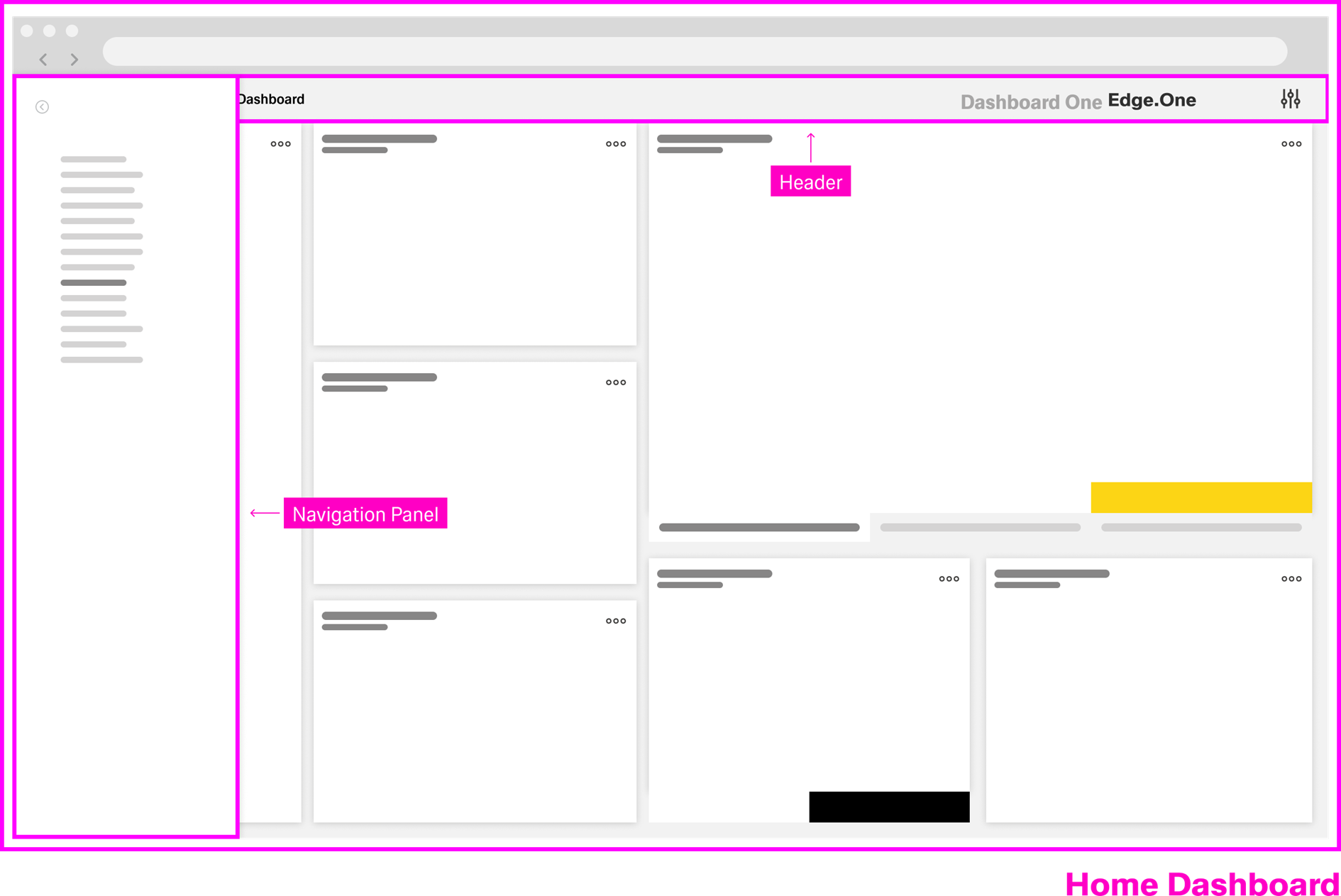
Global Navigation is made up of a consistent Header and a navigation side panel, and the Home Dashboard acting as the anchor of dashboards.
Header
The Header appears on every dashboard with a consistent layout. It houses universal navigation and global utilities so users can always find their way and act on high-level tasks without leaving their current context.

It houses the following elements:
- Burger Menu It is located at the far left and opens the global navigation side panel for switching dashboards, apps, or external destinations.
- Breadcrumbs They are located to the left of the burger menu. Breadcrumbs show the user’s current location within the dashboard structure and enable navigation between levels in the hierarchy.
- Wordmark Provides a direct route back to Home (the namespace start page).
- More Groups secondary global destinations and actions, such as access to platform-level areas (for example, user settings), without overcrowding the Header.
Burger Menu with Navigation Panel
The Burger Menu together with the left side panel, also called Navigation Panel, are the primary method of global navigation across dashboards, apps, and external pages.
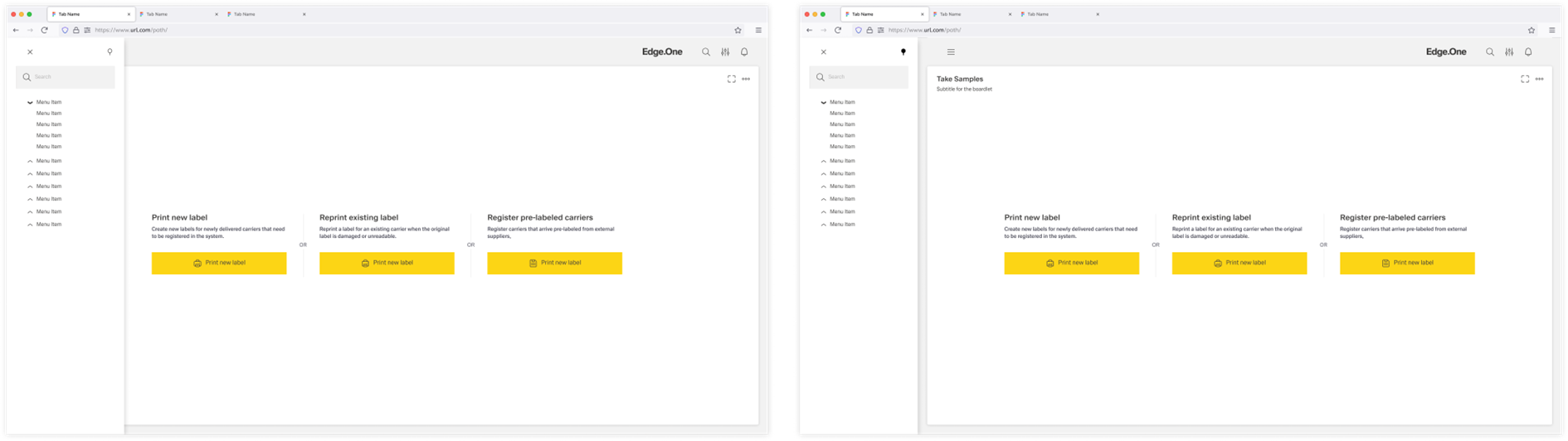
The Burger Menu opens as a left side panel. The default state of the Navigation Panel it overlaps the current dashboard content to keep navigation lightweight and quick. It can also be pinned, integrating it into the dashboard layout and shifting the content so the menu stays visible alongside the page.
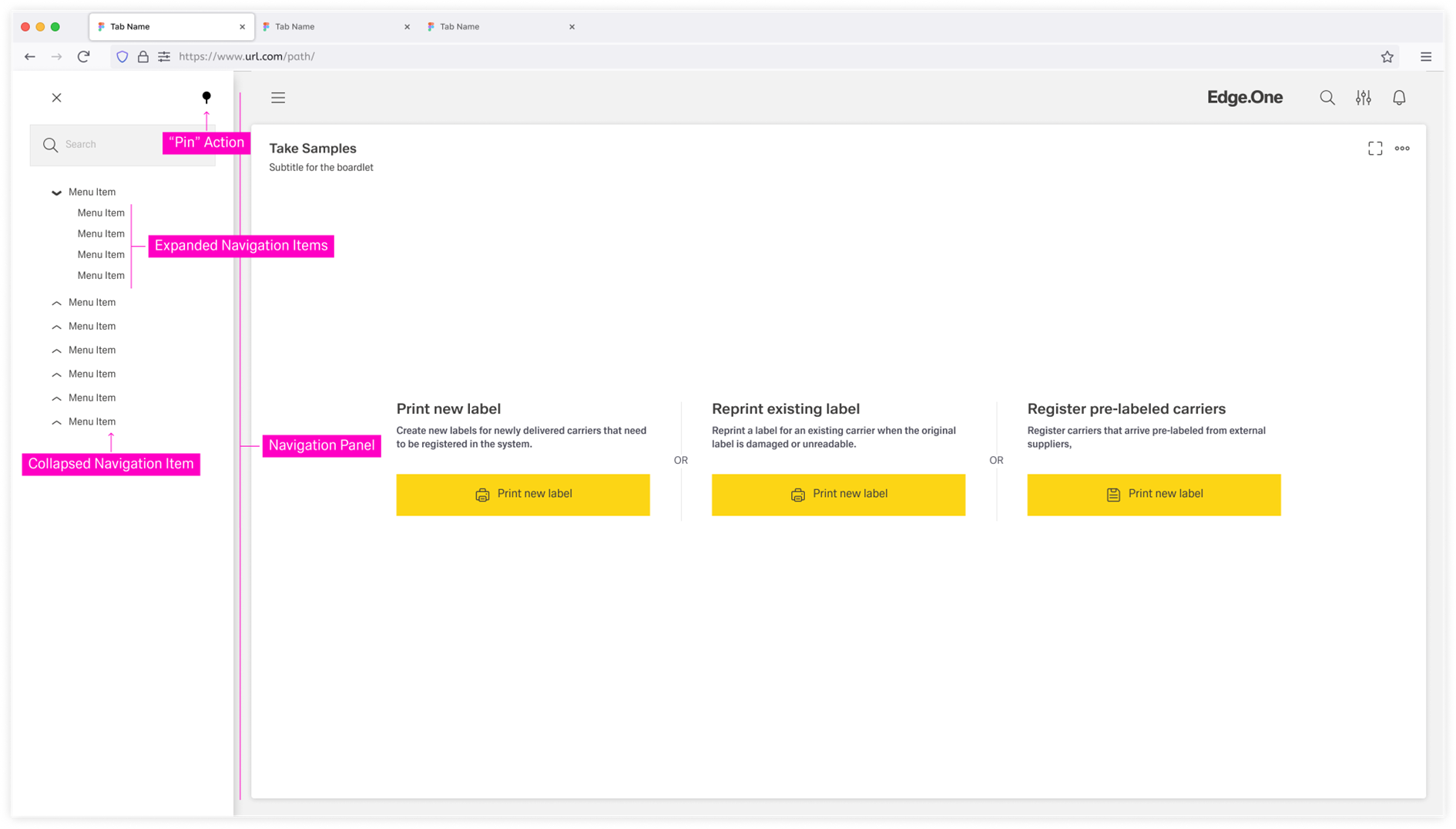
Inside the menu, a dashboard tree or list provides a structured overview of available dashboards and — where applicable — navigation to apps and external pages. A search bar supports fast access to dashboards and destinations, which becomes especially valuable in larger structures. The menu’s structure and entries are configured in the Menu Settings of the app or namespace.
Home Dashboard
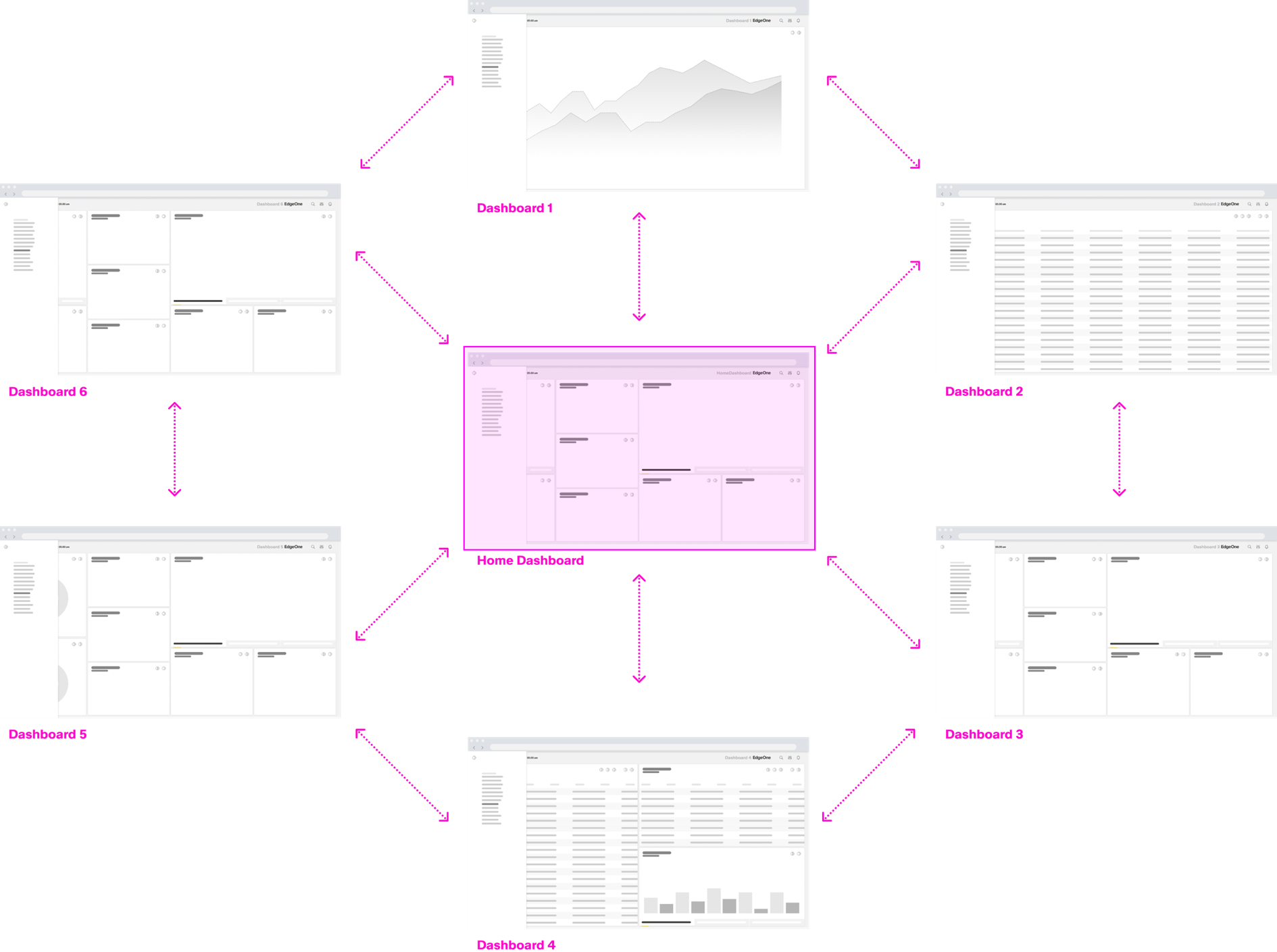
The Home Dashboard is the starting point of a UPW and the primary place users return to when they want to “reset” their navigation context. It serves as the start page of a namespace, offering further navigation from there. Users have constant access to Home through the Wordmark in the Header. This dashboard can be configured as a custom dashboard per user group by developers, meaning the default landing experience may vary between different groups of users.
Best Practices
Navigation Panel Structure
Organize the dashboard list/tree into meaningfully and aligned with the product’s information architecture. Avoid overly long flat lists or more than three levels inside a tree.
Naming Navigation Items
Use clear and concise titles for the items inside the panel. Avoid internal jargon and ambiguous terms and keep naming consistent with the page titles. The menu items should be short but clear on where they navigate to.
Clearly label external links as such. The user should always be aware if they are navigating outside the UPW. This reduces surprise and improves trust.
The Navigation dashboard should never allow navigation to the center of a process or conditional boardlets. This navigation belongs to Local Navigation. Instead, navigate the user to the beginning of a process or an overview.
Home Dashboard
Customize the home dashboard for different user groups. This might include many different home dashboards, though many groups might have the same dashboard.