Footerbar Actions
Overview
The footer bar always controls the workflow of the organism it is placed in. The actions related to the workflow are always located at the bottom right of the boardlet and can be performed after you work through the boardlet content. The hirachie moves from the bottom right to the bottom left.
The footerbar has a fixed height and may never be multiline. The footerbar may be used only in the allowed combinations listed below. Footerbars are found in different organisms and have partly different rules, depending on the field of application of the respective organism.
Anatomy
Allowed combinations
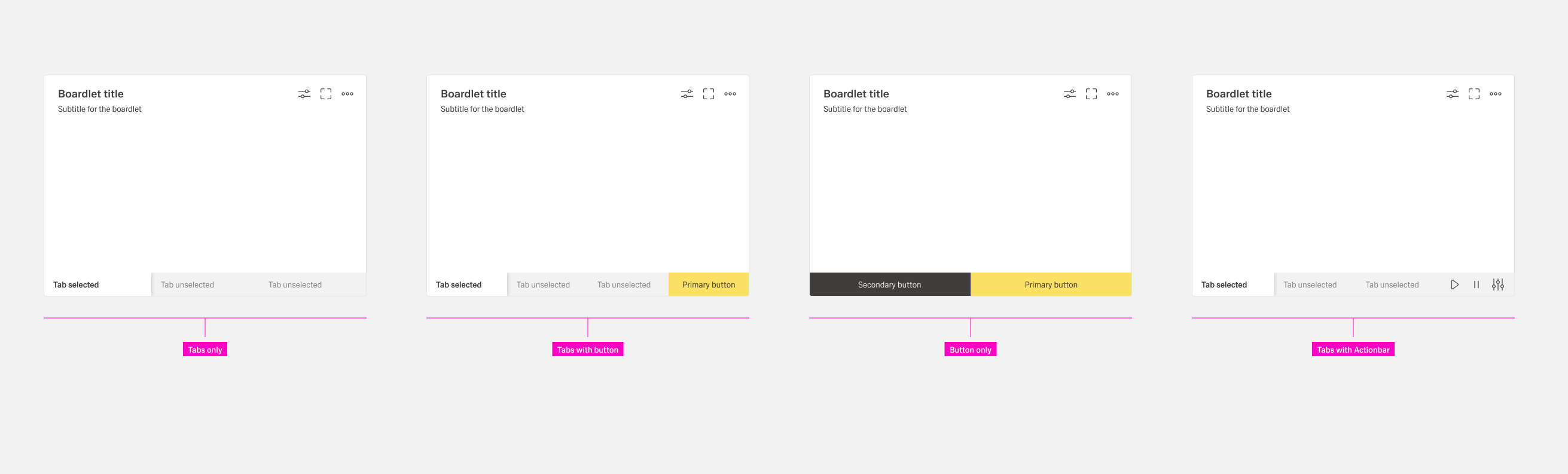
- Tabs only. Boardlets with tabs are one of the primary display options. The tabs are arranged side by side. There is no default number of tabs within the boardlet.
- Tabs with buttons. Boardlets with tabs and buttons are one of the primary display options. This display is used as soon as the boardlet has multilayer content as well as a contentaction. In case the action is only available in one tab, it will be displayed disabled in all other tabs. This is necessary to avoid unpleasant jumping back and forth of the molecules within the organism. The number of possible actions is limited to a maximum of 2 buttons.
- Buttons only. Boardlets with buttons only are one of the primary display options. This representation can be used in case an action is required in the boardlet. The number of possible actions is limited to a maximum of 2 buttons.
- Tabs with actionbar. Boardlets with tabs and a actionbar are one of the secondary display options. This combination can be used in the kiosk mode and enables the control of the tabs. E.g. the rotation of the tabs as well as time control of the rotation.
Boardlet footerbar
Each boardlet has the possibility to use a footerbar. All 4 different combinations are allowed, though "tabs with an actionbar" are only allowed in the kiosk view.
Dialog footerbar
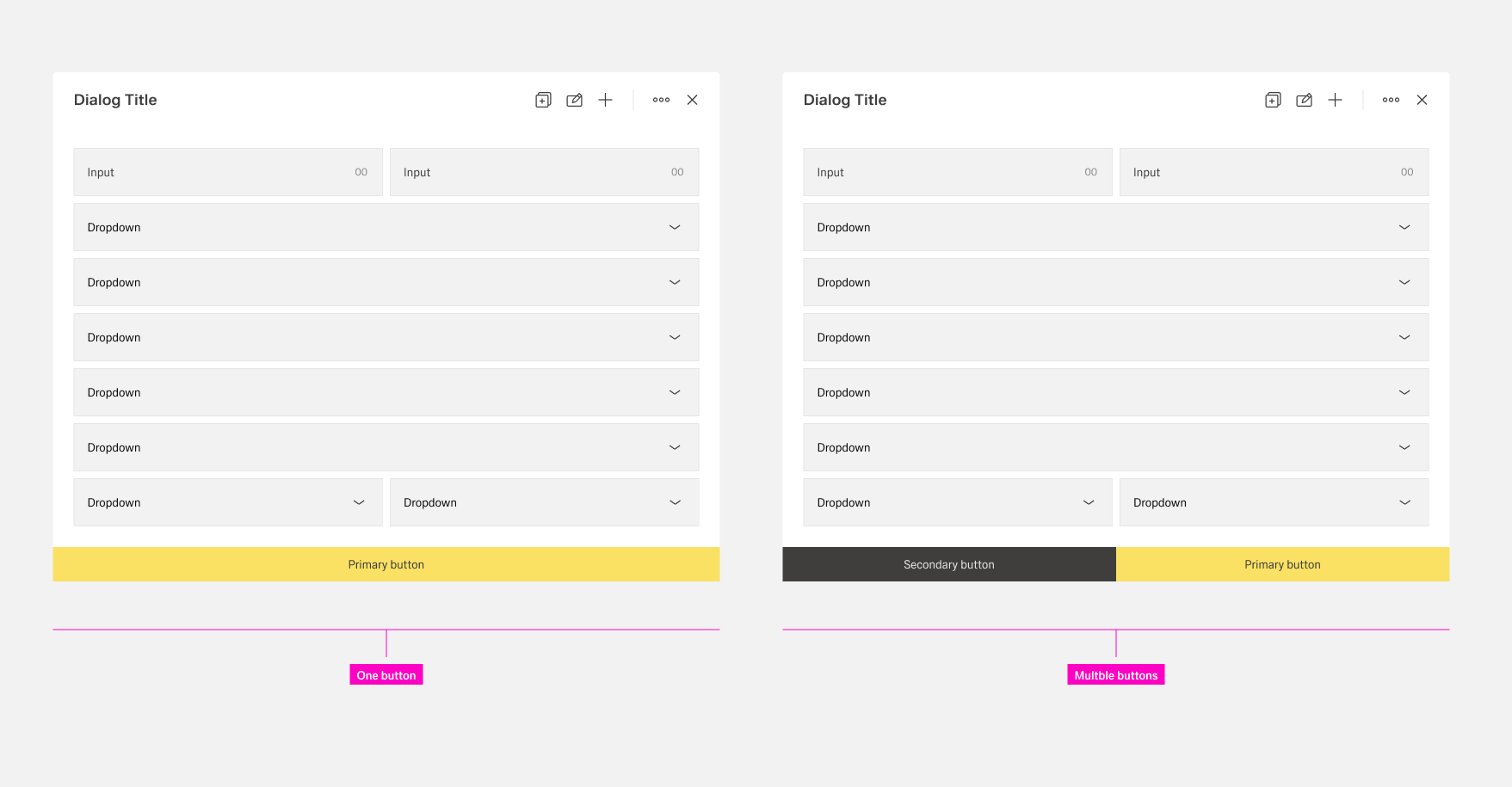
Only tabs, tabs with buttons and buttons only are allowed as footerbars of dialogs. Dialogs must always have a footer.
A dialog without sidebar can only have buttons inside the footerbar. They span the entire width of the dialog no matter the amount of buttons. If the dialog needs tabs, a dialog with sidebar is used.
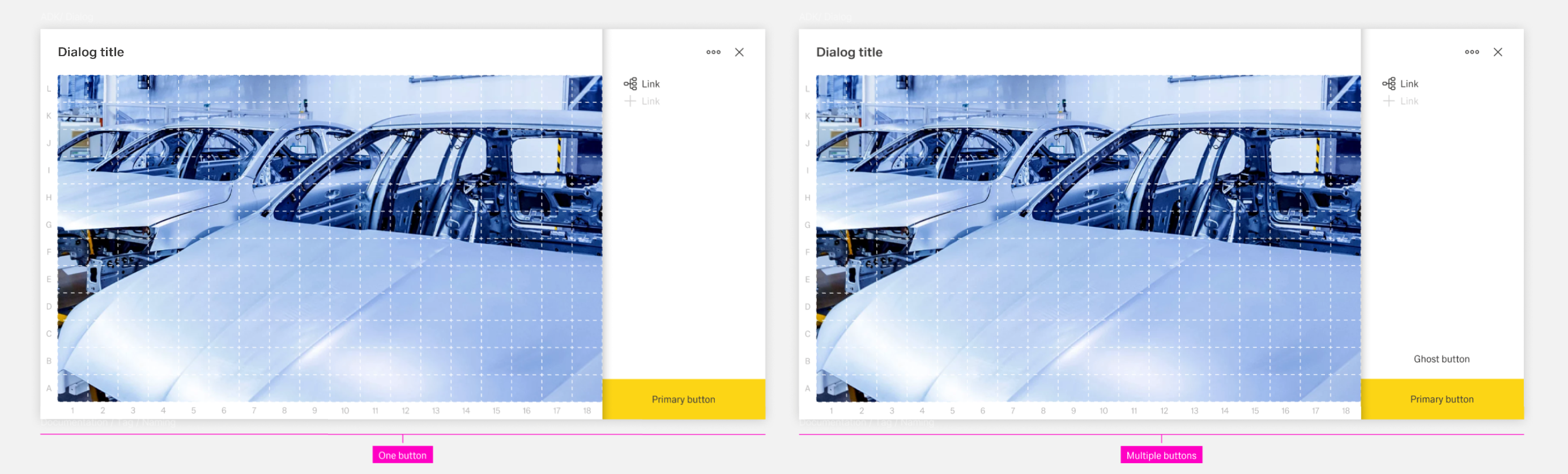
In case the dialog has a sidebar, the layout changes. Buttons are stacked on top of each other and will the entire sidebar in with. The height between buttons is always the same. Tabs appere in the form of vertical tabs in the sidebar.
Modal footerbar
The modal allows only one footerbar combination, only buttons. It is up to the designer which combination of the different buttons they choose.
The height of the buttons stays consistent throughout. The width depends on the number of buttons, which should never exede three. In accordance to the hierarchy of buttons
- The primary button is placed the farmost right.
- The secondary button(s) is/are placed to the left of the primary button.
- The ghost button(s) are placed to the left of the secondary button. If no secondary button exist, the ghost buttons are placed to the eft of the primary button.

Best practices
Placement and structure
Place the workflow actions at the bottom right of the boardlet. Keep the footerbar at a fixed height and never multiline. Use only the allowed combinations and follow the organism rules.
Using allowed combinations
For Tabs with buttons, show the action disabled in all other tabs if it is only available in one tab. This is necessary to avoid unpleasant jumping back and forth of the molecules within the organism. Limit the number of possible actions to a maximum of 2 buttons.
For Buttons only, use this representation in case an action is required in the boardlet. Limit the number of possible actions to a maximum of 2 buttons.
Use Tabs with actionbar as one of the secondary display options in kiosk mode. It enables the control of the tabs, e.g. rotation and time control of the rotation.
Per-organism application
In Dialog footerbars, use only the combinations 2a., 2b., 2c. If the dialog has a sidebar, the footerbar goes over the whole width and the buttons must not be wider than the footerbar.
In Modal footerbars, allow only buttons. The height of the buttons is important and primary buttons are always on the right.
Action order
Use the Footer toolbar order. Place the primary workflow/finalizing action leftmost (such as Post), then secondary actions (such as Return), then the negative path (such as Cancel).