Process Initiation
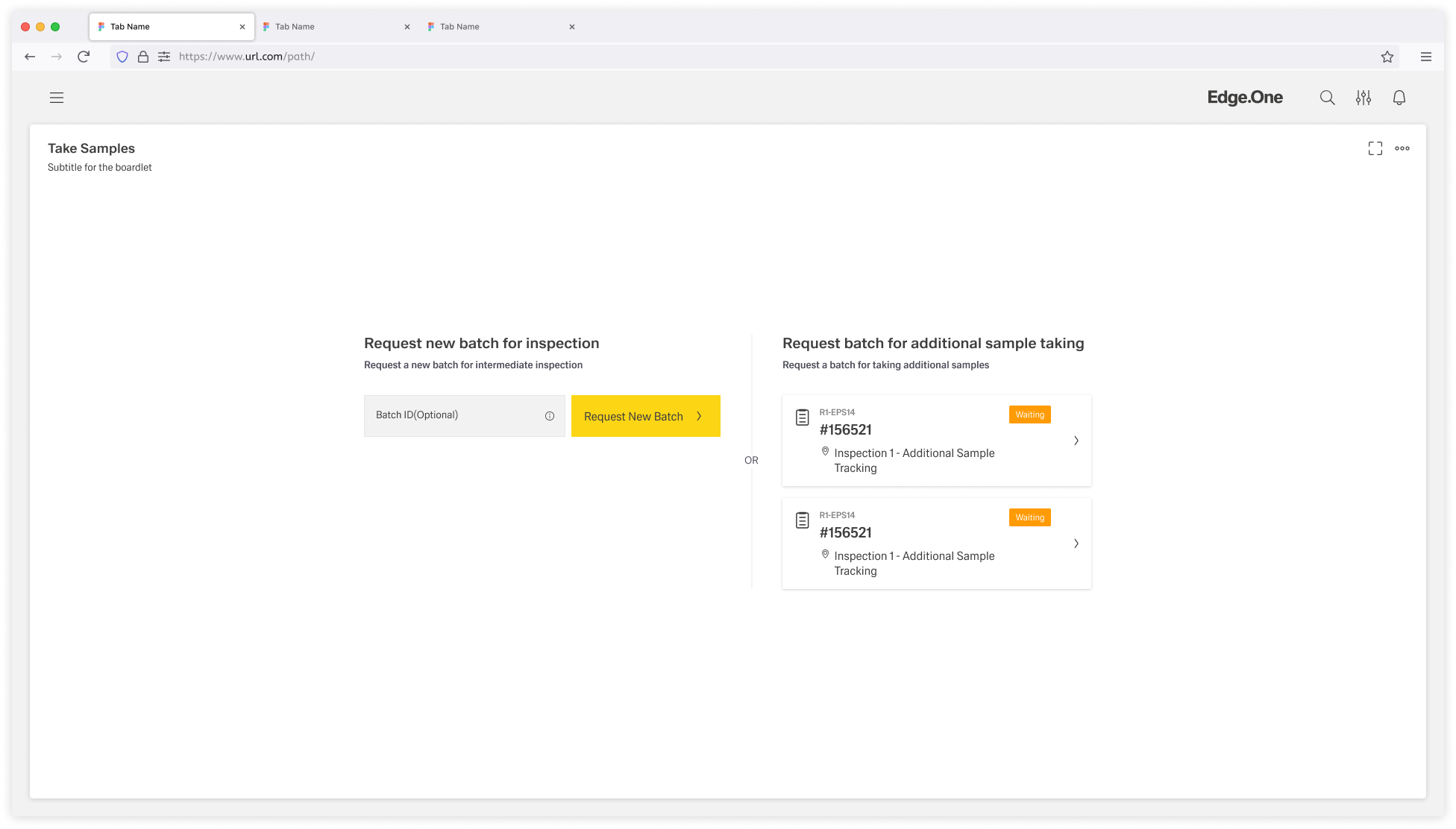
The Process Initiation page layout provides a structured starting point for initiating a new process by choosing one or more objects from a curated list, or by optionally creating a new object.
It guides users through identifying the correct item, reviewing available options, and seamlessly moving into the next step of the workflow.
Usage
When to Use This Page Layout
- Supporting Guided Process Initiation — The layout guides users through choosing the correct starting point, reducing mistakes, and helping them follow the correct workflow according to business rules.
- Initiating a New Process — Users can start a process by providing optional input (such as a batch ID) and generating a new ticket/card. This supports workflows where a fresh process instance must be created before continuing.
- Continuing a Process — Users can browse and choose from a list of already available cards to proceed with an ongoing or pending process. This is useful when tasks require additional steps, follow-ups, or continuation of previously started work.
- Searching for a Specific Item to Work on — Users can quickly find a desired item by searching based on identifiers or keywords, enabling efficient access, especially when many tickets/cards exist.
- Providing an Overview of Available Options — The screen shows multiple pathways to initiate the process—either creating a new entry or selecting an existing one—giving users clarity on the available actions before they begin.
When Not to Use This Page Layout
- Large-scale Data Browsing or Inventory Work — If users must browse, filter, and compare many items, prefer a table.
- Complex Operational Dashboards — If users need to compare many attributes at once or triage, use a table.
- Editing or Managing Items — Actions like editing, deleting, assigning, or rearranging cards are out of scope. Use detailed object view instead.
- Single-path Workflows — If users can only ever has one categorie, skip this screen and go to he next step of the process instead.
- Advanced Selection Logic — If selection requires complex constraints, bulk operations, or multi-dimensional filtering, use a dedicated selection screen rather than a compact initiation layout.
Limitations & Considerations
- Limited Information Displayed per Card — Cards typically show only high-level details (e.g., ID, title, status). Users may need to navigate further to view the full context or additional data.
- Dependent on Search Accuracy — If the system relies on exact matching or limited search parameters, users might struggle to locate the correct ticket without knowing its precise details.
- Not Designed for Large-Scale Data Browsing — This page layout is optimized for quick selection or creation—not for browsing large inventories or performing complex filtering. For extensive data exploration, a dedicated list or table view may be needed.
- Limited Action Scope — The screen focuses solely on initiating or selecting a process. Actions like editing, deleting, or rearranging cards are outside the scope and must be done elsewhere.
- Selection Complexity — If users can select multiple objects, ensure constraints (e.g., maximum selection, allowed combinations) are clearly communicated and enforced.
Anatomy
The Process Initiation screen is composed of several key elements that guide the user through selecting or creating a process entry. It includes multiple sections that may have different functionalities as described below.
Every section is separated from the other sections by a separator line.
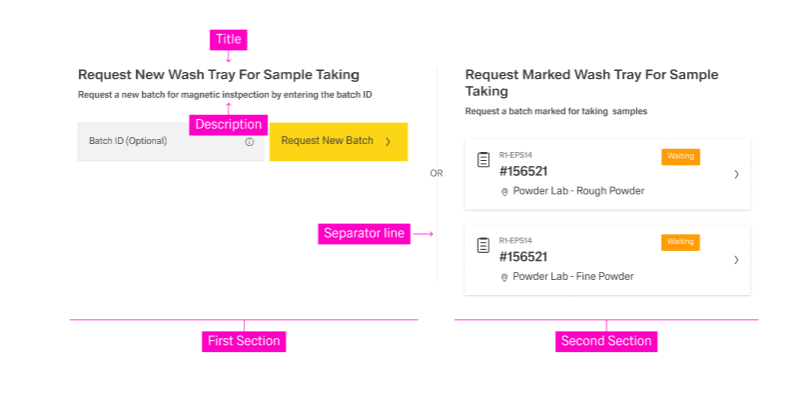
Each section should include:
- A short title clearly stating the purpose or selection criteria for this section. This helps users differentiate sections immediately.
- A description adding context to the title and clarifying the content of the section.
Avoid more than three sections. Too many sections can overwhelm users and dilute decision clarity.
Object Creation
This section allows users to introduce a new object to this process.
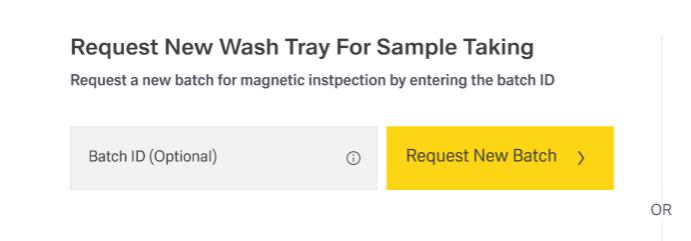
Depending on the workflow, the object:
- may already exist in the application and is found via one or more identifiers, or
- may be created entirely new within this section.
Common features include:
- An input field for an identifier such as a Batch ID (may be optional).
- A non-text input such as the Visual Codes Scanner to register an item.
- A (usually primary) action button to initiate the new process. This button may be disabled until required inputs are provided.
List of Existing Objects
This section displays a curated selection of objects for the user to choose from.
The list usually filters objects by a specific criterion such as:
- “Objects that need to complete this process”
- “Objects waiting for your action”
- “Objects already created and ready to continue”
This criterion must be clearly stated in the section title and reinforced in the description.
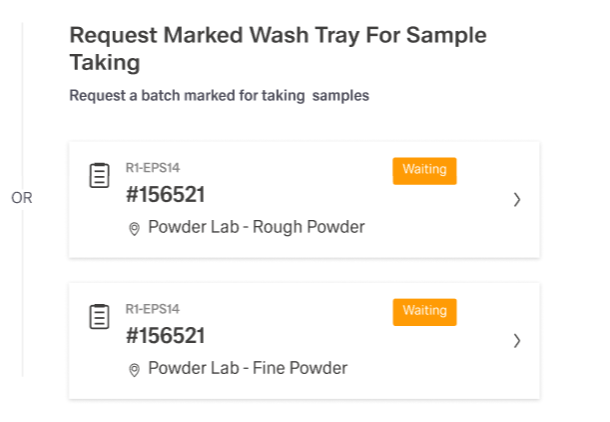
The items inside the list are usually cards with a variety of attributes, for example:
- Identifier (e.g., Card ID)
- Category or type label
- Short description or step info
- Status indicator (e.g., Waiting)
- Chevron or button indicating it is selectable
This section can be present multiple times with different listing categories.
Task selection
Use this section when the list of objects is too long or complex for a compact section. In this case, the section routes users to a separate selection screen (usually table/list-based) where users can more easily choose the right object(s).
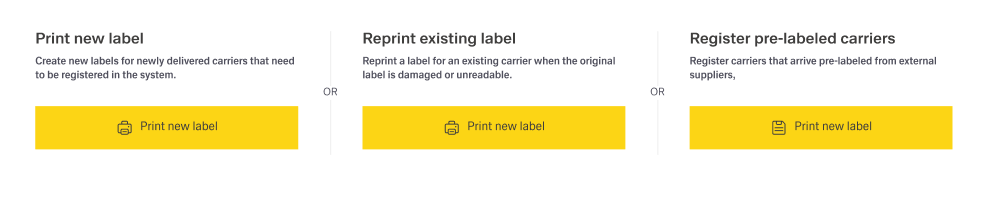
Inside Process Initiation, this section includes:
- The title
- The description
- A single button (e.g., Open Selection, Browse All, Choose Objects)
Behaviour and Interactions
Core Paths
Start new
- User enters optional identifiers or scans a code.
- User confirms the input with the accompanying action.
- System creates/links the object.
- User is routed to the next step of the workflow.
Continue existing
- User browses or searches the curated lists.
- User selects one (or multiple) objects.
- User is routed to the next step of the workflow (or to a confirmation step if multi-select requires it).
States
- Loading: show placeholders/skeleton cards.
- Empty list: explain why no objects are shown and point to “Create new” (if allowed).
- No search results: show the query and provide a clear way to reset.
- Error: show a readable error message and allow retry.
Guidelines
The page layout should keep the number of sections deliberately small, because each additional section increases choice complexity and reduces confidence. In most cases, a maximum of three sections enables fast scanning and keeps the “next step” obvious. More than three sections typically indicates that the selection problem is too complex for this page layout and should be moved to a dedicated selection screen.
Terminology should remain consistent across the entire page layout so that one concept is not labeled as “object” in one place and “card” or “ticket” in another. Exceptions are acceptable when the distinction is meaningful and explicitly explained. A stable vocabulary improves predictability and reduces errors, especially when content and UI are maintained by multiple teams.
Each section should be treated as a small, self-contained decision area. The title should state the purpose or selection rule, while the description should explain what is available in that section and what the outcome of a selection will be. Sections should be clearly separated using spacing and dividers so they read as distinct options rather than one blended block.
Object creation guidelines
Input handling should be tolerant of real-world formats, including common separators and formatting differences such as spaces and dashes. Support for non-text input, such as scanning, should be included when it matches the operational workflow.
When object creation fails, error messages should remain brief, understandable, and focused on recovery. Entered values should be preserved so that retry does not feel like starting over. Where helpful, guidance can point to the next check (for example, validating identifier format or repeating a scan) without exposing internal system details.
Existing objects list guidelines
Each list of existing objects should make its inclusion rule obvious, ideally by encoding the criterion in the title and reinforcing it in the description. This makes it clear why the items are shown and which list is appropriate for the current task.
Cards should be optimized for scanning and quick comparison, which requires limiting content to the attributes needed for a confident choice. A stable attribute order across lists and consistent truncation rules for long text support faster recognition and reduce rereading.
If multi-selection is supported, it should be supported intentionally and only when the next step can handle multiple objects without ambiguity. Selection feedback should be explicit through selected states, a visible selection count, and a clear “Continue” action. Multi-select rules—such as maximum selection, eligible statuses, and disallowed combinations—should be communicated early and enforced consistently to prevent late-stage surprises.
Task selection guidelines
Task Selection should be used when the initiation view cannot present choices in a compact and understandable way. This typically occurs when there are too many items, or when selection depends on advanced filtering that would overload the initiation layout. In these cases, the initiation view should stay lightweight and provide a short explanation plus a single, clearly labeled entry point to a dedicated selection screen.
The dedicated selection screen should enable efficient decision-making through stronger search and filtering capabilities. Safe return to Process Initiation should be supported whenever feasible, preserving context, entered values, and current selections. This behavior reduces penalty for exploratory navigation and helps recover from mistaken entry paths.
States and feedback
Empty states should explain why nothing is available and indicate a clear next action, such as creating a new object or broadening a query. No-results states should reference the current search term, provide a quick reset path, and optionally suggest alternative search strategies when appropriate.