Dialog Library
Introduction
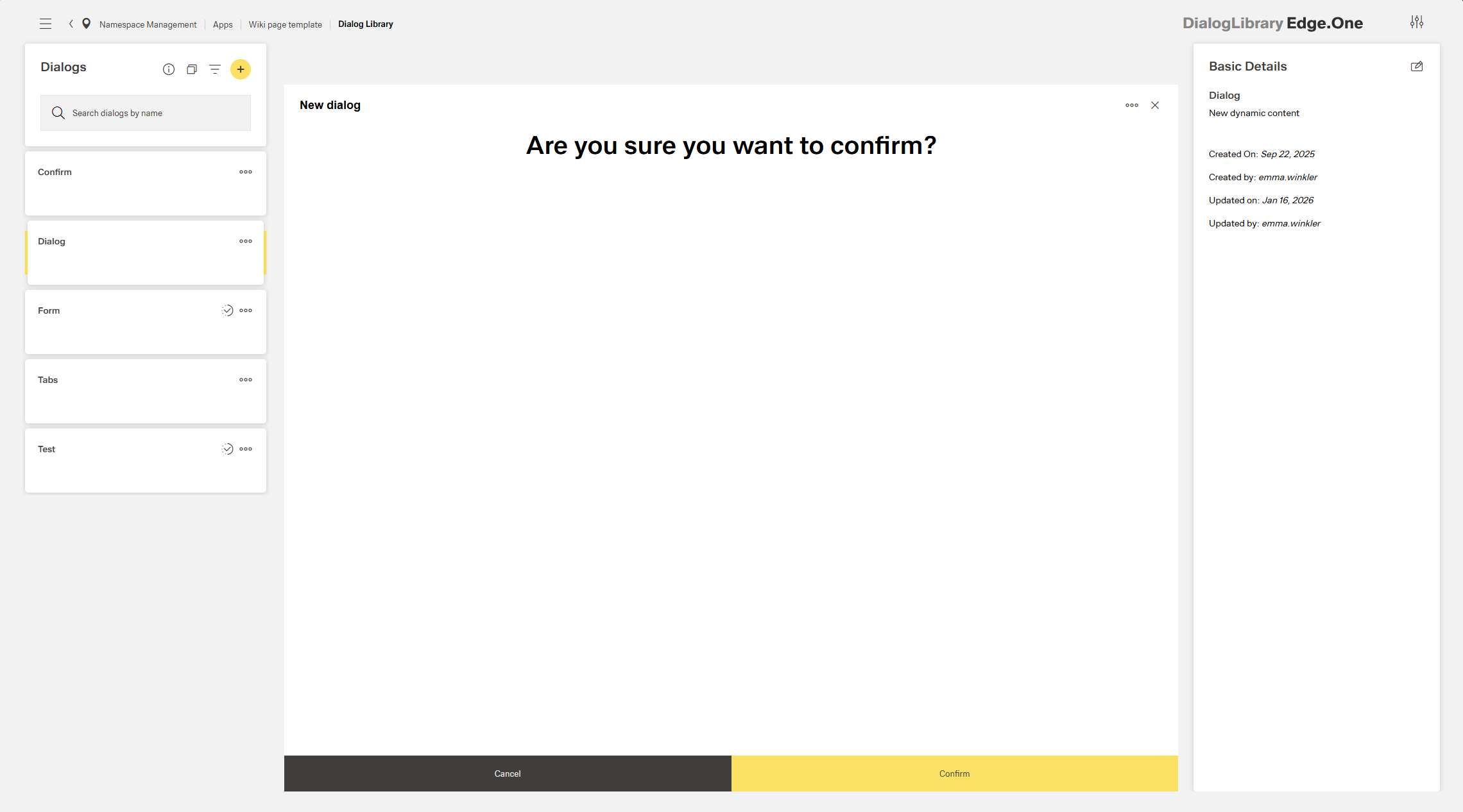
The Dialog Library is the central place for browsing, previewing, and managing all dialogs defined in the selected app context.
Each dialog is composed of reusable UI components such as buttons, charts, and forms. These can be further customized using the Dialog Editor.
The view is split into three areas:
- List and management – Displays all dialogs and provides actions such as search, create, import, and export.
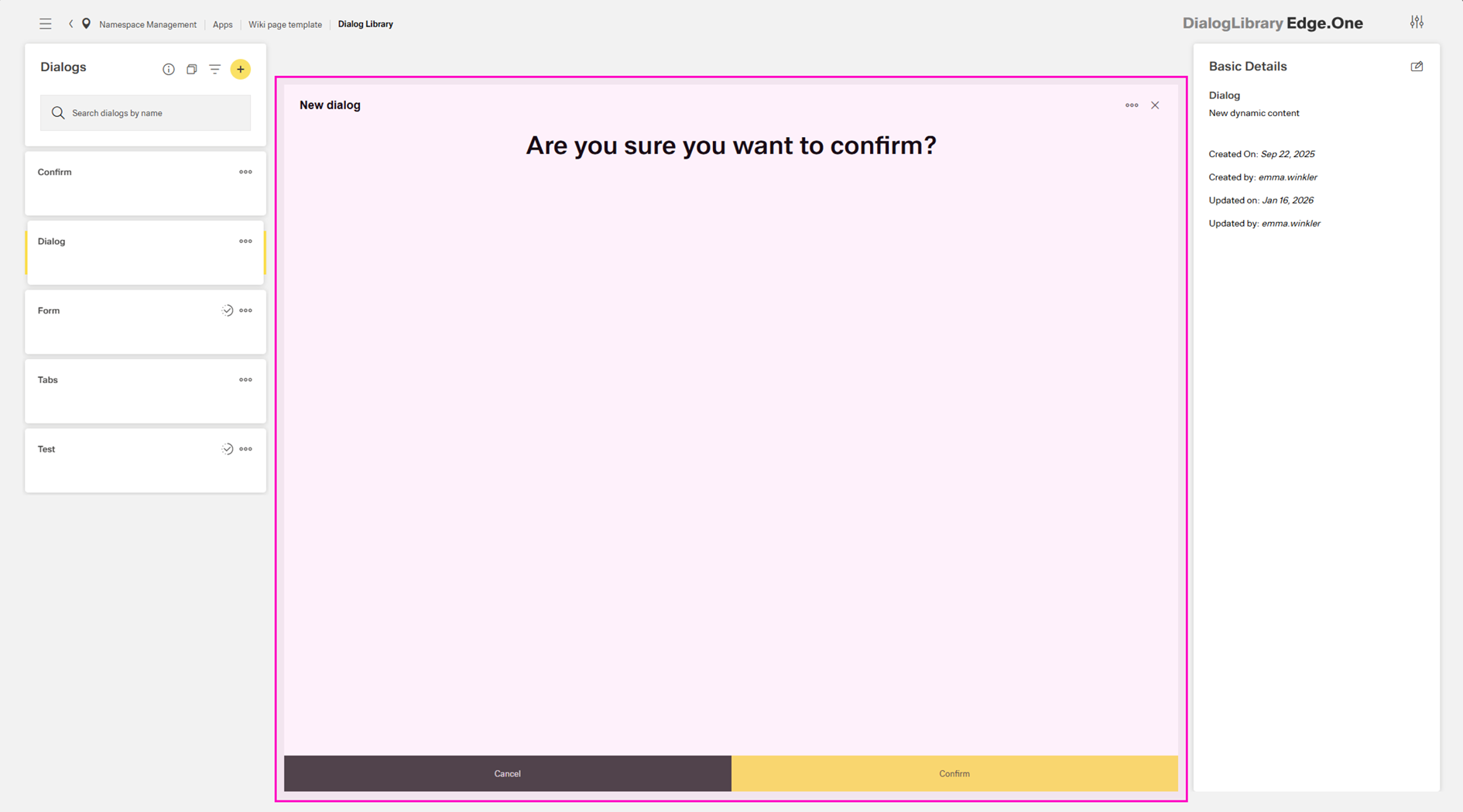
- Preview space – Shows a read-only preview of the selected dialog.
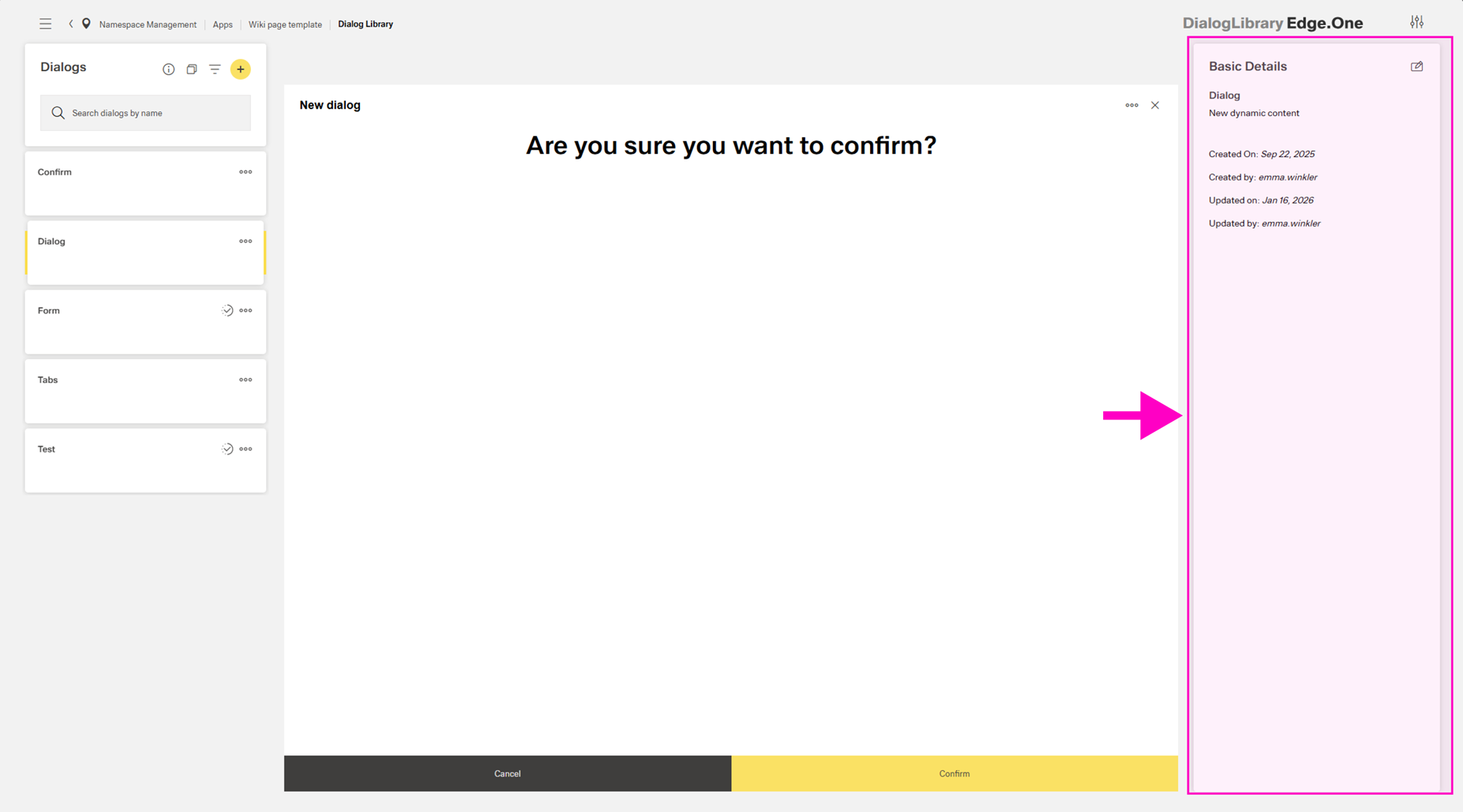
- Metadata panel – Displays item metadata and allows property updates.
The library supports the following capabilities:
- Browsing and searching available dialogs
- Creating, editing, duplicating, deleting, and exporting items
- Filtering and sorting items by title and creation/update metadata
- Inspecting metadata and updating item properties
List and Management
The left panel contains a scrollable list of cards representing the dialogs in the current app context.
At any time, one dialog is selected (unless no dialog exist in the current app context). When the page is opened, the first dialog in the list is selected by default.
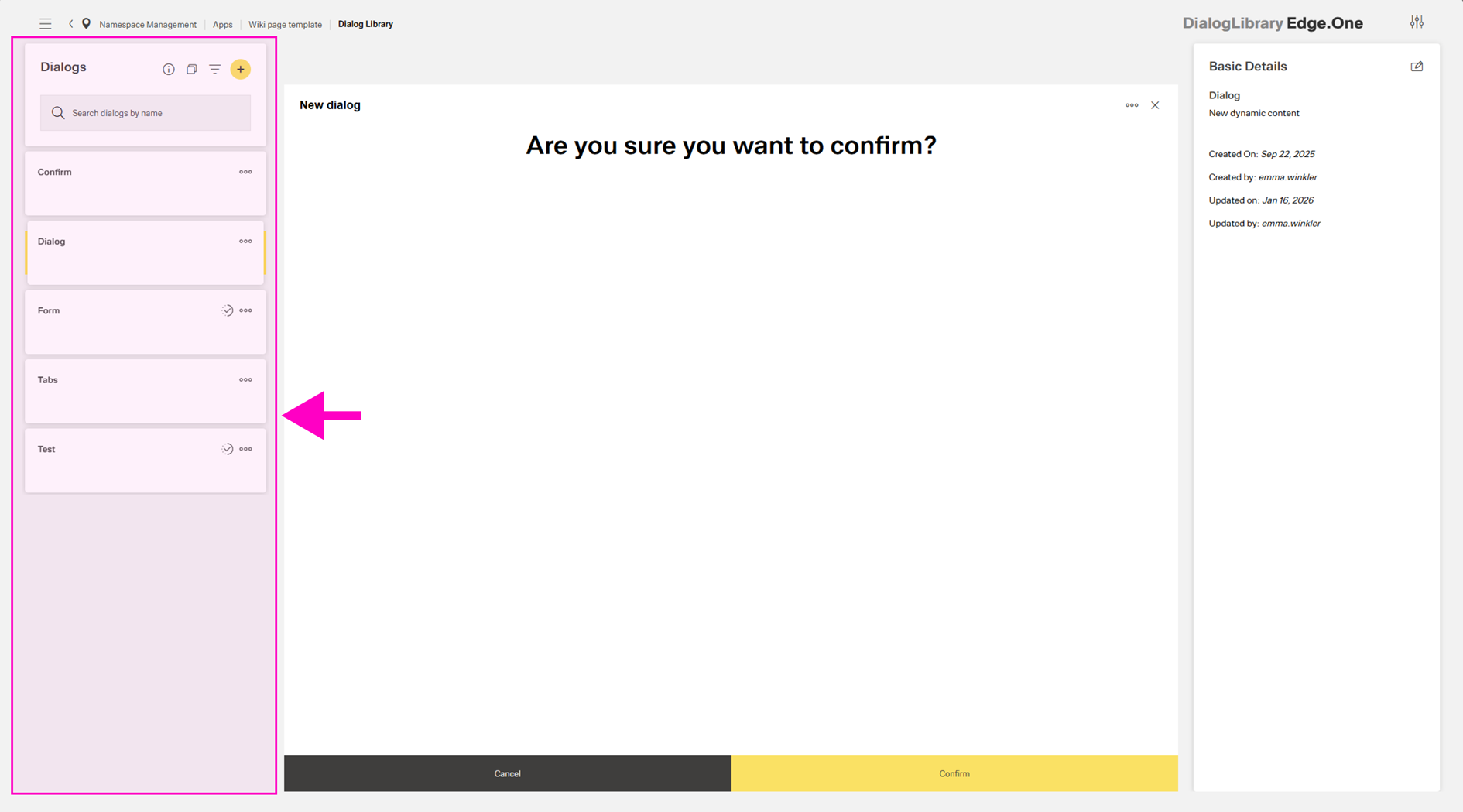
This section supports the actions described below.
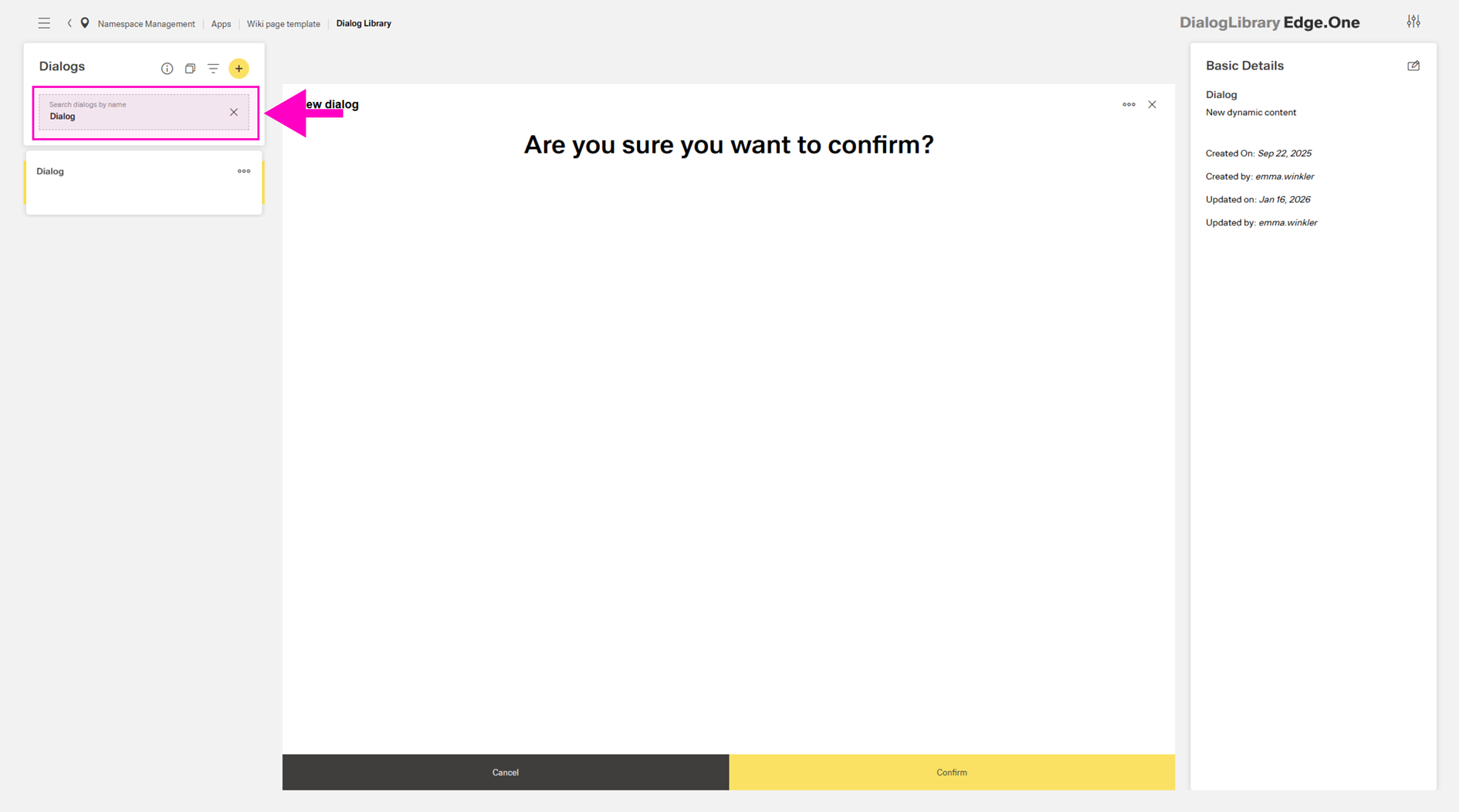
Search
The Search by name… field filters the list by dialog title. Capitalization is ignored.
Create New
A new dialog can be created via the Add action in the header.
A dialog is opened to capture the dialog name (ideally unique) and to select a template. Templates are recommended when the intended layout matches a predefined structure, as basic formatting and Inspire Design guidelines are already applied. The following templates are available:
- Basic confirm - Includes a title and footer bar actions for Cancel and Confirm.
- Form submit - Includes a form with three inputs and a primary button in a grid. Footer bar actions are Submit and Cancel.
- With tabs - Includes two vertical tabs. One tab is prefilled with a clock as an example.
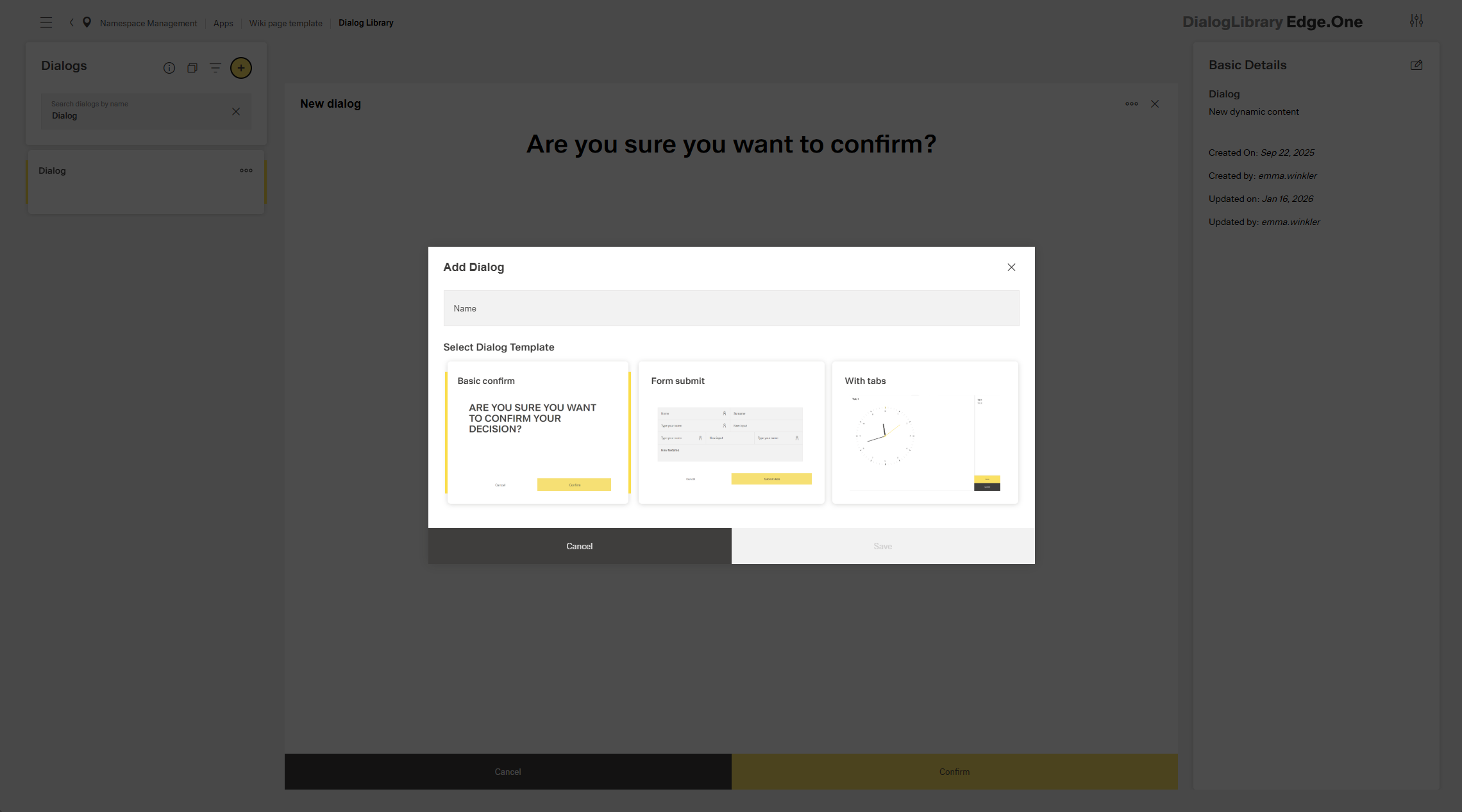
After saving, the item is opened in the Dialog Editor for configuration.
Filtering and Sorting
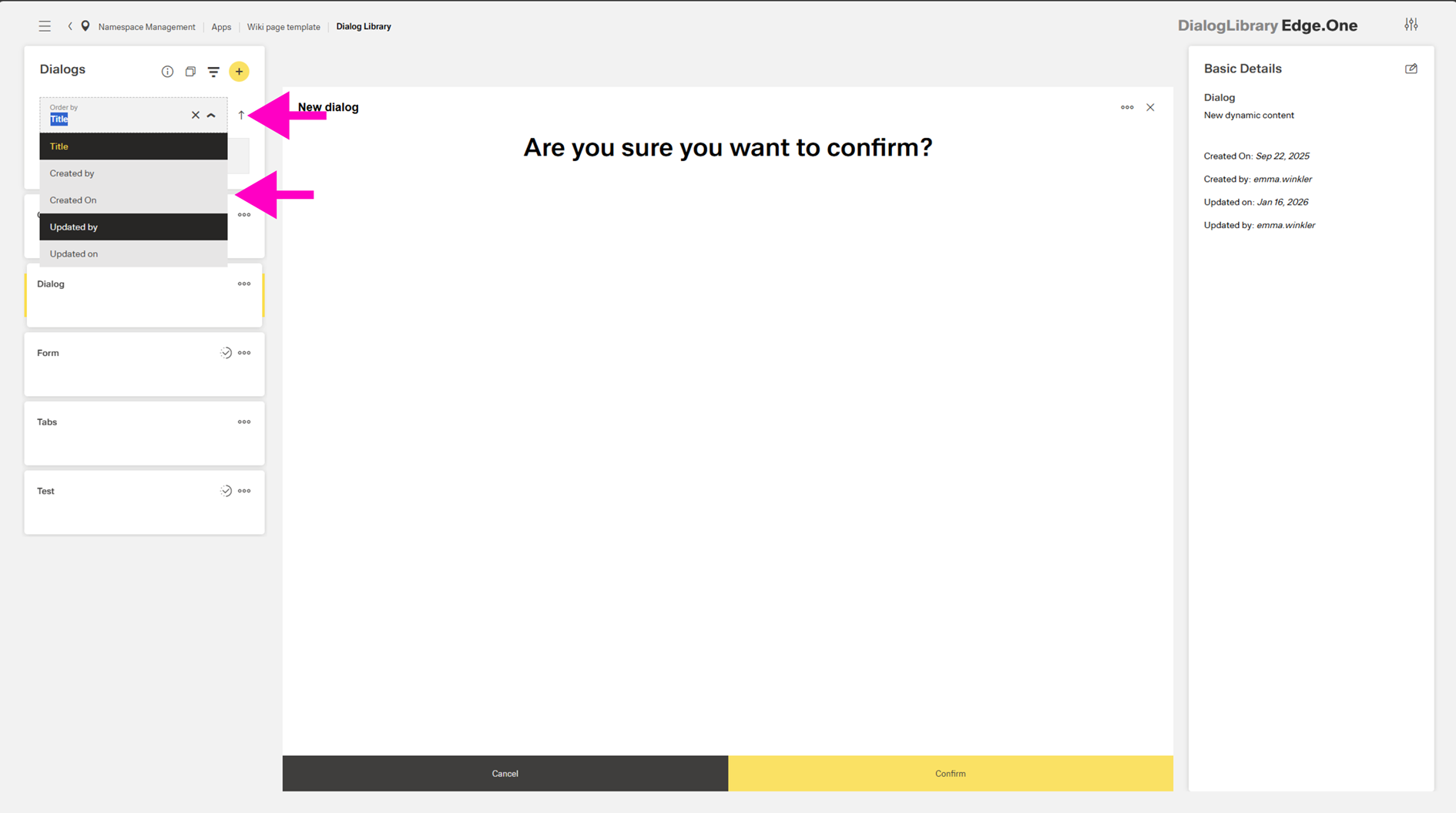
Filtering can be enabled via the Filter action. The list can be filtered by:
- Title
- Created by
- Created on
- Updated by
- Updated on
Sorting can be applied in ascending or descending order using the arrow icon next to the selected filter option.
Multi-select and Export
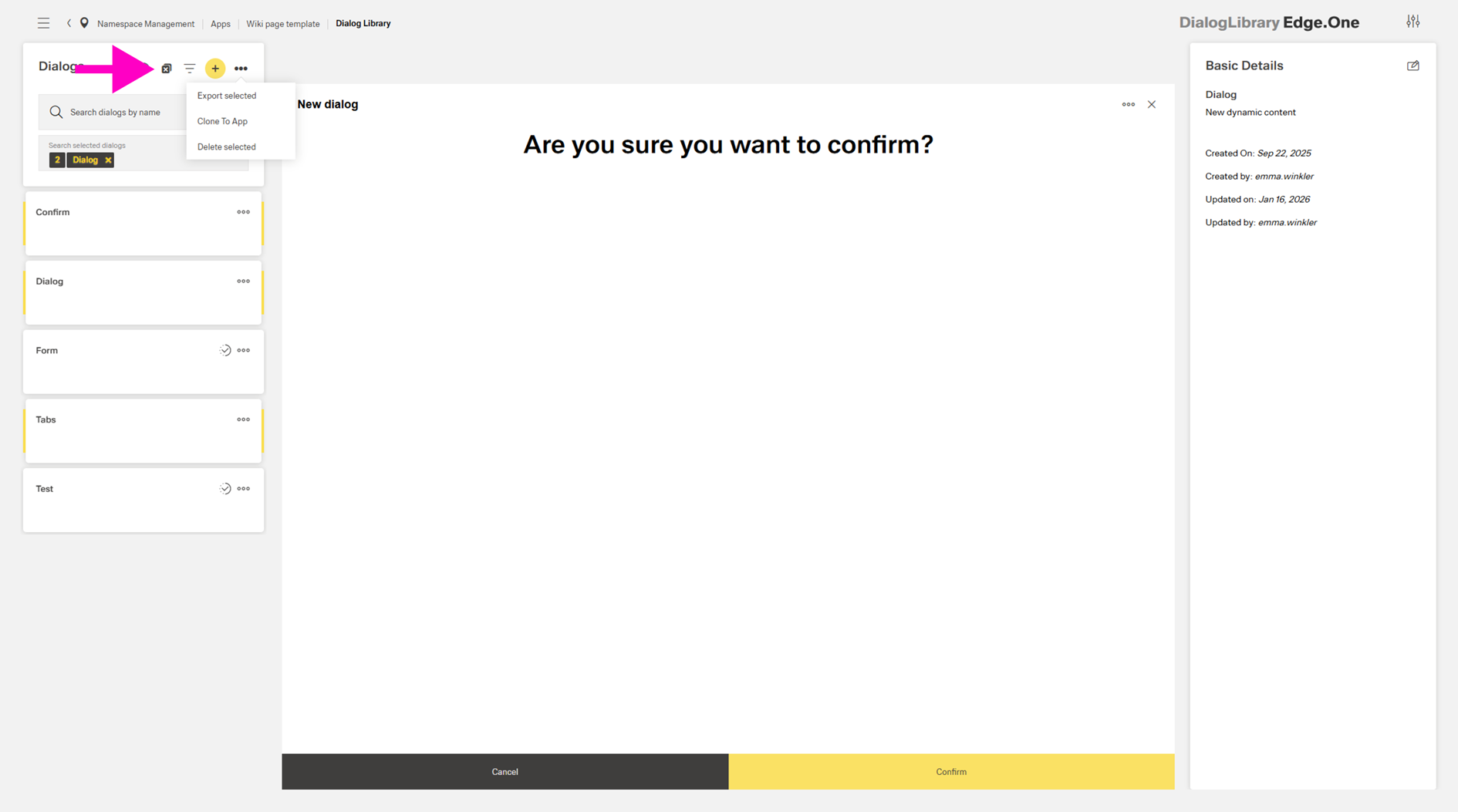
Selection mode can be enabled via the multi-select icon (double checkboxes). When enabled, multiple dialogs can be selected and batch actions become available in the panel menu:
- Export selected - Saves the selected items as a file.
- Clone to app - Opens a dialog to clone the selected dialogs to another app.
- Delete selected - Removes the selected items after confirmation.
Cloning to another App
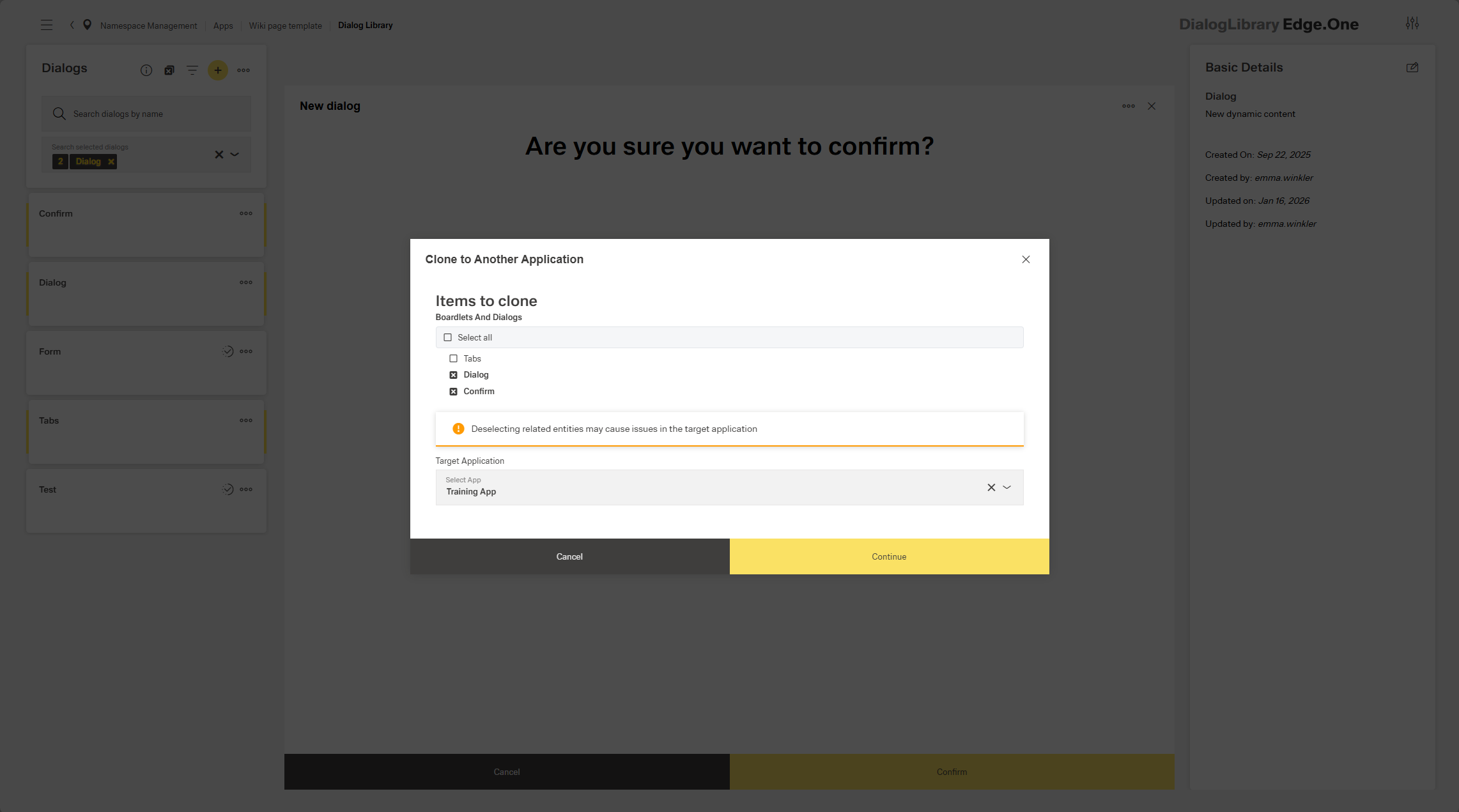
In the cloning dialog, the selection can be adjusted by deselecting previously selected dialogs. An option is available to also clone connected data sources. A target app is selected in the dropdown. Once selected, the process is confirmed using the primary action.
Item Cards
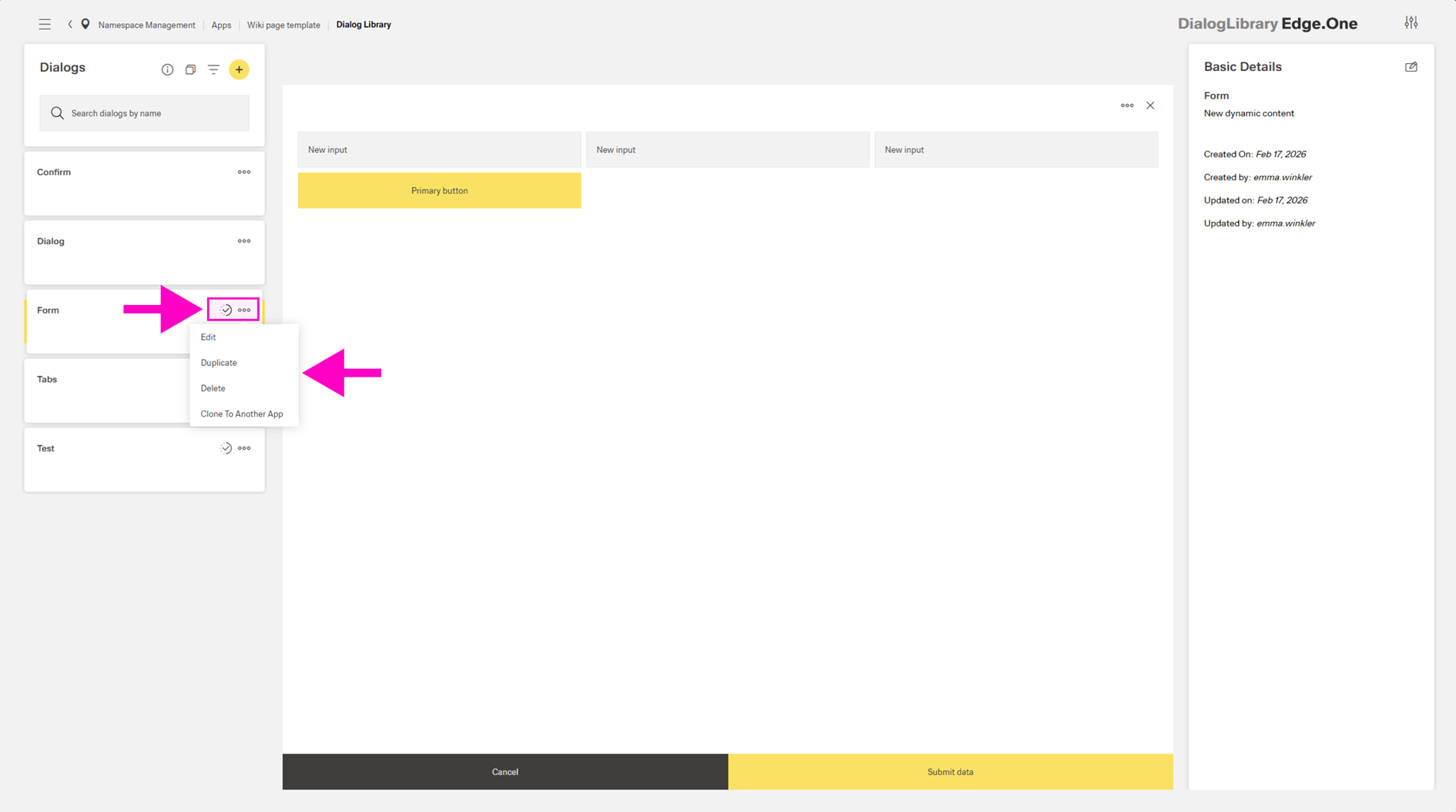
Each dialog is displayed as a card showing its title. The More menu on each card provides the following actions:
- Edit - Opens the item in the App Composer.
- Duplicate - Creates a copy of the item.
- Delete - Opens a confirmation dialog.
- Clone to another app - Opens a dialog to clone the selected dialog to another app.
When an item is currently being edited by another user, a progress icon is shown on the card. Hovering over the icon displays a tooltip with the editor’s name.
Preview Space
The preview space displays a static, non-interactive preview of the selected dialog. The layout and components are shown as they would be rendered, without editing or interaction. This supports quick review and selection verification.
Metadata Panel
The right panel displays metadata and properties of the selected item.
Visible fields:
- Title
- Created by / on
- Last updated by / on
Properties can be modified using the edit icon in the top-right corner:
- Rename the item
- Add or change description
- Add media, links, or tags
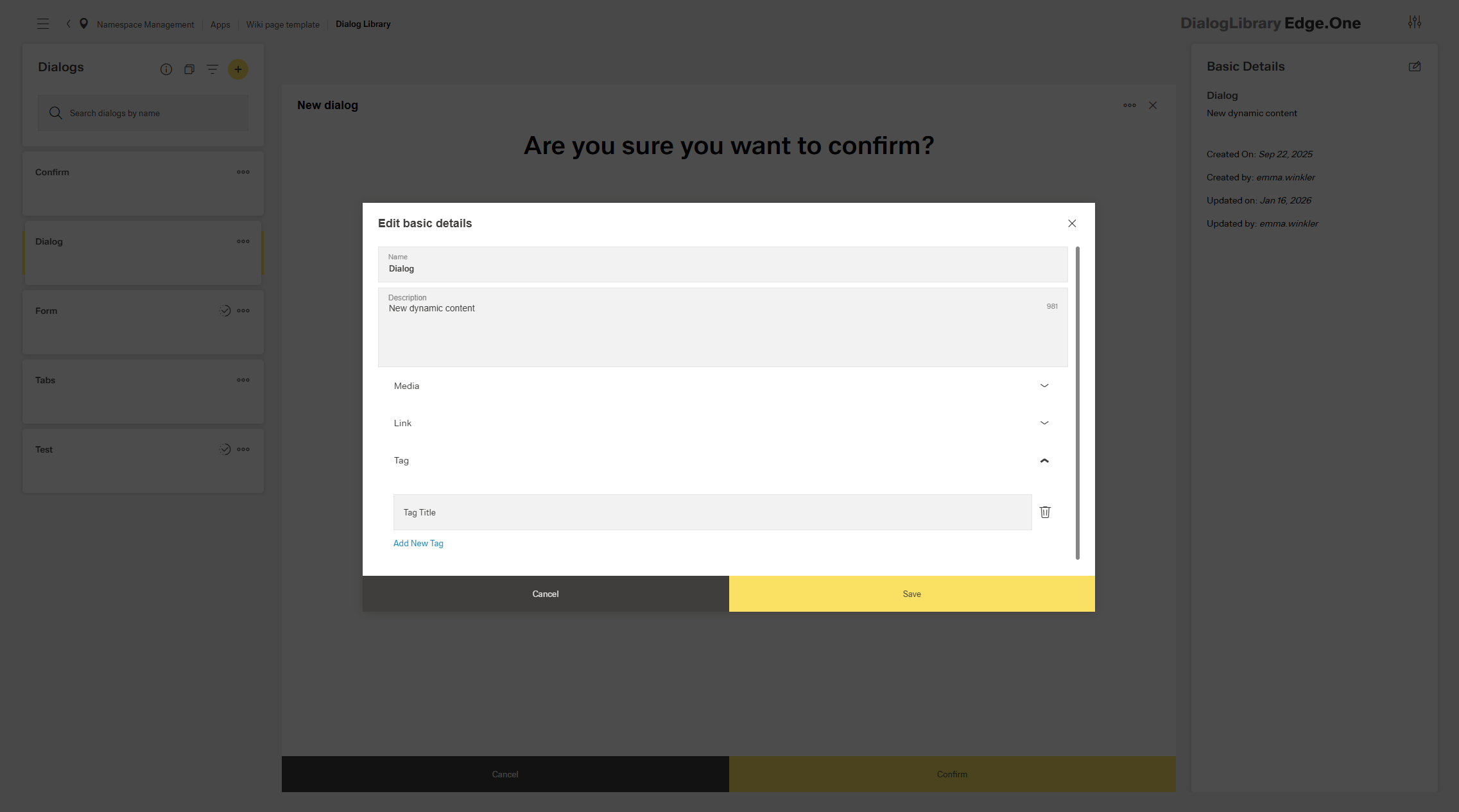
These properties can only be edited in this panel.