App Versioning
Introduction
Application versioning allows to manage application versions. Application versions are basically "snapshots" of application state at a creation time.
State of application which is saved under a version:
- dashboards
- dynamic contents (boardlets and dialogs)
- menu items
- data sources
- policy sets
- resource entities (used for authorization)
It is possible to execute a following versioning actions:
- create version - live state of application is saved under version string based on creation timestamp.
- restore version - live state is replaced with state from specific version, used for switching between application versions.
- delete version - delete application version, every saved entity under it is gone.
Create App Version
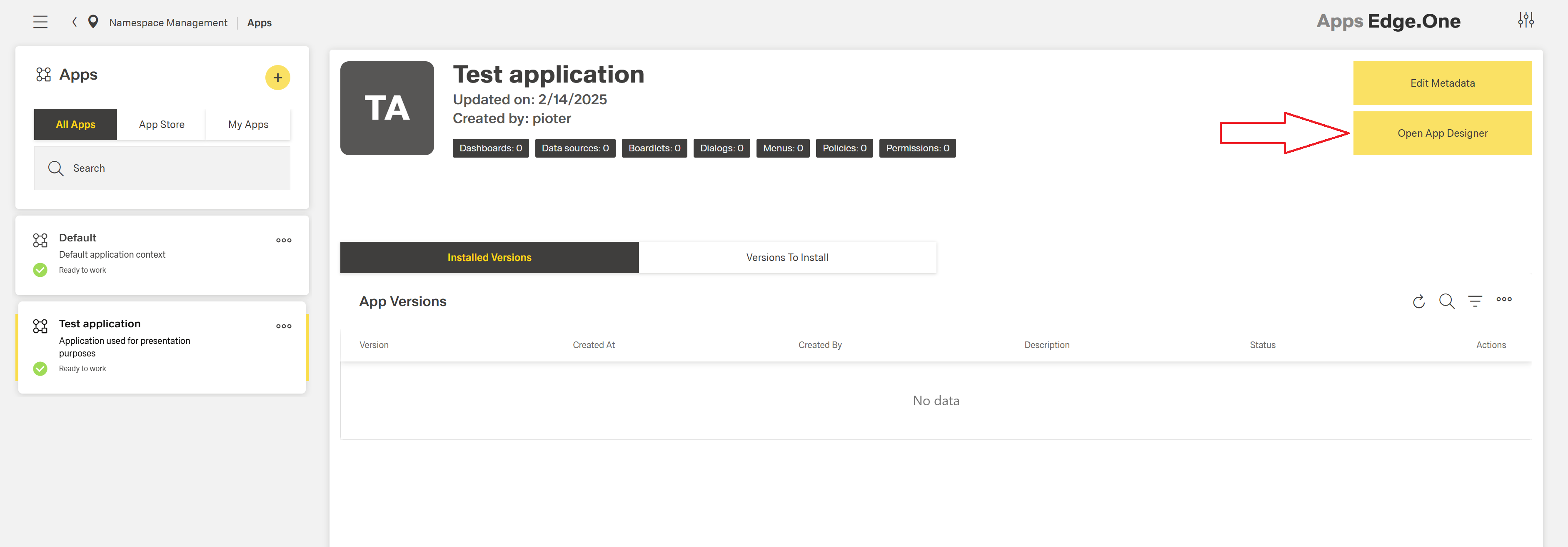
To create app version go to "App Designer" of specific app:
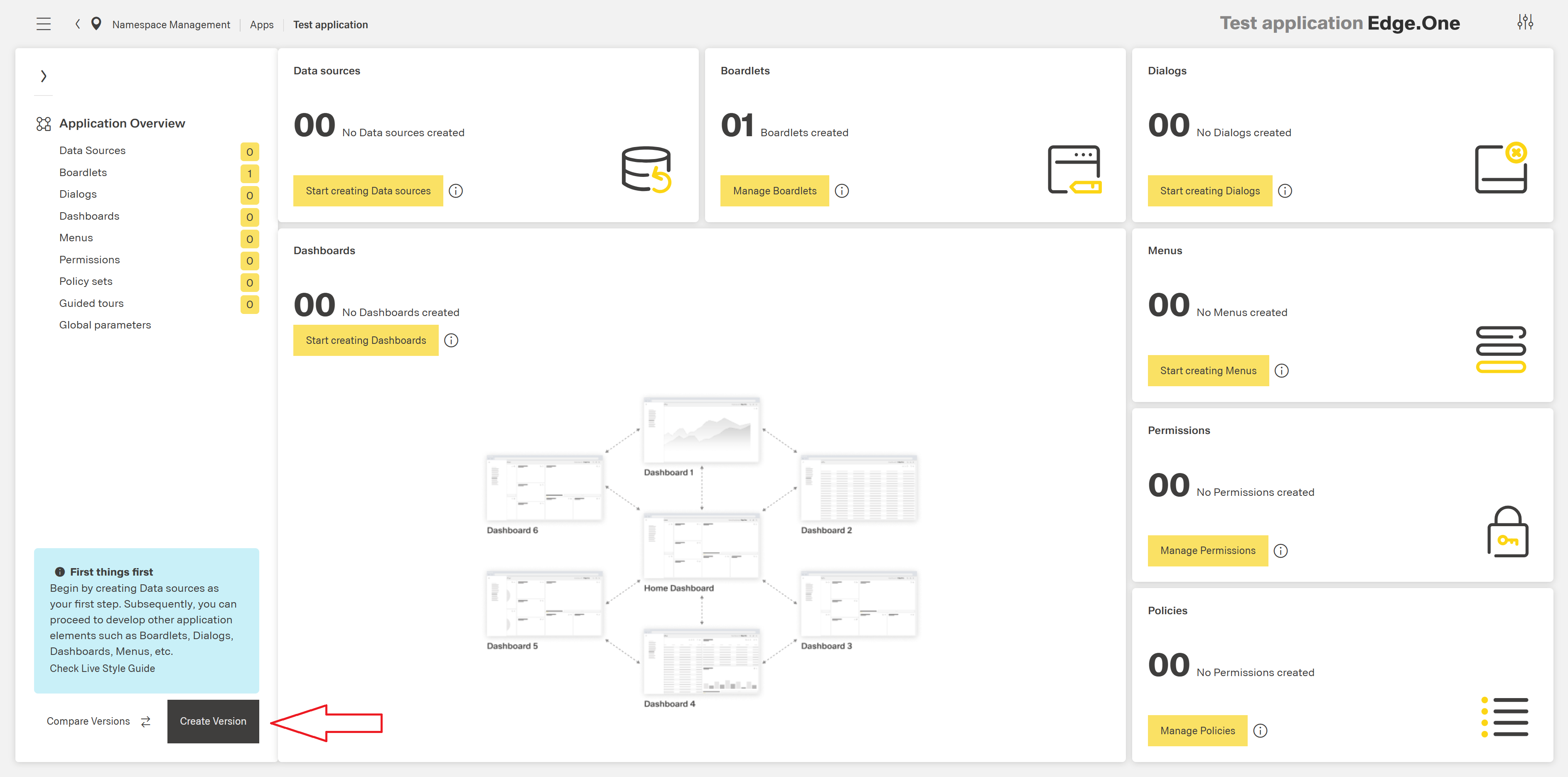
Click "Create Version" button:
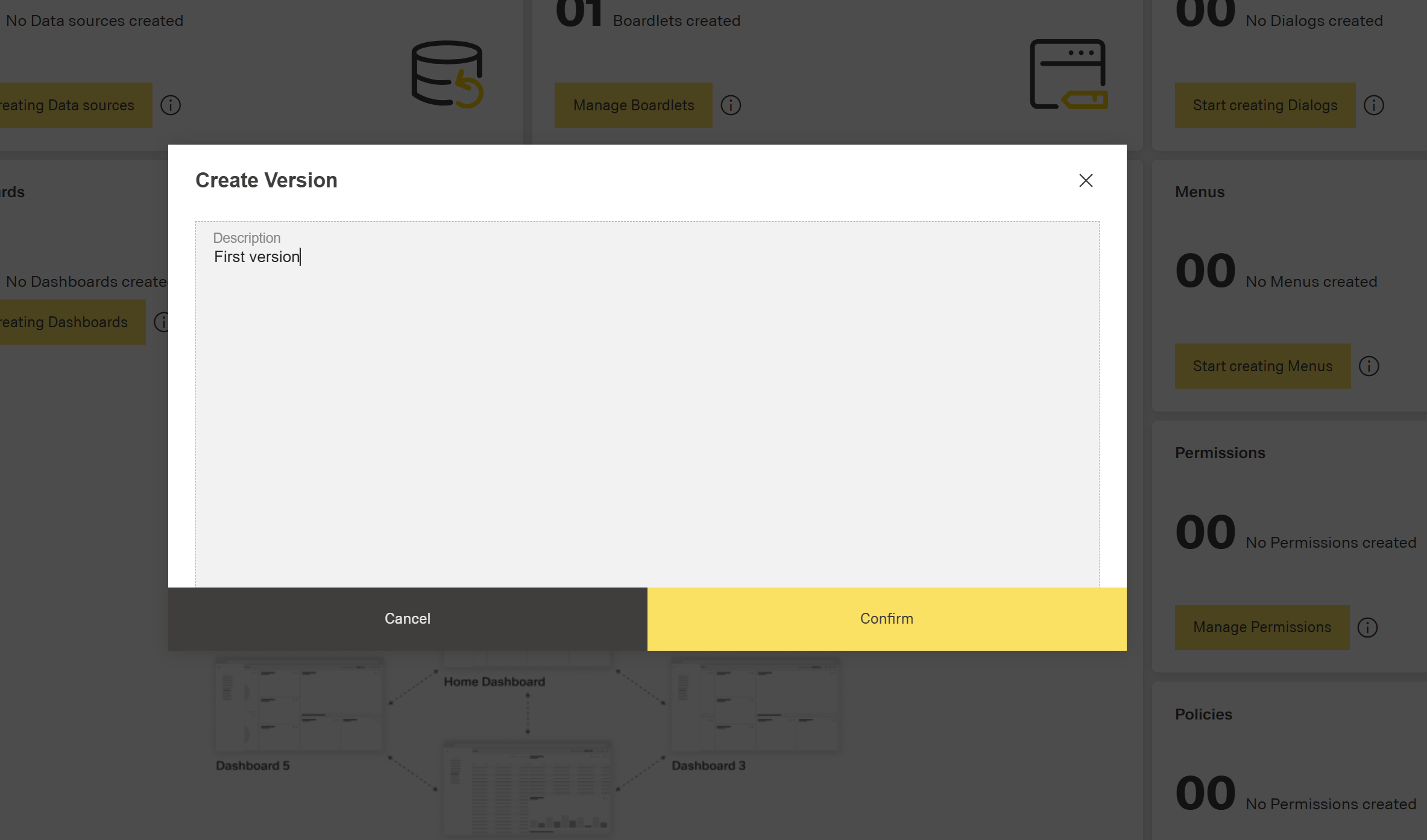
Fill mandatory version description:
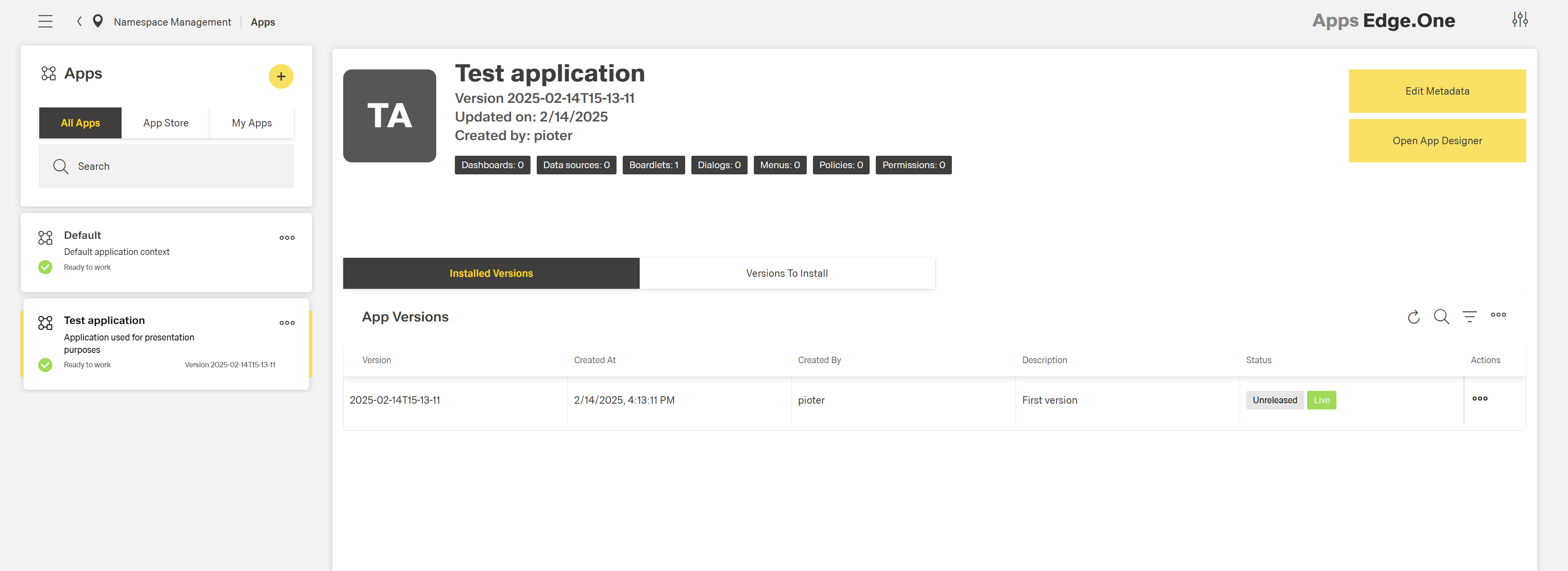
After clicking "Confirm", app version will be created and newly created version can be seen under "Installed Versions" table in app management:
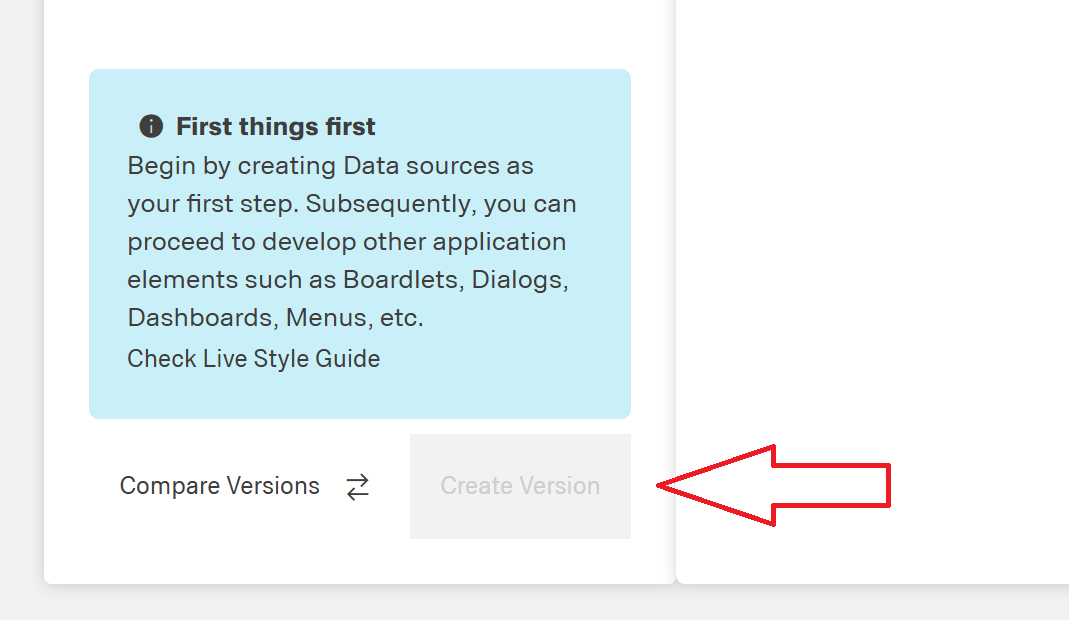
If "Create version" button is disabled (like in screenshot below), it means app "live" state did not change (app was just created or app version was just created/restored).
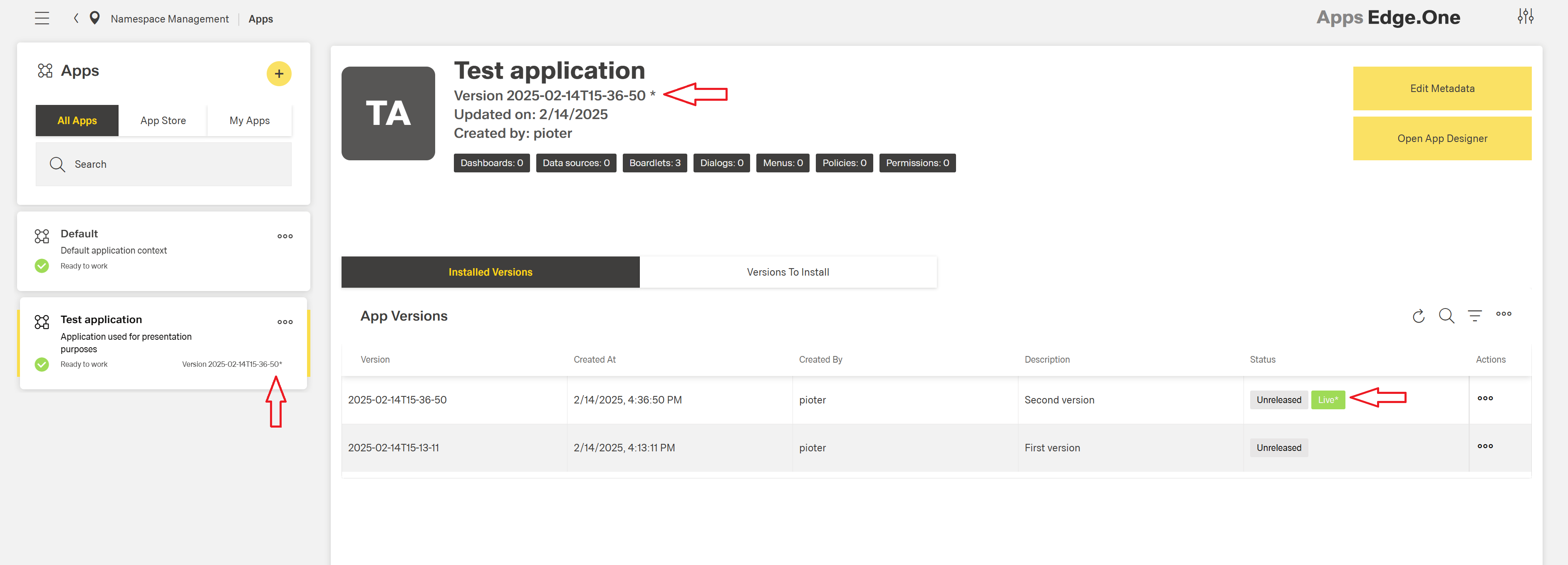
If app is "dirty" (app stated has changed since last created/restored app version) and new version can be created, "asterisk" sign will appear in several places in app management page:
Restore App Version (setting live version)
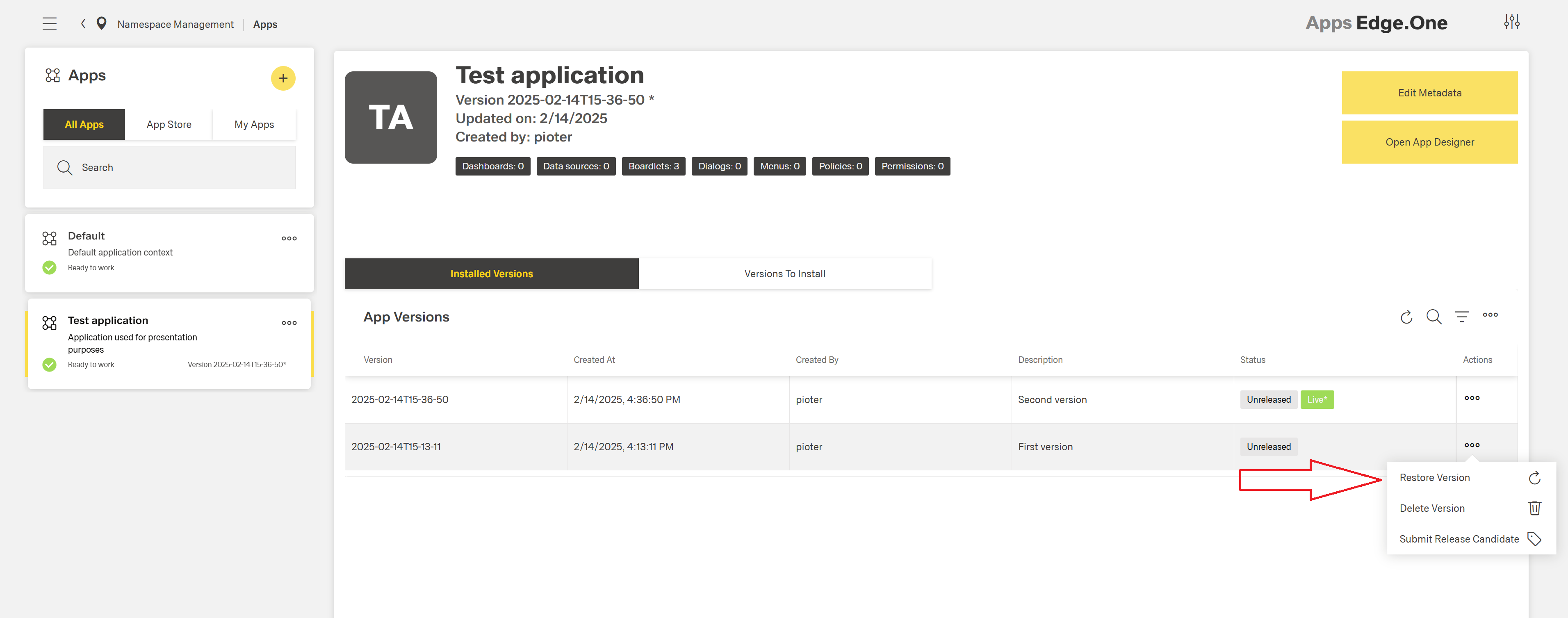
To restore app version (set version as live), click "Restore Version" action on specific app version:
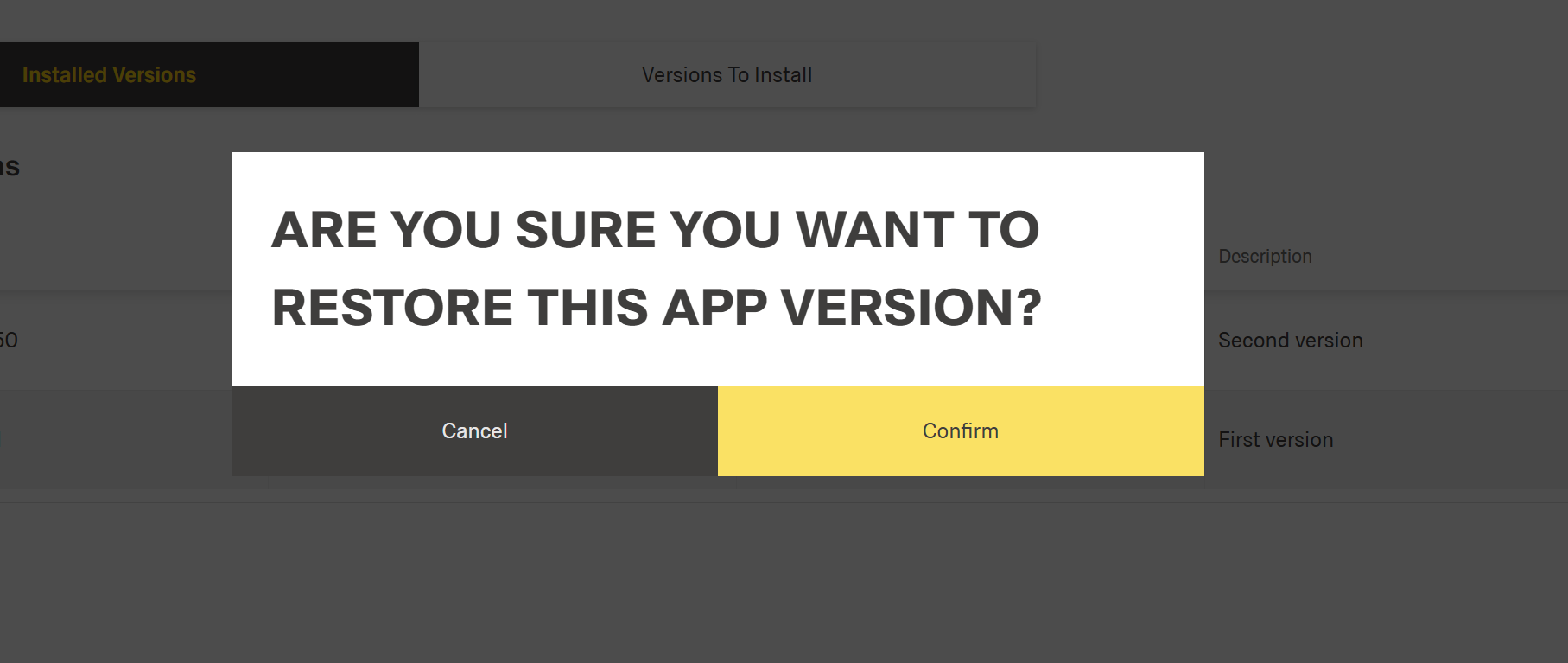
Confirmation dialog will pop up:
After hitting "Confirm", selected app version will be set as live and marked with green "Live" status tag. Version string in app card and app subtitle will also change to restored version string. In following example we can also see that entities count changed based on restored version state:
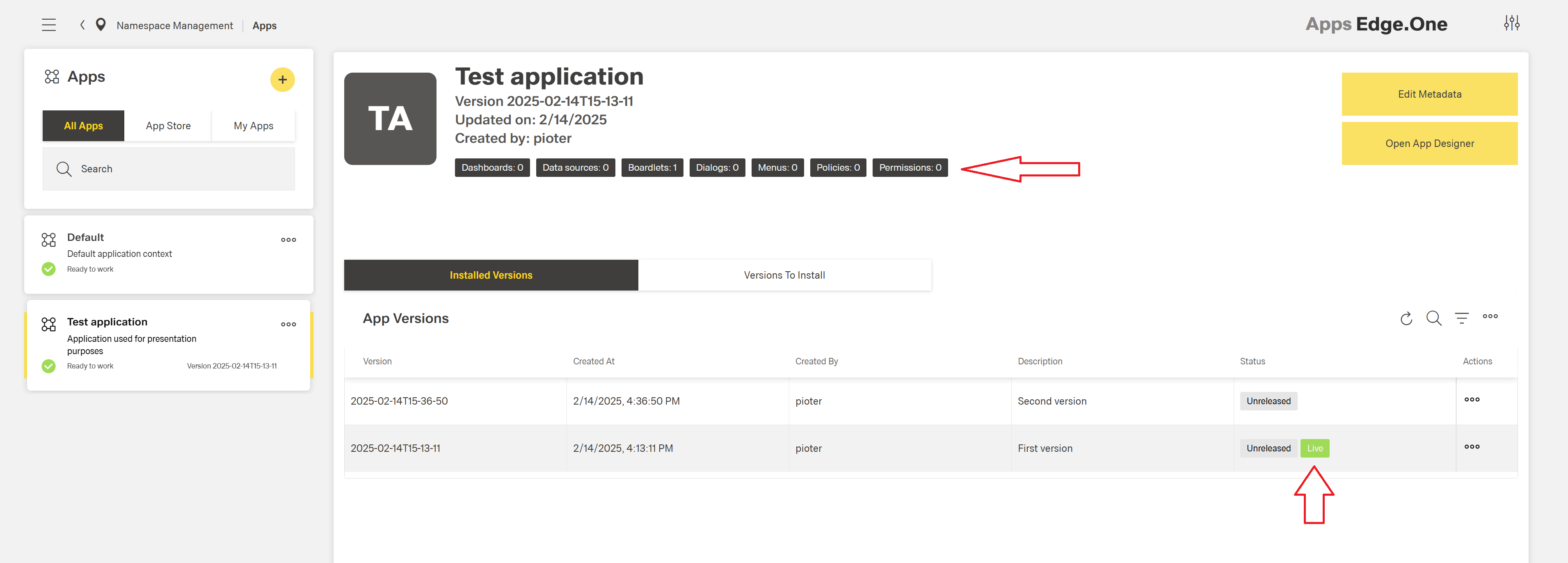
Delete App Version
To delete app version, click "Delete Version" action on specific app version:
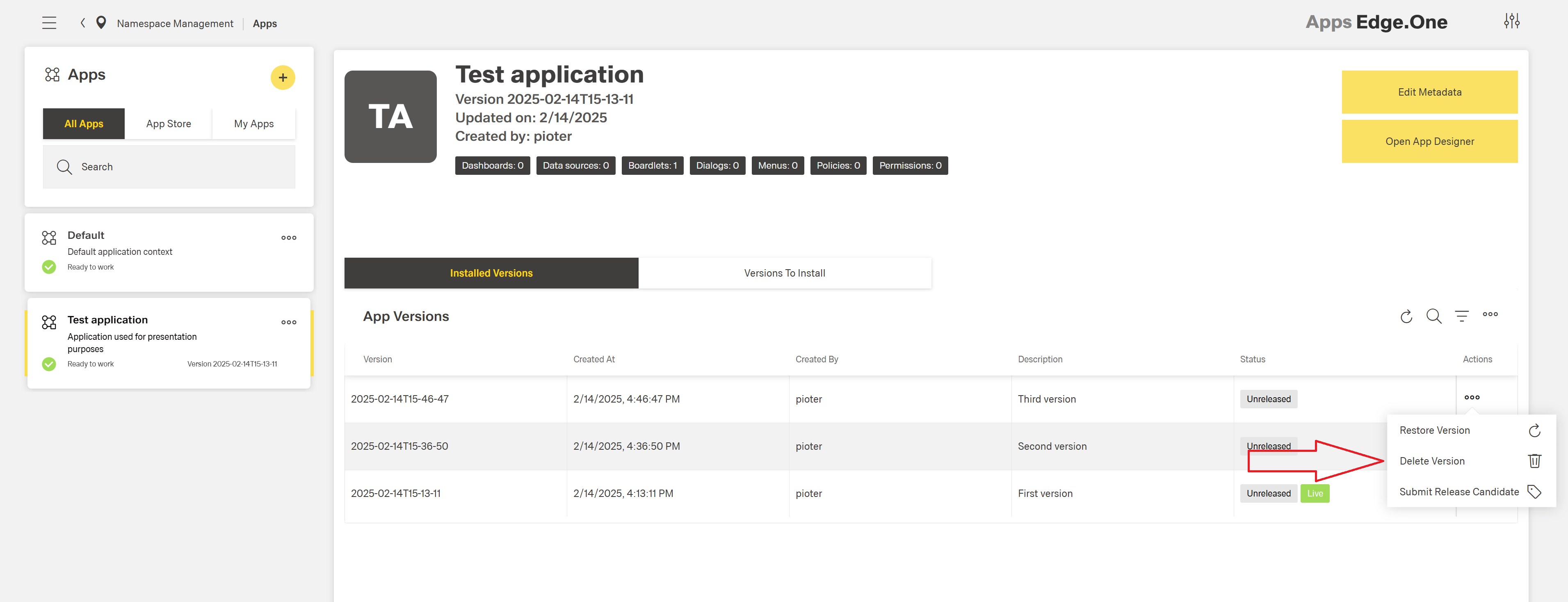
Confirmation dialog will pop up:
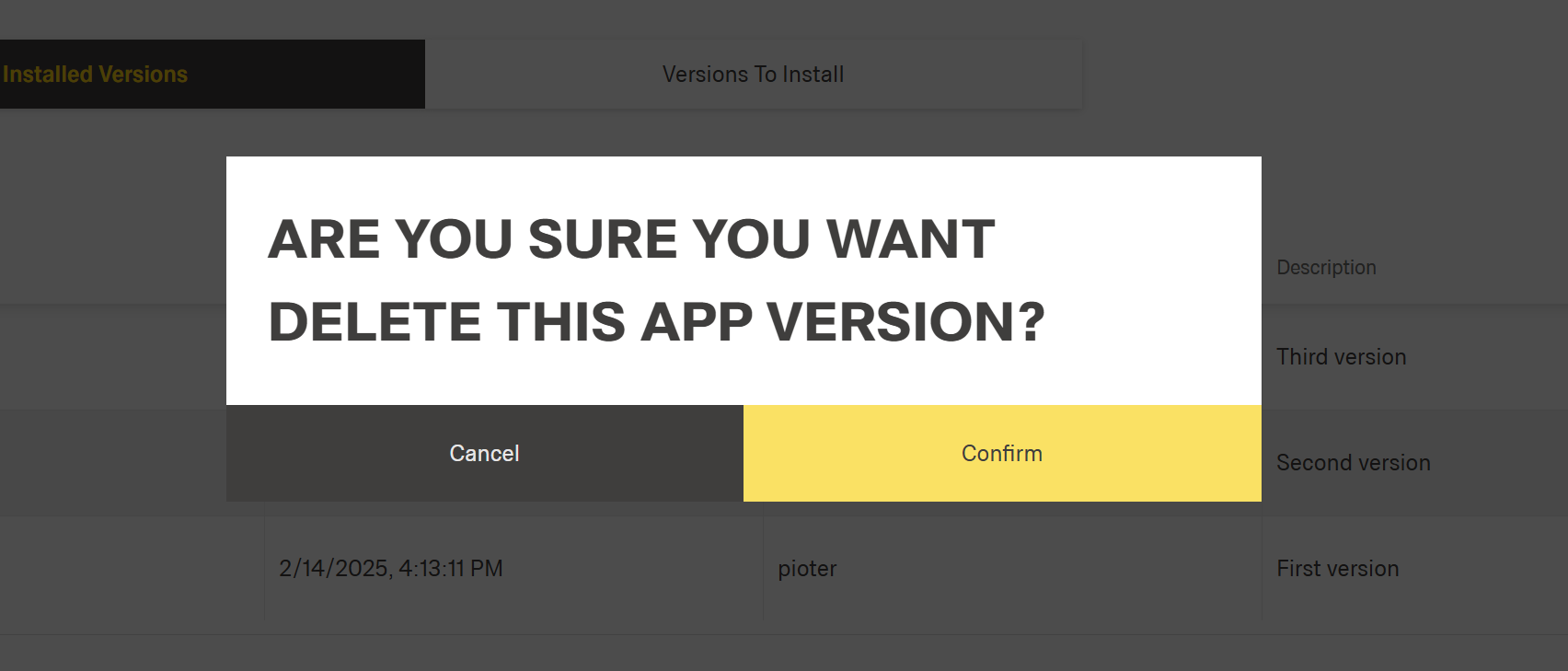
After clicking "Confirm", selected app version will be deleted and can no longer be seen in "Installed Versions" table.
WARNING
If deleted version was live, it does not mean that the current app state will be erased. Deleting version only deletes version itself and the current app state is not touched.
Compare Versions
To check differences between specific version and current live state, click "Compare Versions" button in app designer:

Comparison dialog will appear, then select version to compare from combo box on the left:
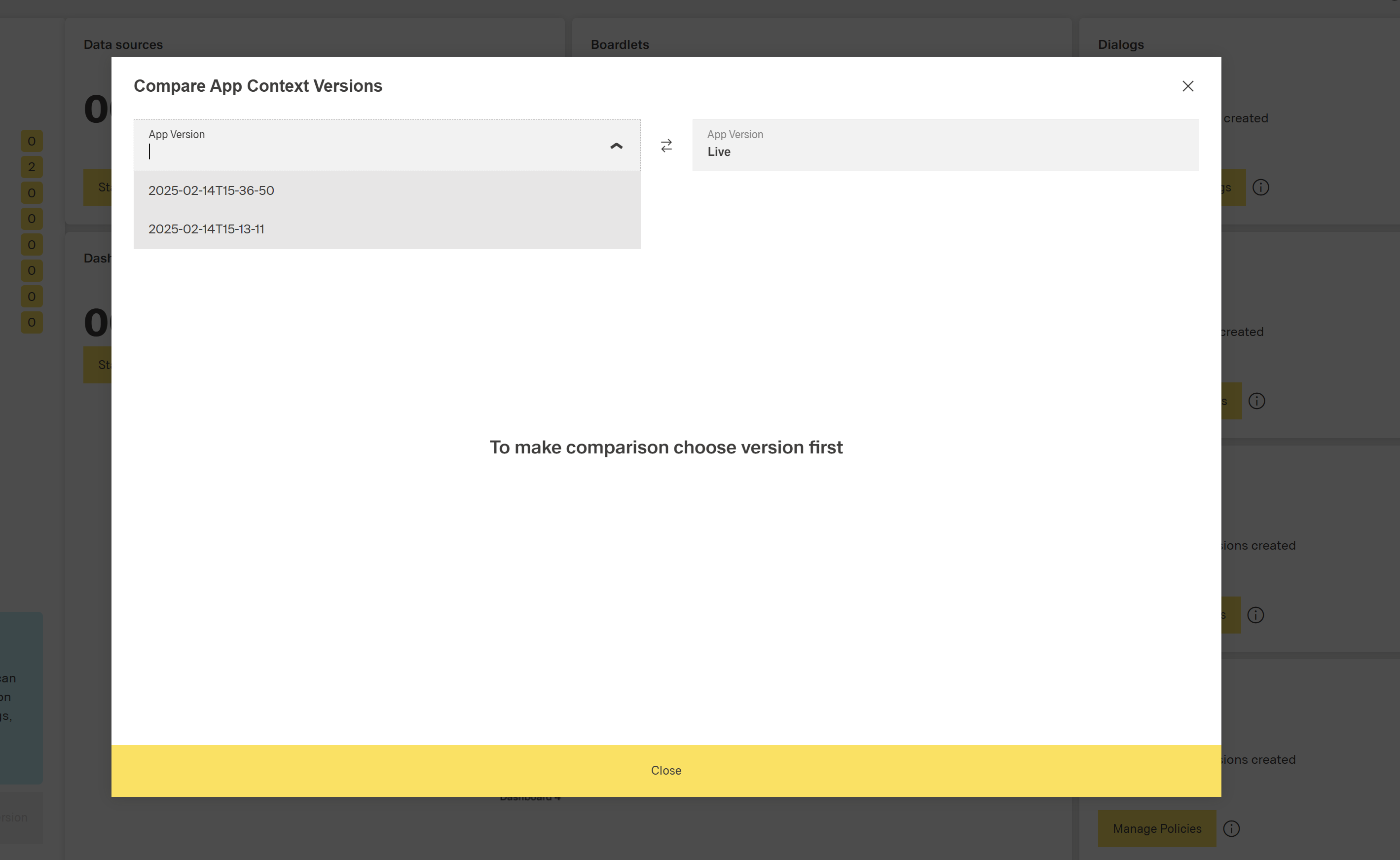
If there is no changes between selected version and live state, following message will be shown:
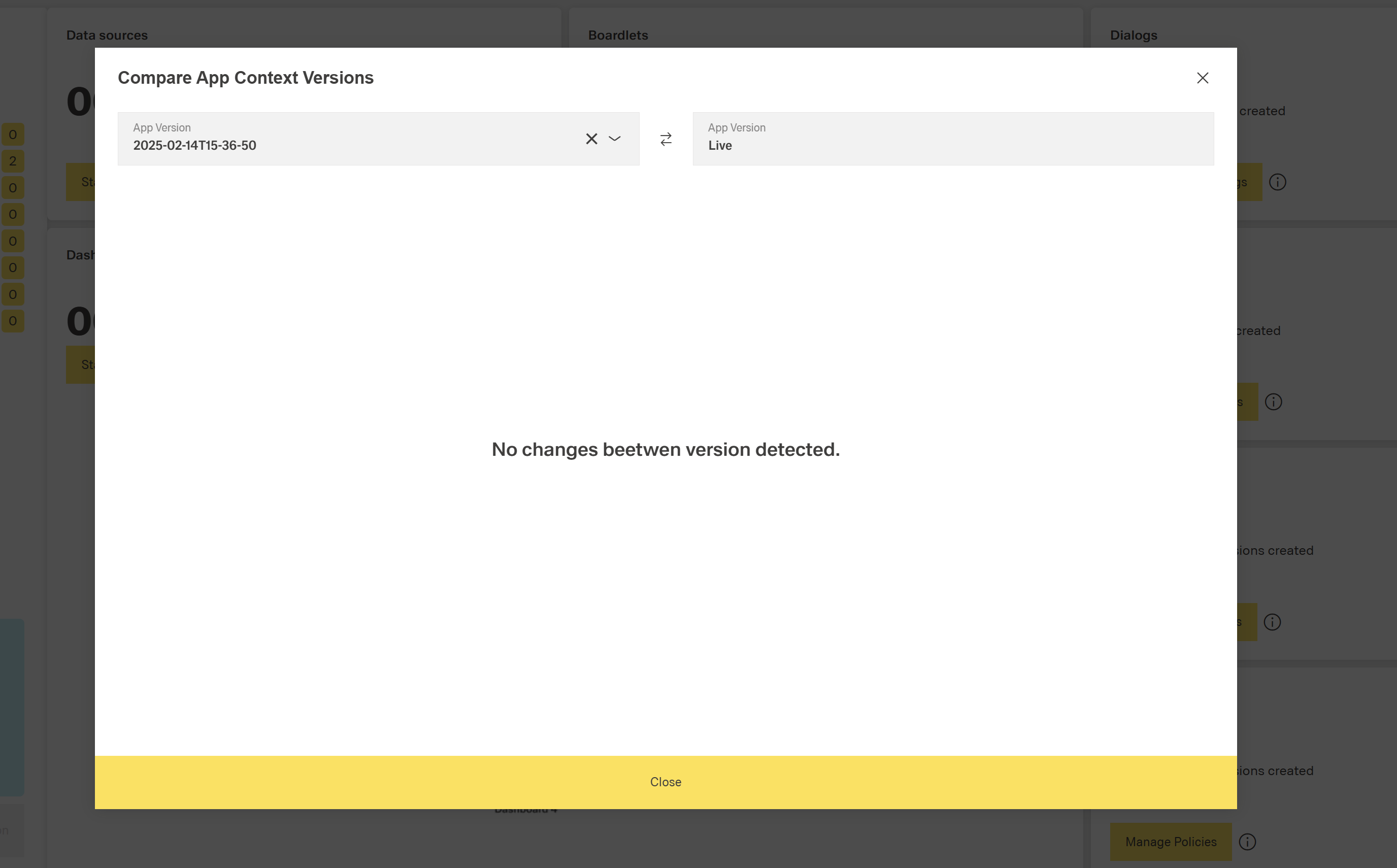
If some changes are detected, the summary of added/updated/deleted entities will appear as follows:

It's also possible to display changes in plain JSON format using "Expert Mode" toggle:
