Dashboard library
1. Introduction
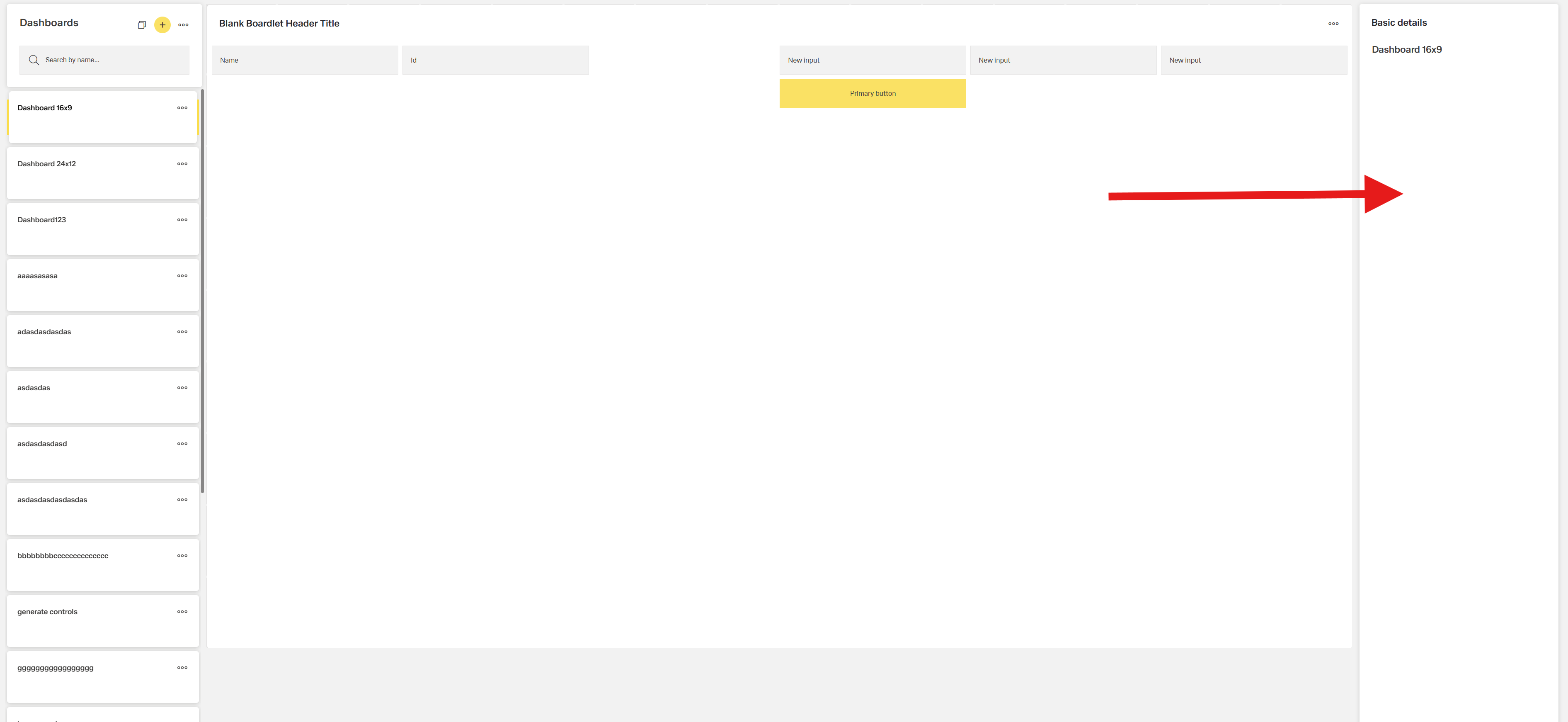
The Dashboard Library is the main place in the application where you can browse, preview, and manage dashboards.
Each dashboard is made up of one or more boardlets — reusable interface blocks that are created and configured using the App Composer.
The Dashboard Library only shows dashboards for the current app context.
This view is divided into three main sections:
- Left panel – dashboard list and management
- Center panel – dashboard preview
- Right panel – basic details of the selected dashboard
With the Dashboard Library, you can:
- Search and organize dashboards
- Create, edit, duplicate, delete dashboards
- Export and import dashboards between contexts
- View dashboards in a structured way

2. Left Panel – Dashboard List
The left side contains a scrollable list of dashboard cards. This is where you can search, create, and manage dashboards.
2.1 Search
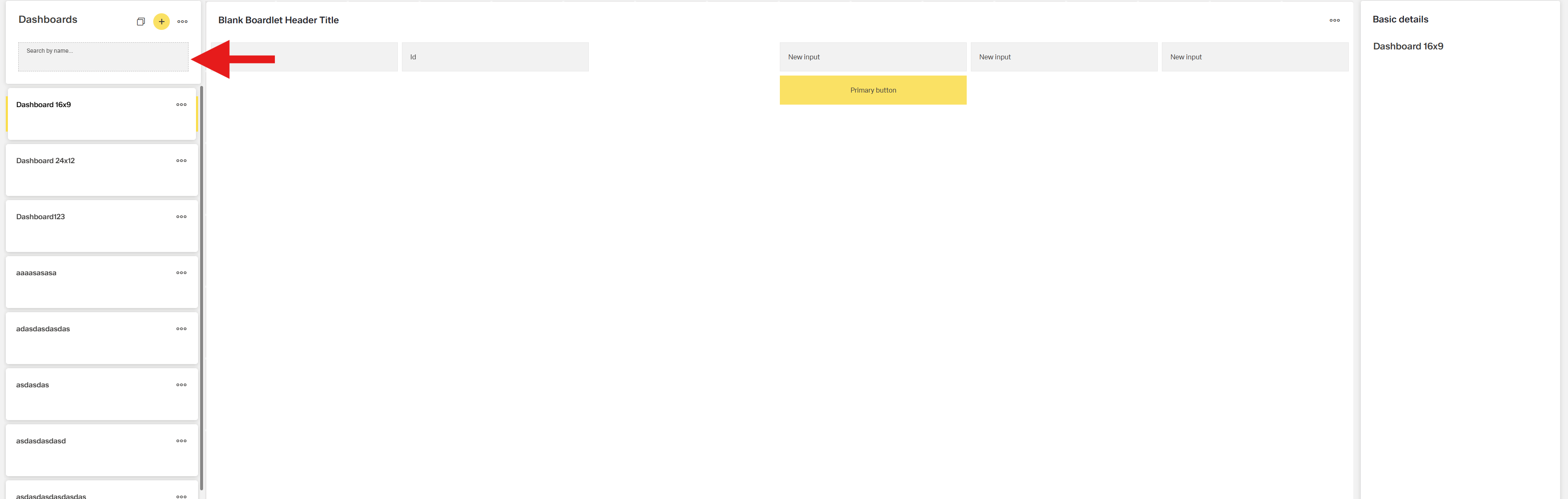
Use the input field labeled “Search by name…” to quickly filter dashboards by name.
2.2 Create New Dashboard
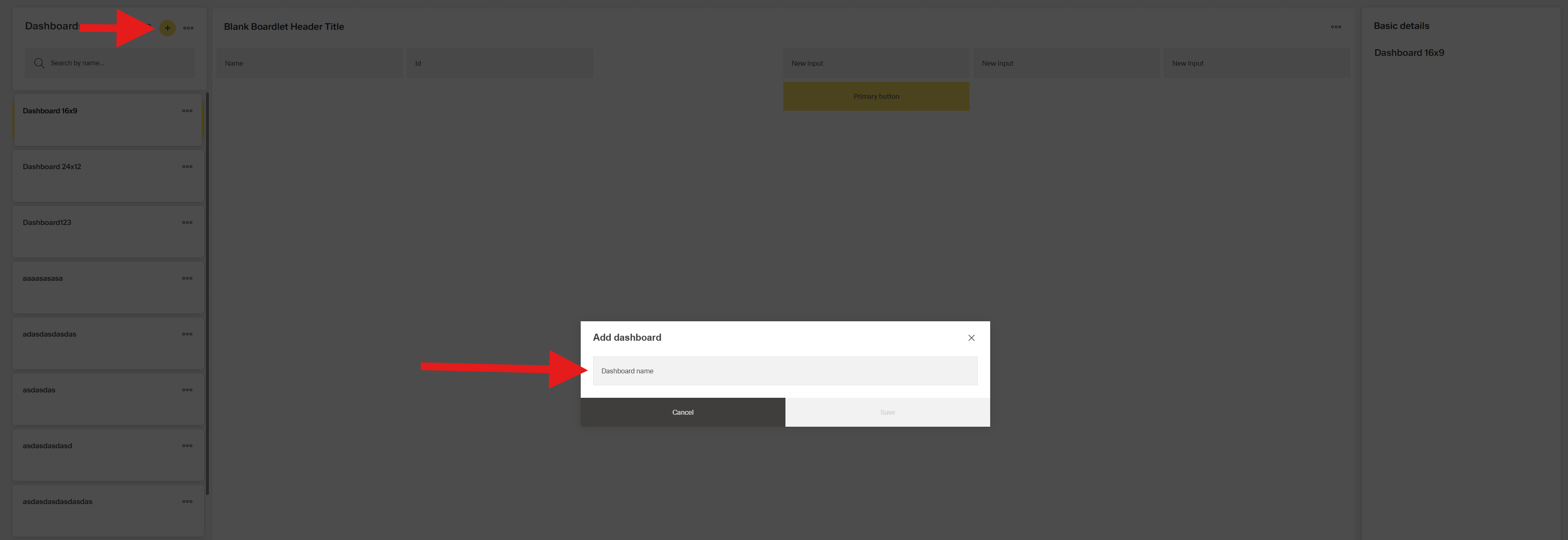
Click the plus icon (+) to create a new dashboard.
You will be asked to provide a name, and the dashboard will appear in the list.
2.3 Multi-select Mode
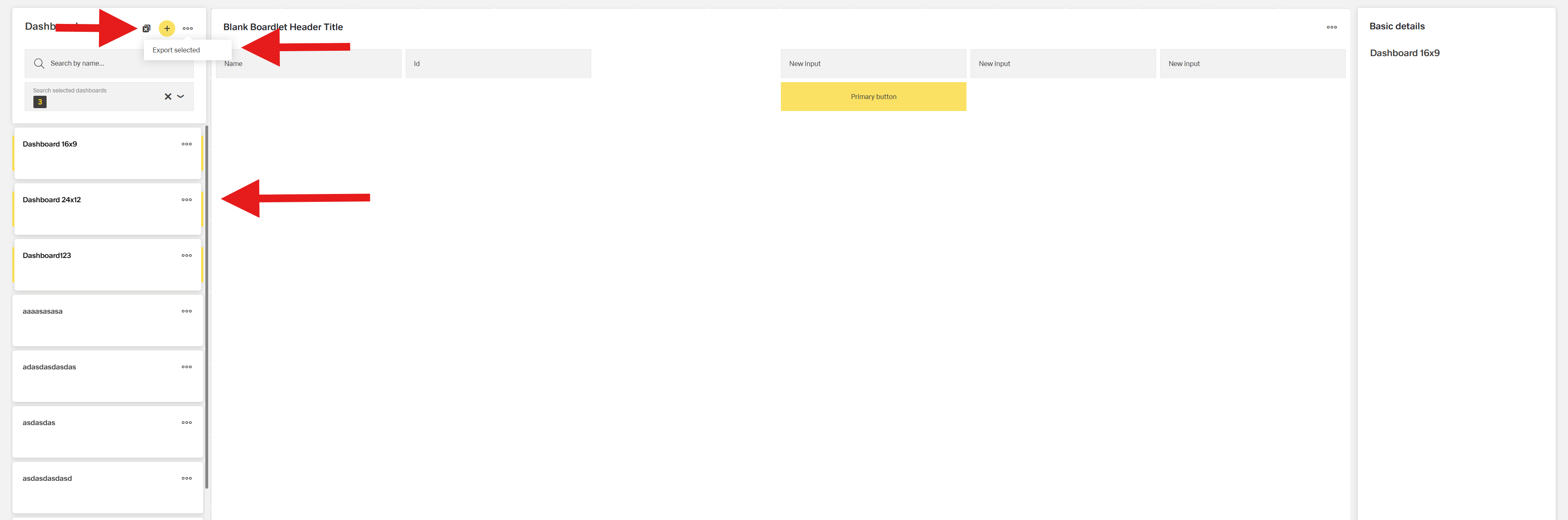
You can select multiple dashboards by clicking the multi-select icon in the top toolbar.
After selecting dashboards, you can export them as a group.
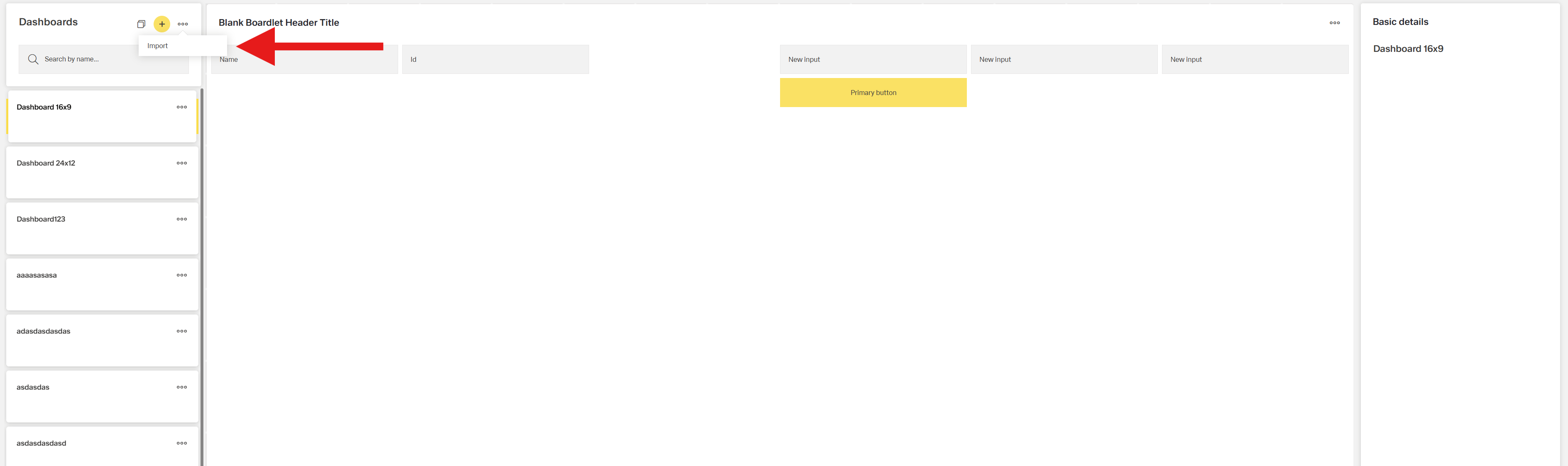
2.4 Import Dashboards
To import dashboards:
- Click the three-dot menu (⋯) at the top right of the panel
- Choose Import
- Select a previously exported dashboard file to load
2.5 Dashboard Cards
Each dashboard is shown as a card with its name.
Clicking on a card:
- Selects the dashboard
- Displays its preview in the center
- Shows its details on the right panel
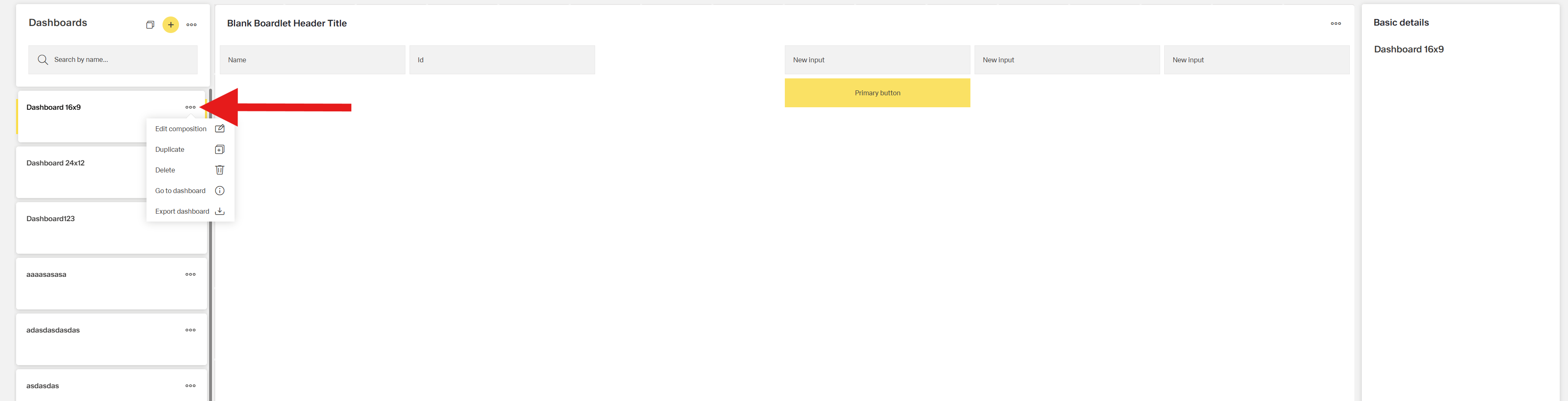
Each card has a three-dot menu in the top-right corner with the following actions:
- Edit composition – opens the dashboard editor to modify layout and boardlets
- Duplicate – creates a copy of the dashboard (including all boardlets)
- Delete – deletes the dashboard (a confirmation dialog appears)
- Go to dashboard – navigates directly to the dashboard view
- Export dashboard – exports the dashboard as a JSON file (can be imported later)
3. Center Panel – Dashboard Preview
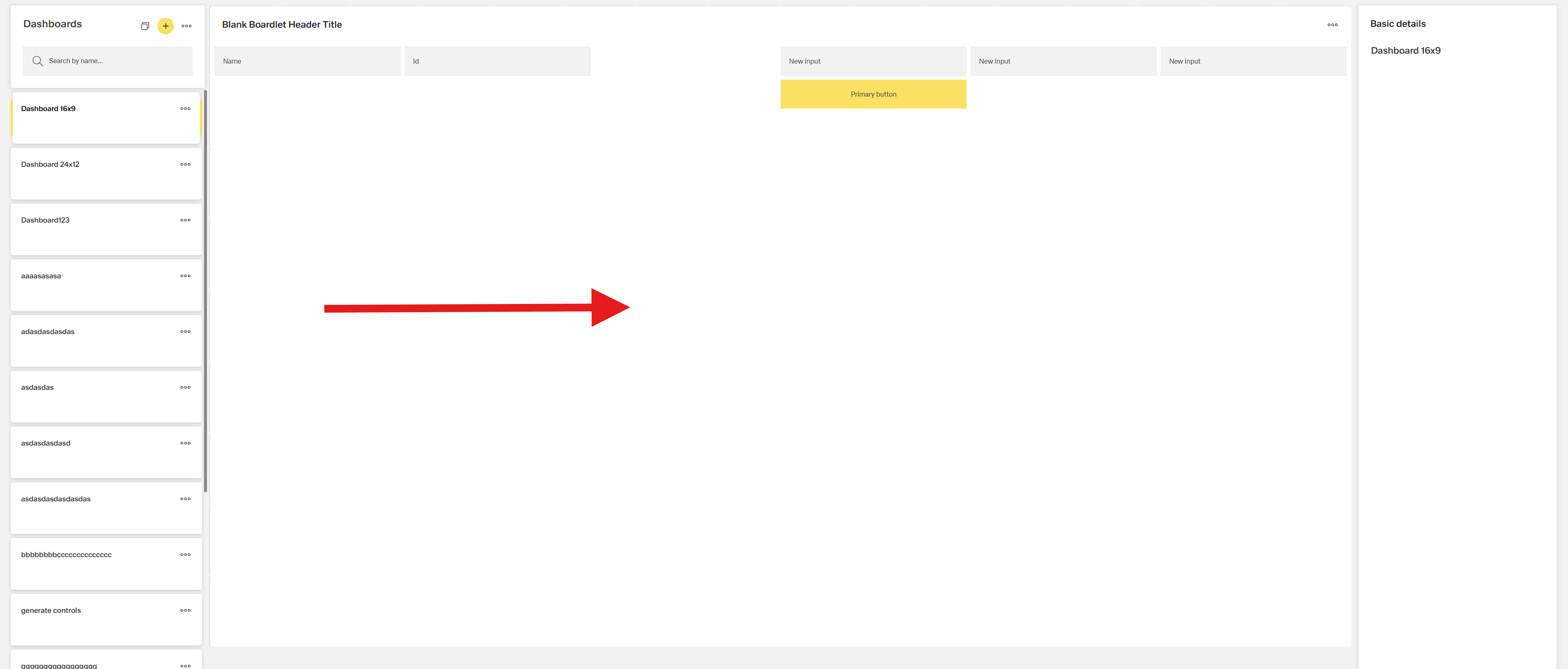
This section shows a read-only preview of the selected dashboard.
The layout of boardlets is displayed as they would appear in the final view.
This helps you understand the structure and content of the dashboard without opening the editor.
4. Right Panel – Basic Details
The panel on the right shows basic metadata about the selected dashboard.